





Slightly Soft Photos
Clarify recognizable faces, objects, and outlines in photos that look a little soft overall.
Automatically sharpen soft photos, refine edges, and reveal clearer details—without changing the image size or making the result look overprocessed. Use Mixinflow to sharpen image files in one click, with no Amount, Radius, or Threshold settings to learn.
JPG, JPEG, PNG, WebP, or AVIF · Max 25 MB
A useful image sharpener should improve definition without covering the photo in halos, noise, white outlines, or brittle texture. Mixinflow analyzes visible softness and uses a restrained AI image sharpener process to make important edges easier to see while respecting the source.
Upload a photo and let Mixinflow sharpen image details automatically. You do not need to understand Amount, Radius, Threshold, masking, or high-pass filters. The AI image sharpener examines edge contrast, subject type, facial regions, texture, and general softness before applying a balanced correction. This one-click workflow is useful when a phone photo looks slightly out of focus, a camera image feels soft, or an exported graphic needs a cleaner finish before publishing.
Over-sharpening can create bright borders, dark edge lines, visible grain, crunchy hair, and plastic-looking skin. Mixinflow is designed to sharpen image content conservatively so faces, fabric, foliage, surfaces, and backgrounds remain believable. The image sharpener improves readable definition rather than forcing every pixel to look hard. Compare the before and after view at normal size and zoom in when you need to inspect a face, label, or fine product edge.
The standard AI image sharpener route does not intentionally replace people, rewrite text, redesign products, crop the frame, or enlarge the canvas. It aims to sharpen image edges while keeping identity, colors, lighting, wording, dimensions, and composition consistent. Real detail that was never captured cannot be guaranteed, so important text and tiny factual features should always be checked against the source after sharpening.
Use Mixinflow to sharpen image files that contain recognizable detail but need better edge definition and a clearer final presentation.
Clarify recognizable faces, objects, and outlines in photos that look a little soft overall.
Reduce mild smearing when enough real shape and texture remain in the source image.
Make materials, controls, packaging edges, and existing label detail easier to inspect.
Improve the visible edge contrast of screenshots, scanned pages, signs, and document photos.
The Mixinflow image sharpener free workflow is built for practical images that need cleaner definition before saving, sharing, publishing, or archiving. It keeps the original dimensions and lets you judge the result beside the source.
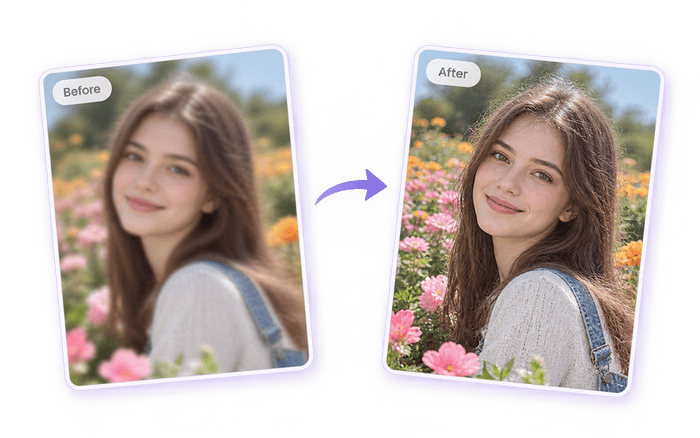
Sharpen image details in selfies, family photos, travel pictures, group shots, and phone-camera images that look slightly soft. Mixinflow gives facial contours, eyes, hair, clothing, and nearby objects more definition while aiming to preserve identity, expression, skin texture, lighting, and color. The AI image sharpener is intentionally restrained because an attractive portrait should not develop white edge halos or a waxy, overprocessed face.
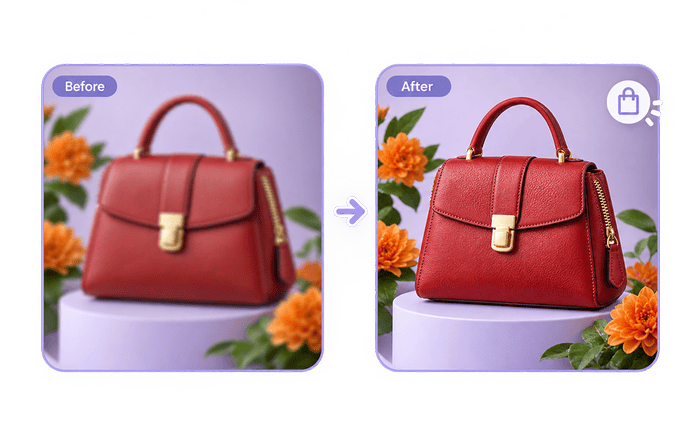
Use the image sharpener to refine product edges, material texture, buttons, seams, packaging, and visible label details before an ecommerce listing, marketplace post, menu, or catalog update. A sharper product image can feel more polished and easier to inspect, but Mixinflow does not intentionally alter the product design. After you sharpen image content, verify tiny text, model numbers, ingredients, and specifications against the physical product.
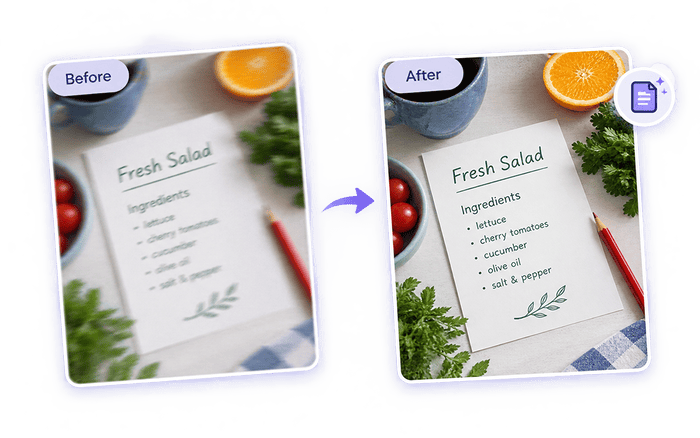
Sharpen image text in screenshots, scanned notes, photographed documents, presentation slides, diagrams, signs, and receipts when the letters are visible but their edges look fuzzy. Better local contrast may improve readability without changing the canvas size. For best results, start with the original screenshot or highest-resolution scan. An online image sharpener can clarify captured strokes, but it cannot truthfully invent a letter that is absent from the file.
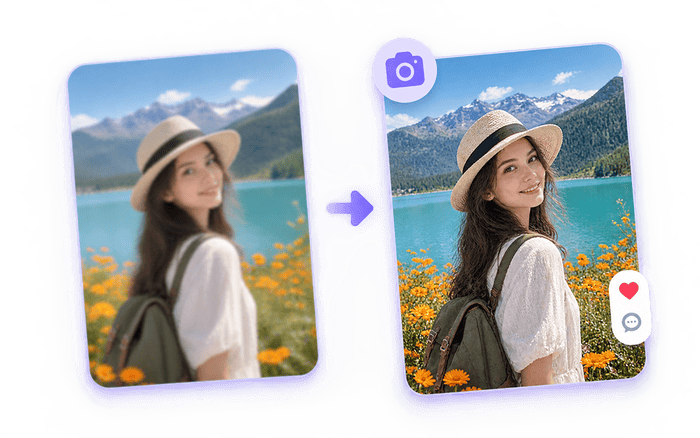
Give old photos, downloaded JPEGs, website graphics, thumbnails, and social media images a crisper appearance before reuse. The image sharpener free trial is useful for quick final checks when an export looks softer than expected. If the source contains strong noise, blocks, or color speckles, denoise it first. Then sharpen image details only once so existing compression artifacts are not repeatedly intensified.
Mixinflow makes the sharpen image process automatic. There are no confusing desktop controls, and two free images can be processed without creating an account.
Choose a JPG, JPEG, PNG, WebP, or AVIF file up to 25 MB. To give the AI image sharpener the most real information, upload the original camera file, screenshot, scan, or export instead of a repeatedly compressed copy.
Mixinflow analyzes the image and applies automatic sharpening with a natural Auto Sharpen route. You do not have to select Amount, Radius, or Threshold. The image sharpener focuses on useful edge definition and avoids intentional changes to the subject, dimensions, framing, or design.
Drag the before-and-after divider to confirm that the sharpen image result is genuinely clearer. Check faces, text, product labels, and high-contrast edges for halos or noise, then download the result at its output dimensions or try another source image.
Use Mixinflow to sharpen image details automatically, compare the natural result, and download it at the original dimensions.
Sharpen Image FreeNo installation required · 2 free images without signing up