1
Upload your image
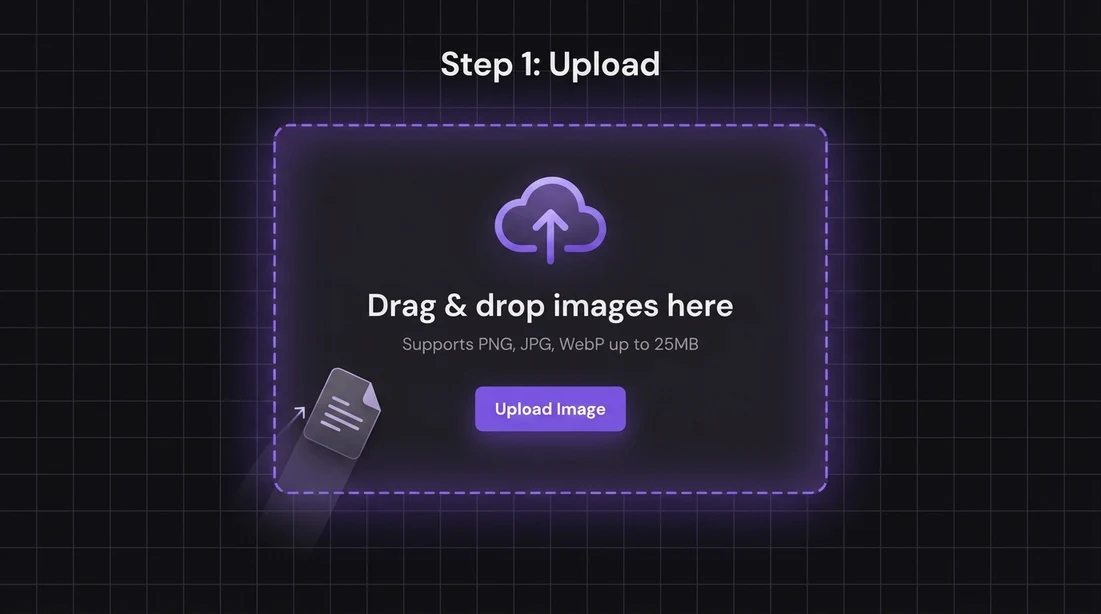
Add a JPG, PNG, or WEBP file from your device, or start with one of the sample images if you want to test the photo resizer first.
Resize JPG, PNG, and WEBP images online in seconds for social posts, websites, ecommerce, and more.
Supports PNG, JPG, WebP up to 25MB
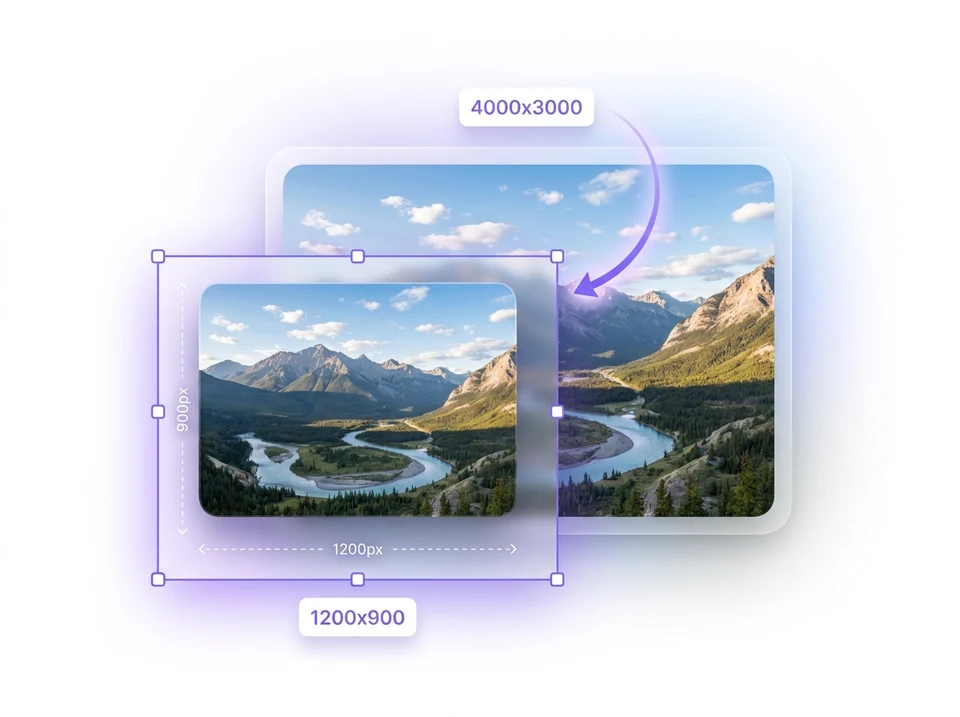
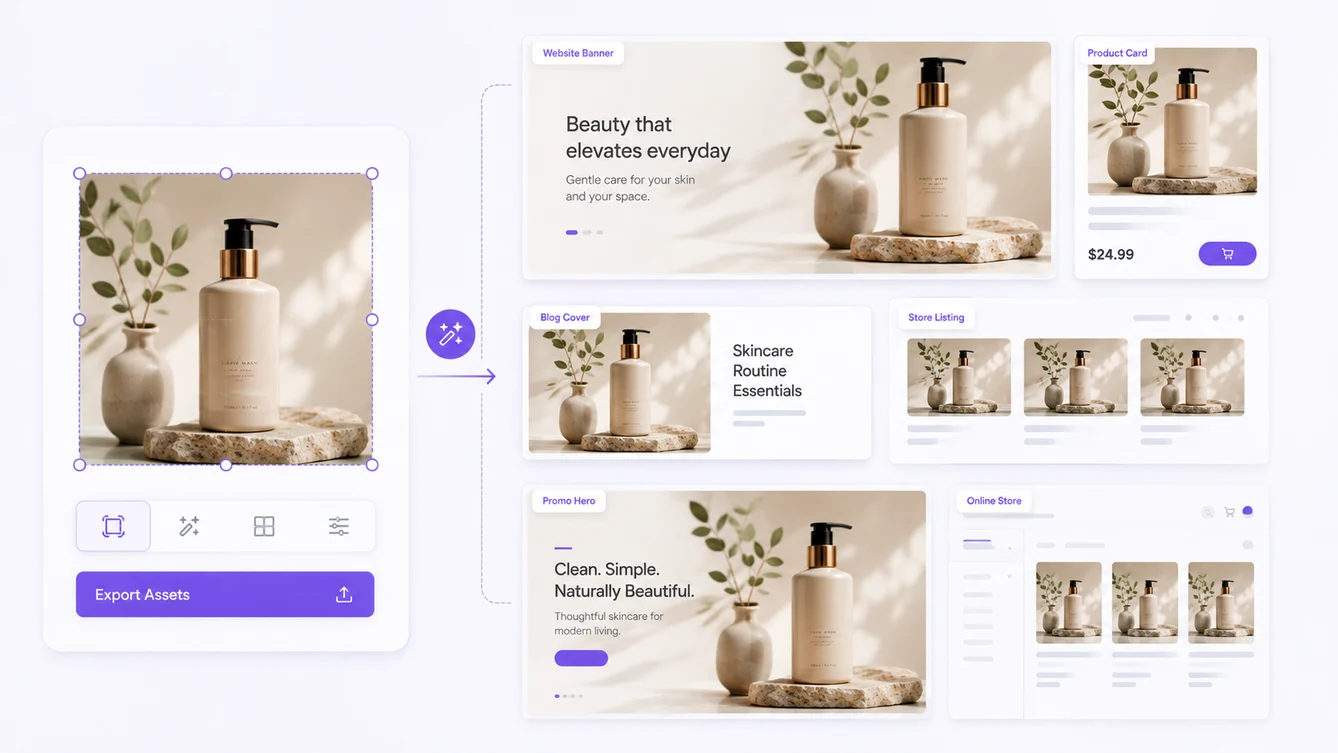
Many photo resizing tasks happen because the image has to fit a page slot, a catalog card, a banner, or a product layout. Mixinflow helps you move from source image to a better-sized publishing asset for website banners, blog images, store cards, and campaign modules without opening a heavier desktop workflow first.
Prepare web-ready assets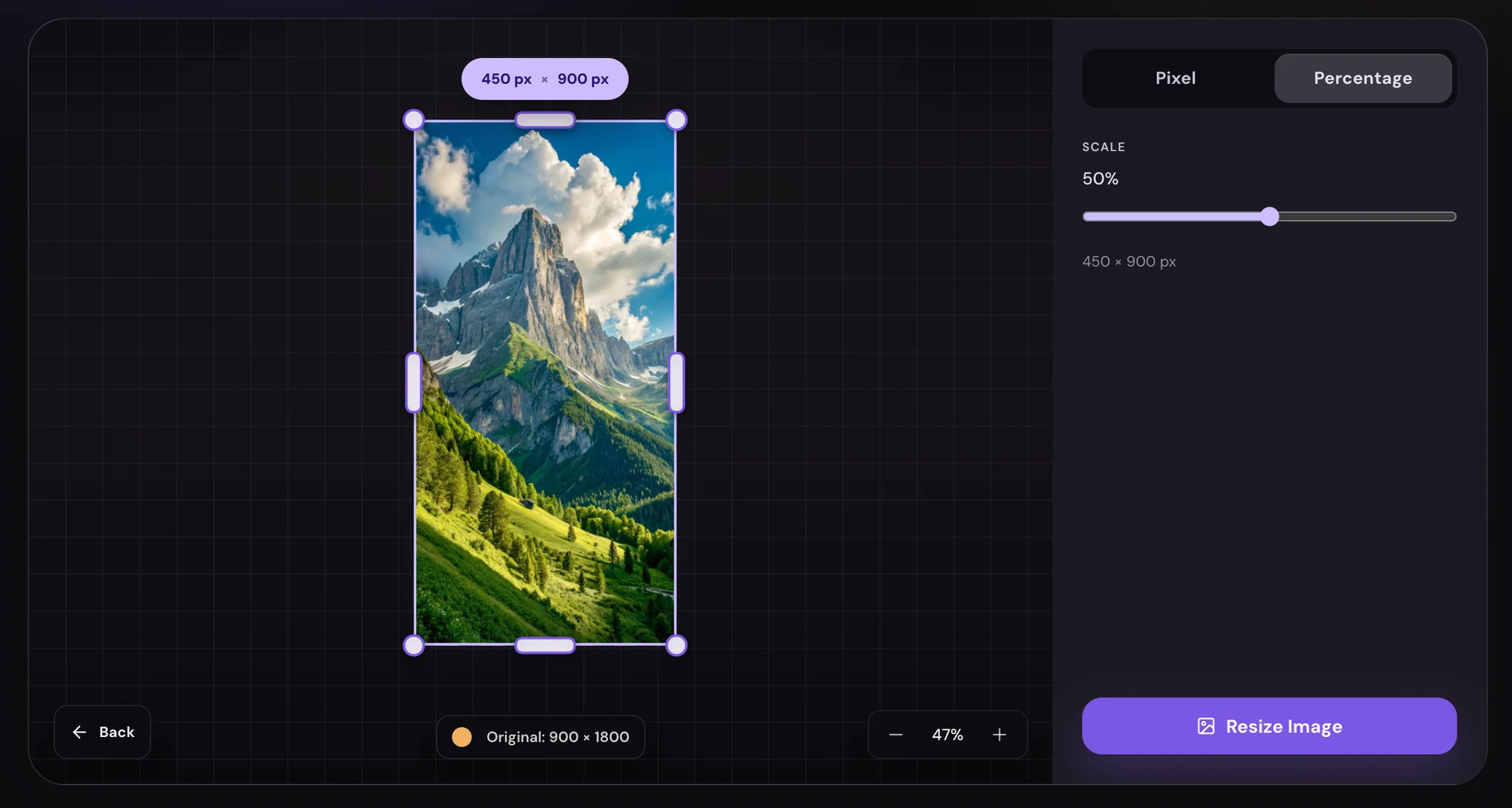
Switch between exact pixel dimensions and percentage-based scaling depending on the job. Mixinflow lets you see the new size before export, which is useful when you are preparing assets for banners, product cards, profile photos, and other layout-specific placements.
Try the resizerResize an image in three quick steps, then download it or continue editing inside Mixinflow.
Add a JPG, PNG, or WEBP file from your device, or start with one of the sample images if you want to test the photo resizer first.
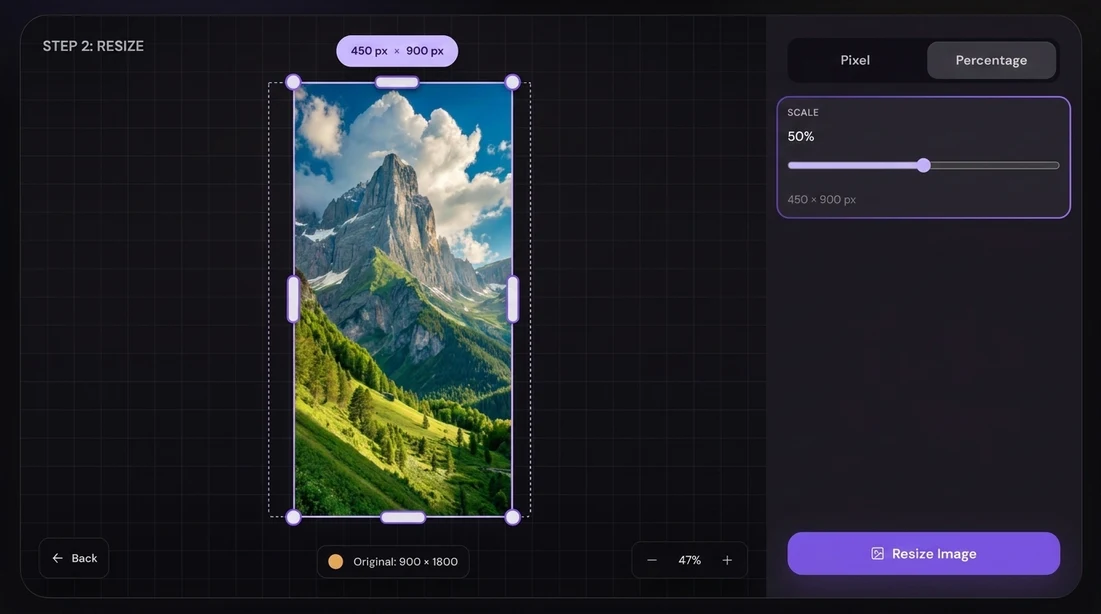
Choose pixel mode or percentage mode, adjust the width and height, keep the aspect ratio locked if needed, and set the output quality before resizing.
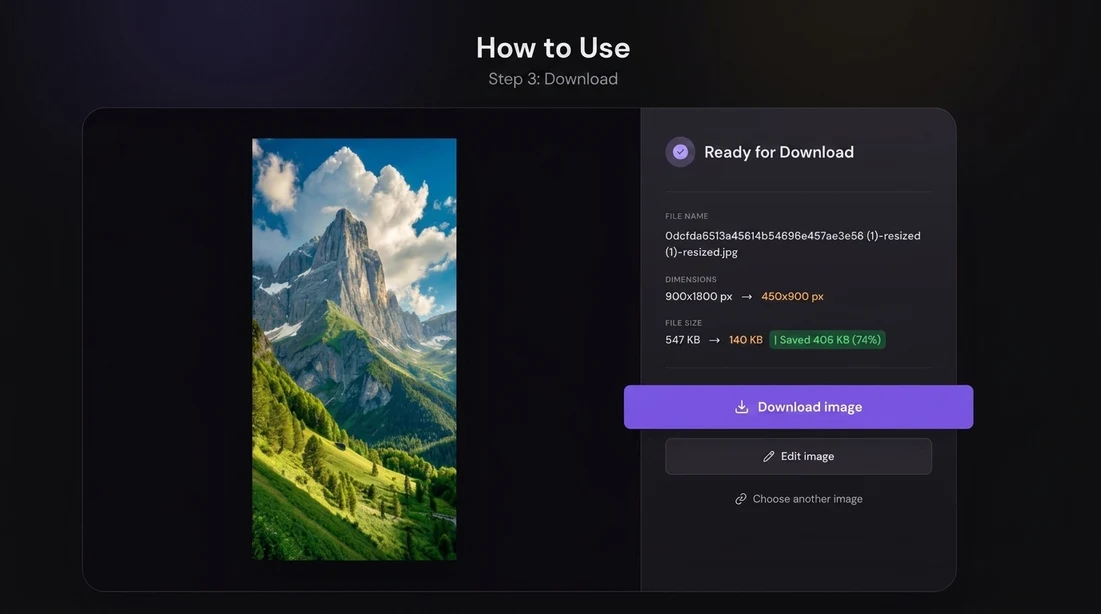
Preview the updated dimensions, download the resized image, or send it into the editor if you want to keep refining it.
Use Mixinflow when you need to resize a photo online for layouts that show up repeatedly across social, web, store, and internal publishing workflows.
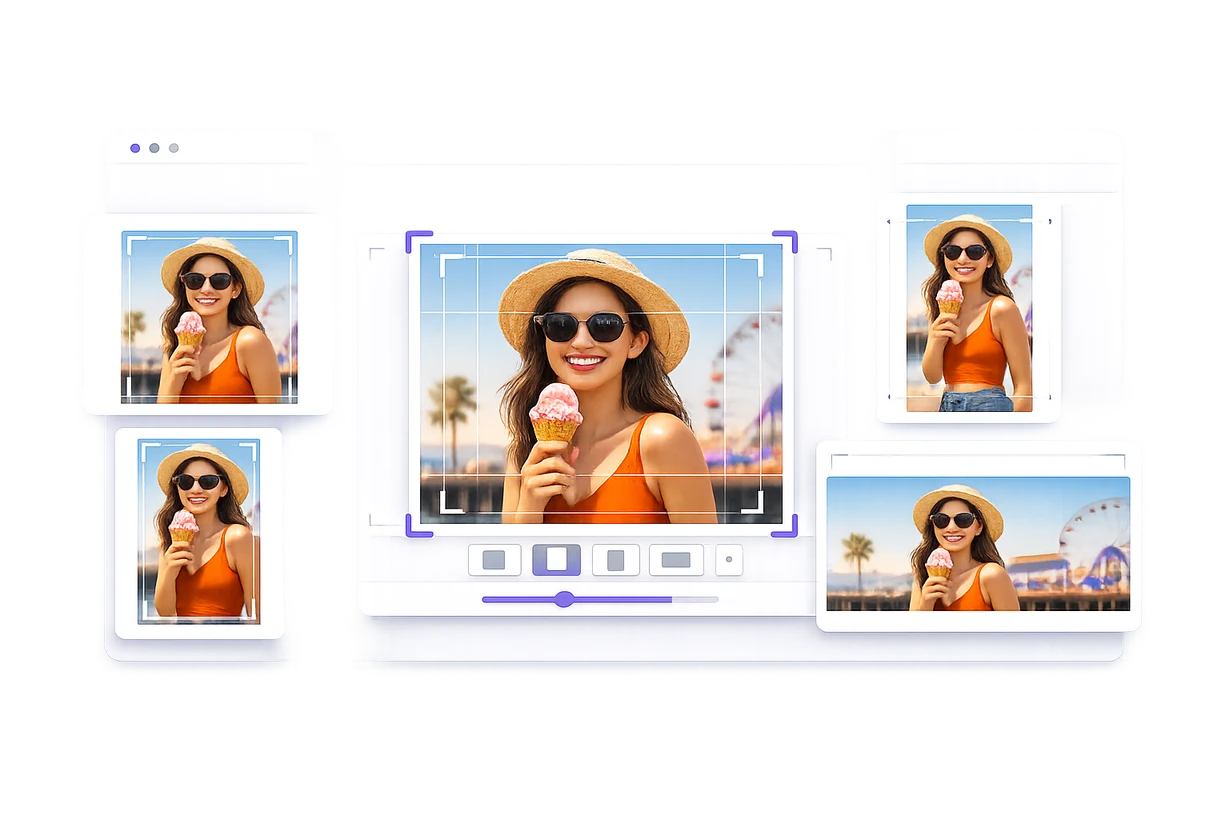
Prepare square, portrait, and wider social visuals for feed posts, story covers, campaign creatives, and platform-specific content where image shape matters.
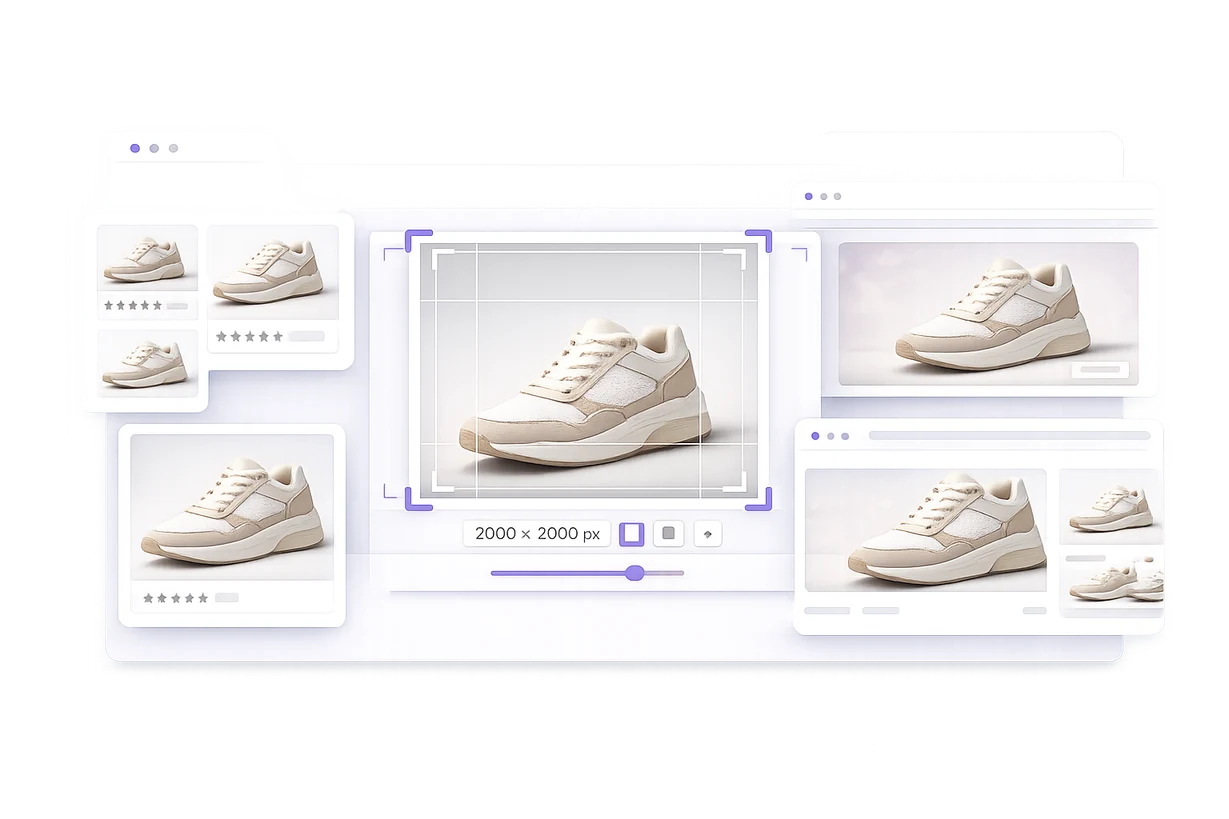
Use a photo resizer workflow to prepare product photos for listings, catalog cards, collection pages, promo graphics, and store campaigns that need cleaner visual consistency.
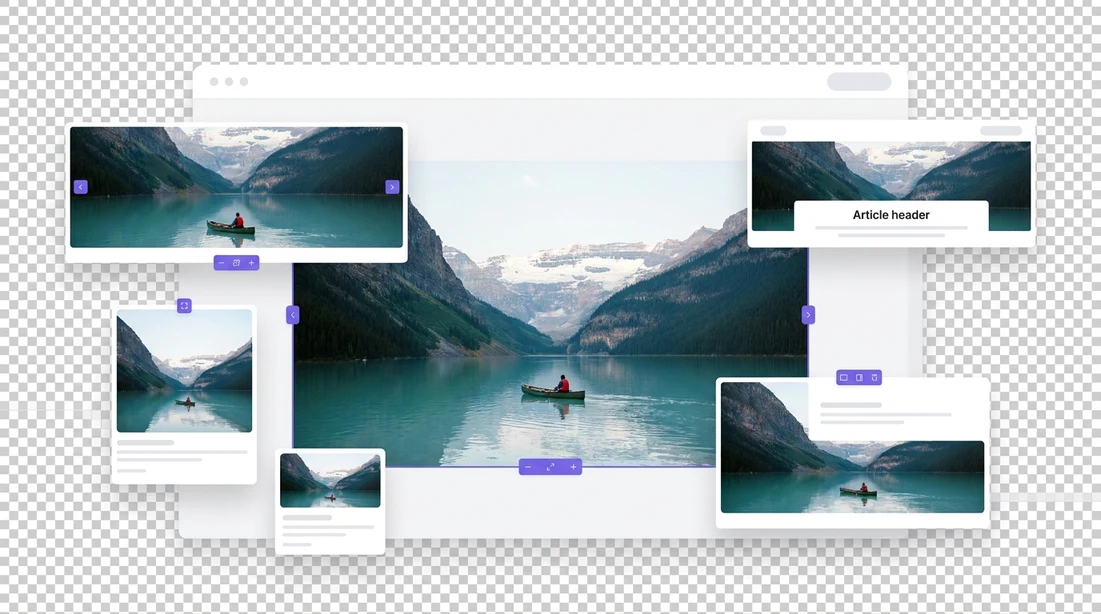
Adjust visuals for hero banners, blog cards, landing page sections, article headers, and content blocks so they fit the page more naturally.
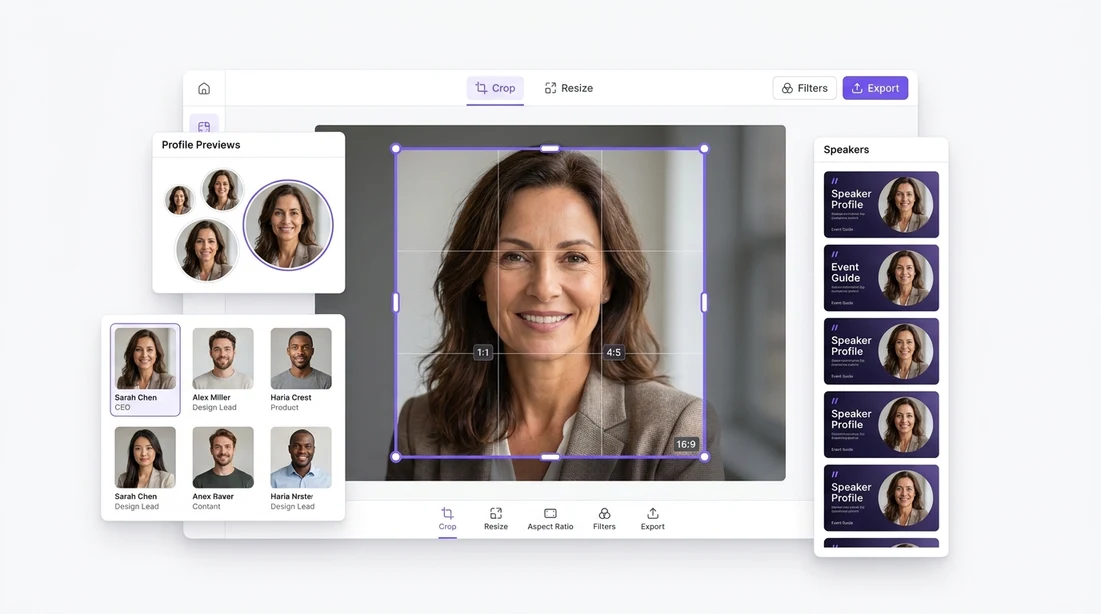
Prepare portraits, speaker headshots, creator images, and account visuals for profile modules, directories, and branded about pages.
Explore popular ways to resize your images for the channels and layouts that creators, marketers, and ecommerce teams use most often.
Use feed-focused sizes when you want one image to sit cleanly inside square and portrait-friendly placements without looking cramped or awkwardly cropped.
Taller formats are useful when the destination is full-height on mobile and the image needs more vertical presence for stories, short-form content, or app-first placements.
Wider layouts help images sit behind headlines, support CTA blocks, and fill responsive sections more naturally across desktop-heavy pages.
Use balanced landscape sizes when the image needs to work well as a blog card, content preview, or share image without overfilling the layout.
Use feed-focused sizes when you want one image to sit cleanly inside square and portrait-friendly placements without looking cramped or awkwardly cropped.
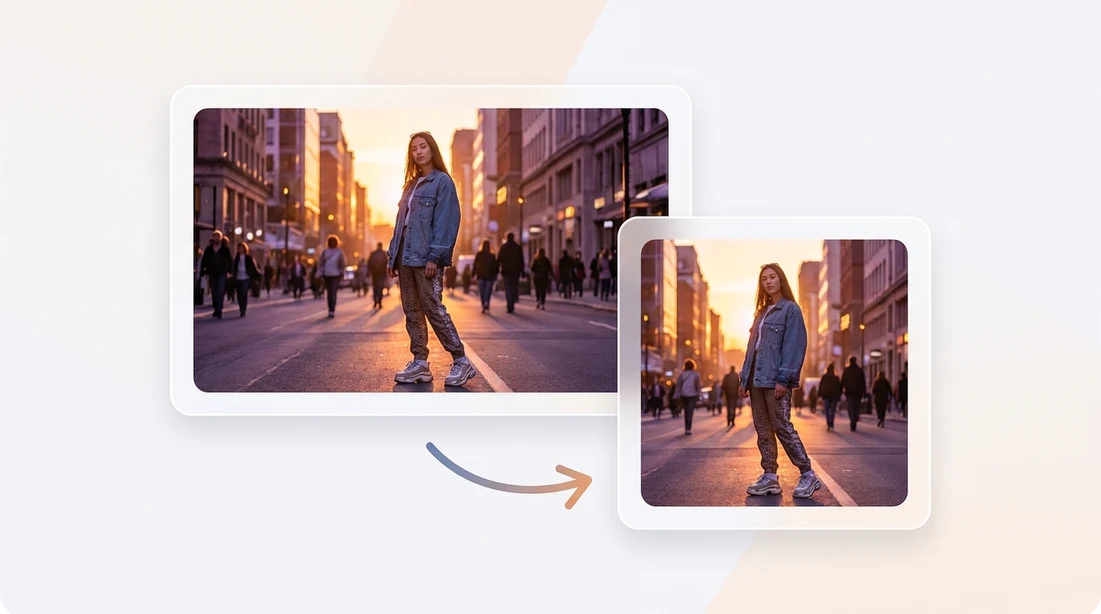
These workflows solve different problems. Choosing the right one depends on whether you need to change the layout, reduce file weight, remove part of the frame, or create more surrounding space.
| Tool | What it changes | Best for |
|---|---|---|
| Resize | Changes the image dimensions or aspect ratio. | Matching a new layout, channel, or publishing format. |
| Crop | Removes pixels from the edges of the frame. | Cutting away unused space or distractions around a subject. |
| Compress | Reduces file weight while keeping the existing layout. | Faster loading, uploads, and file-size limits. |
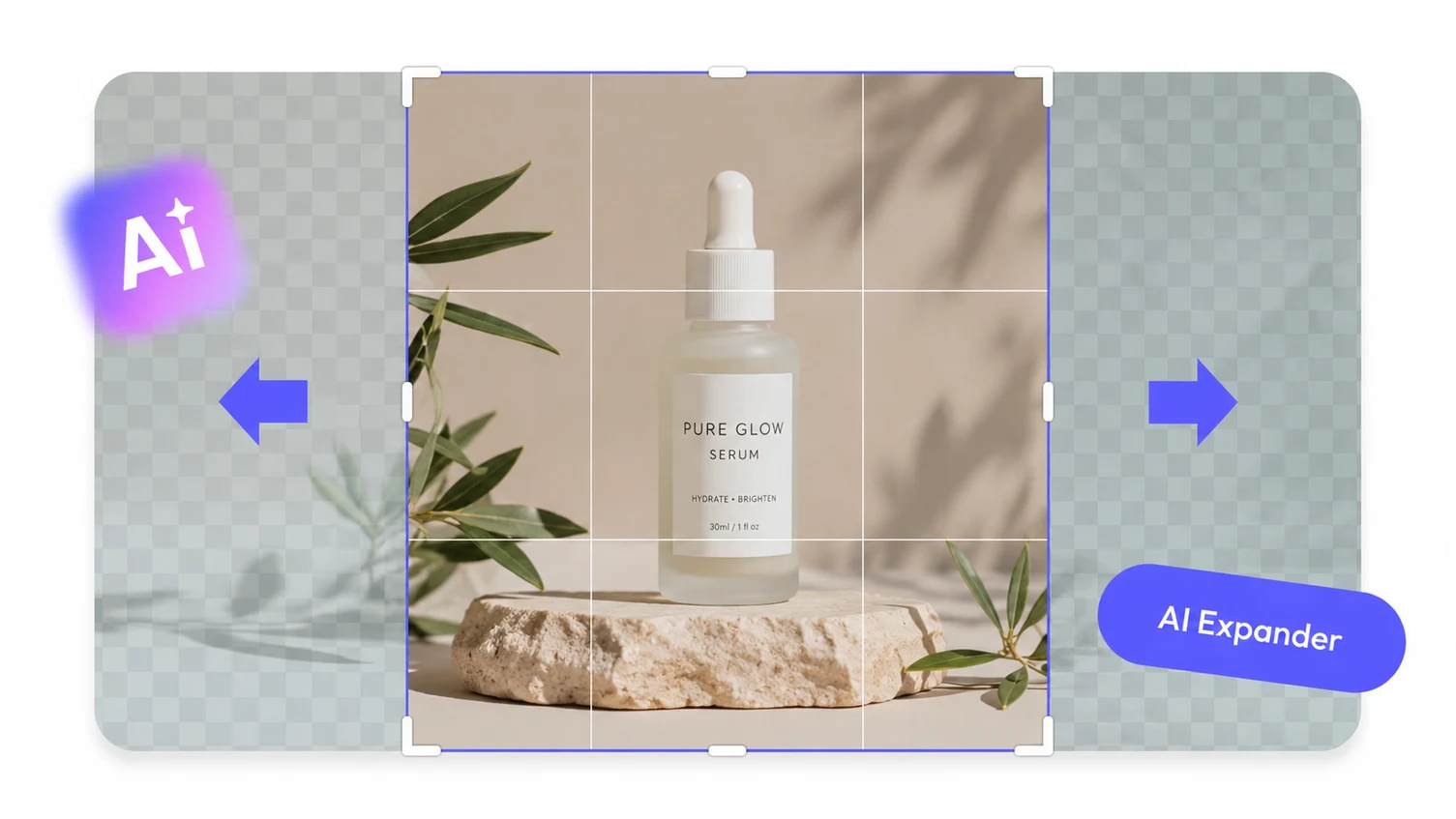
| Extend | Creates new visual content beyond the original frame. | Adding surrounding space when the source composition feels too tight. |
Open the editor, prepare the image for the layout you need, and keep going if the visual also needs cleanup, extension, or other finishing work.
Start Free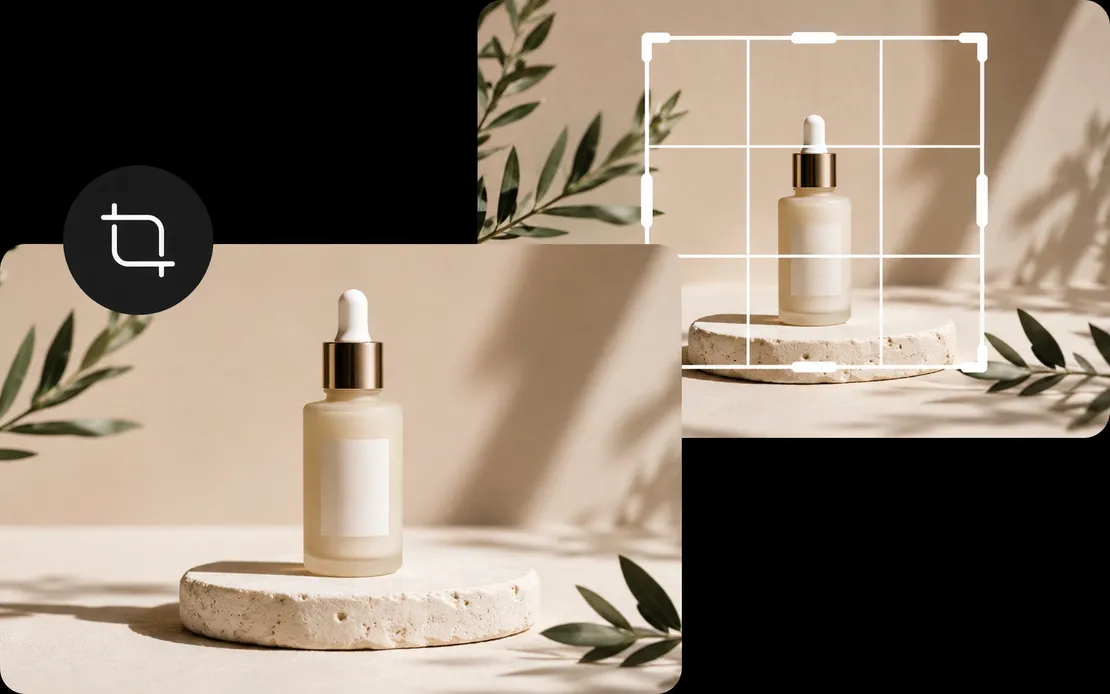
Resize photos for social-ready aspect ratios
Use Mixinflow when you need a more practical photo resizer workflow for square posts, vertical layouts, feed images, and other social media placements that depend on the right image shape. It is especially useful for recurring Instagram planning, portrait-friendly formats, and content teams that need resizing plus follow-up cleanup in one place.
Start in the editor