AI Inpainting – Inpaint Images Online
Select the area. Describe the change. Refine your image. Mark a region with a brush or rectangle, then tell Mixinflow what to add, replace, or repair.
JPG, PNG, or WebP · up to 25 MB
Brush selection
Rectangle selection
Text-guided local editing
What Is AI Inpainting?
AI inpainting generates image content inside a region selected within an existing picture. The selection, often called a mask, identifies the editing target. A text prompt describes the result you want, while the visible image provides context such as color, surfaces, object placement, and light.
Try a Local Image Edit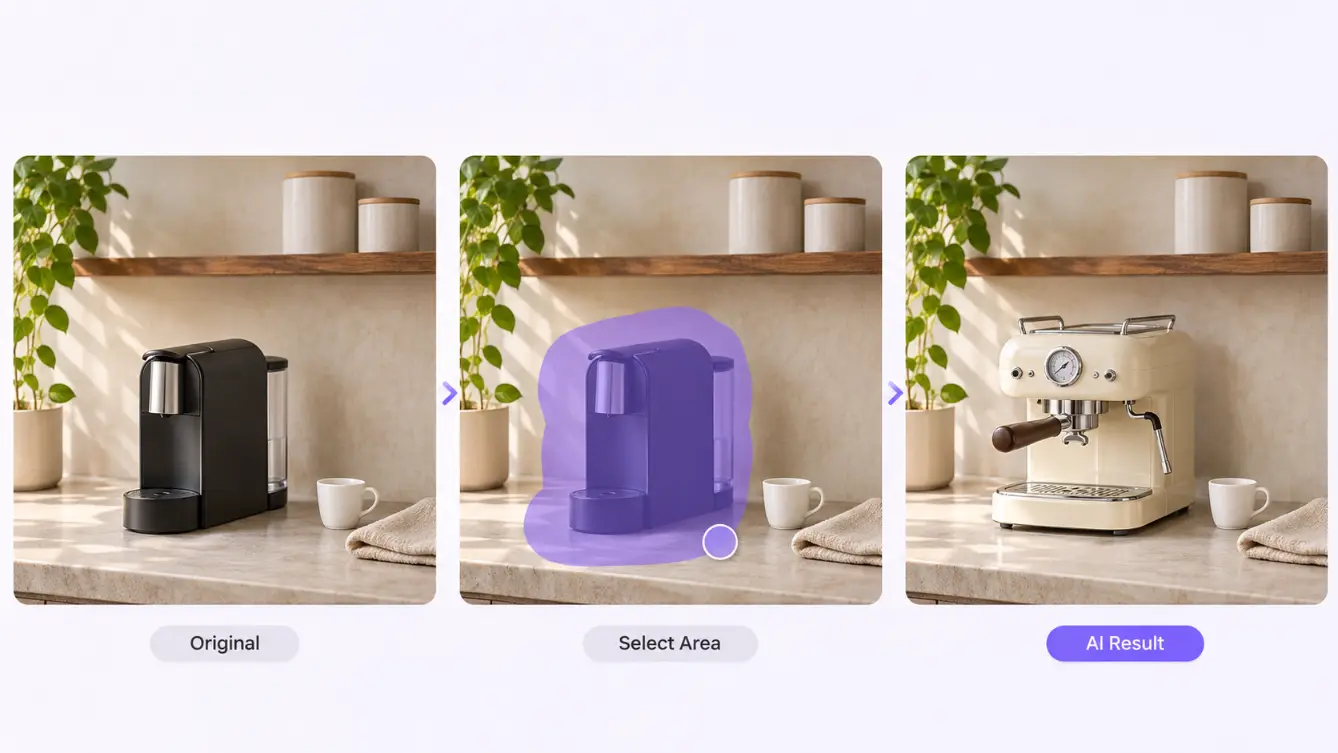
For example, you might select a vase on a desk and request a ceramic pencil cup in its place. You might also select empty space and ask for a new object, or cover a scratch and request a continuation of the surrounding texture. These are different uses of the same local editing workflow.
Add, Replace, or Repair a Selected Area
Use one visible selection and one natural-language prompt for focused edits within an image you already want to keep.
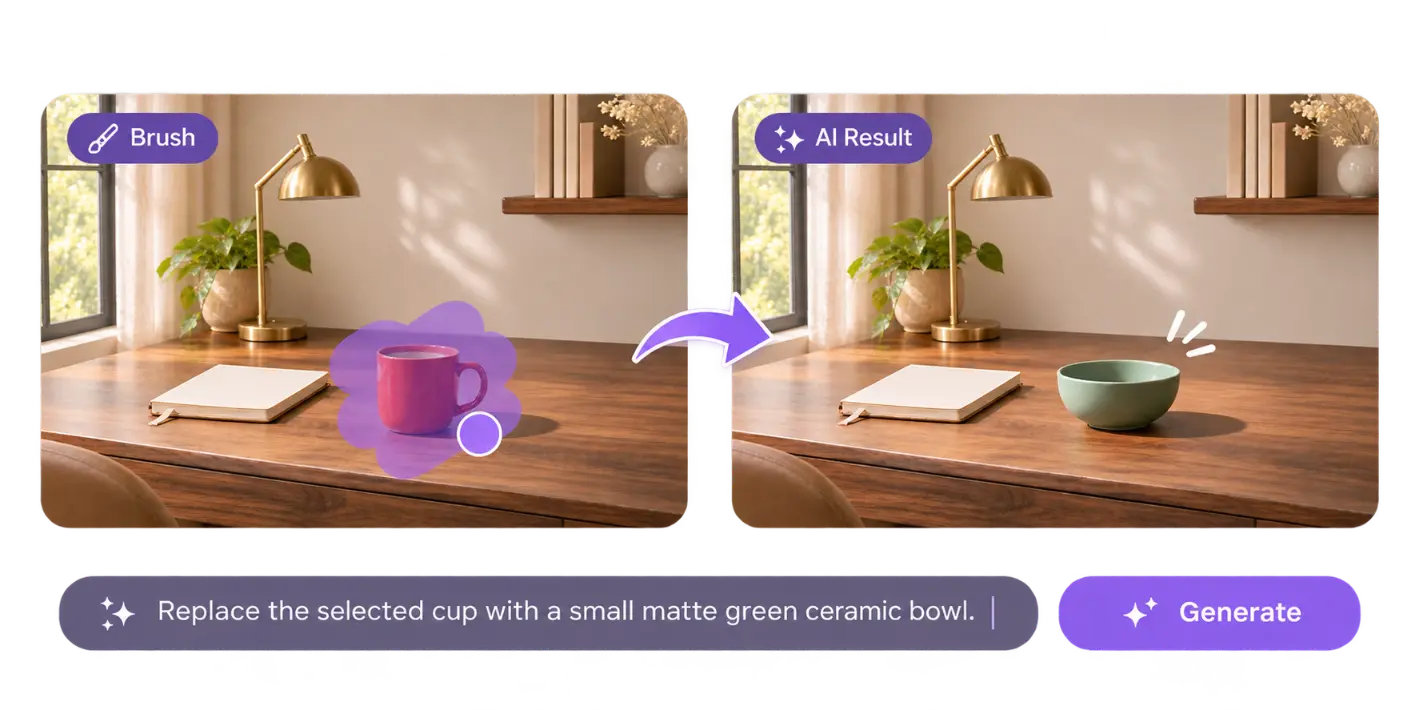
Replace an Object in a Photo
Change a visible object without having to describe a new scene from scratch. Select a desk accessory, wall decoration, cushion, or background prop, then explain what should replace it. Include the replacement's material, approximate size, and position when those details matter. A replacement may have a different outline from the original. Give it enough room in the selection, including space where it meets a table, shelf, or floor. If a taller object needs to occupy pixels outside your selected region, expand the selection before generating.
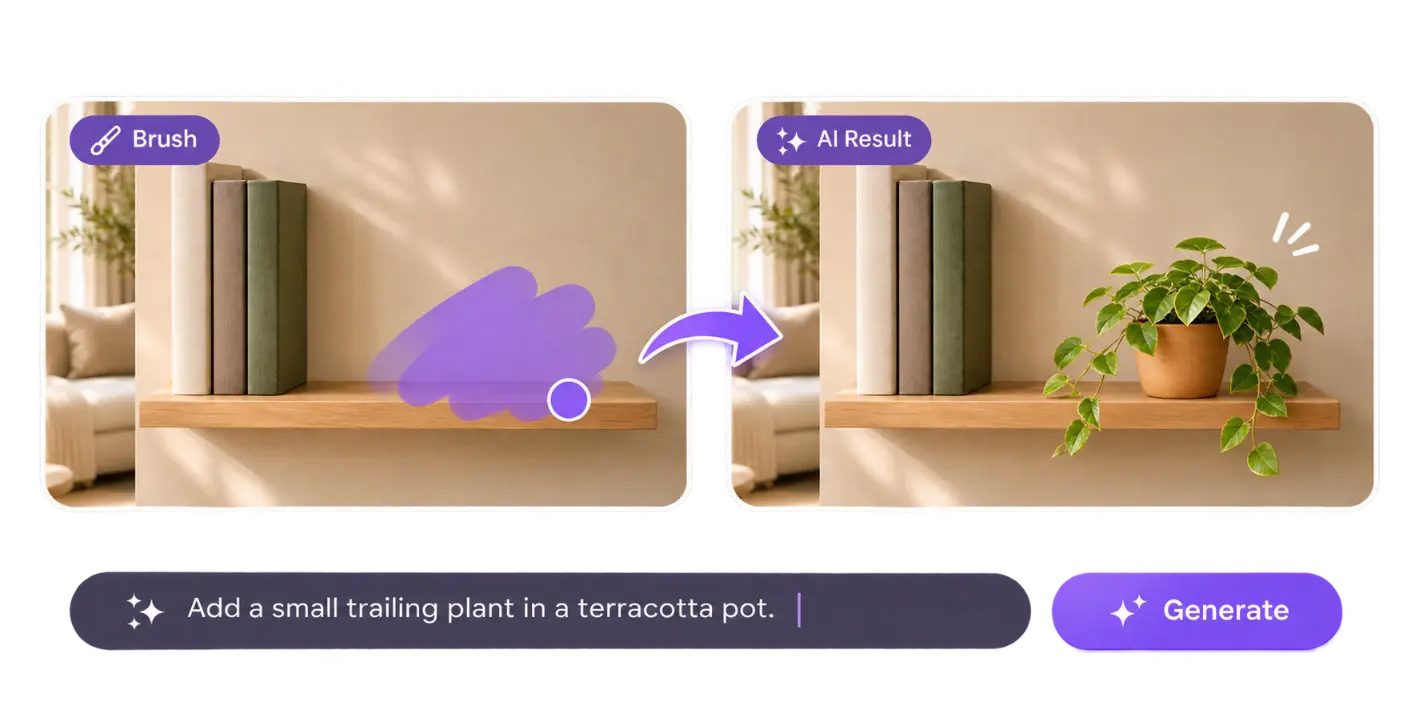
Add an Object Where You Need It
To add something, select the place where it should appear. An empty corner of a desk can become the location for a notebook; a clear section of a wall can hold a framed print. Describe the object in relation to the scene so its size and placement are easier to interpret. Leave room for the complete object and any shadow that helps it sit naturally in the picture. Asking for a plant in a narrow strip of selected pixels gives the model little space to create its leaves, pot, and contact with the surface.
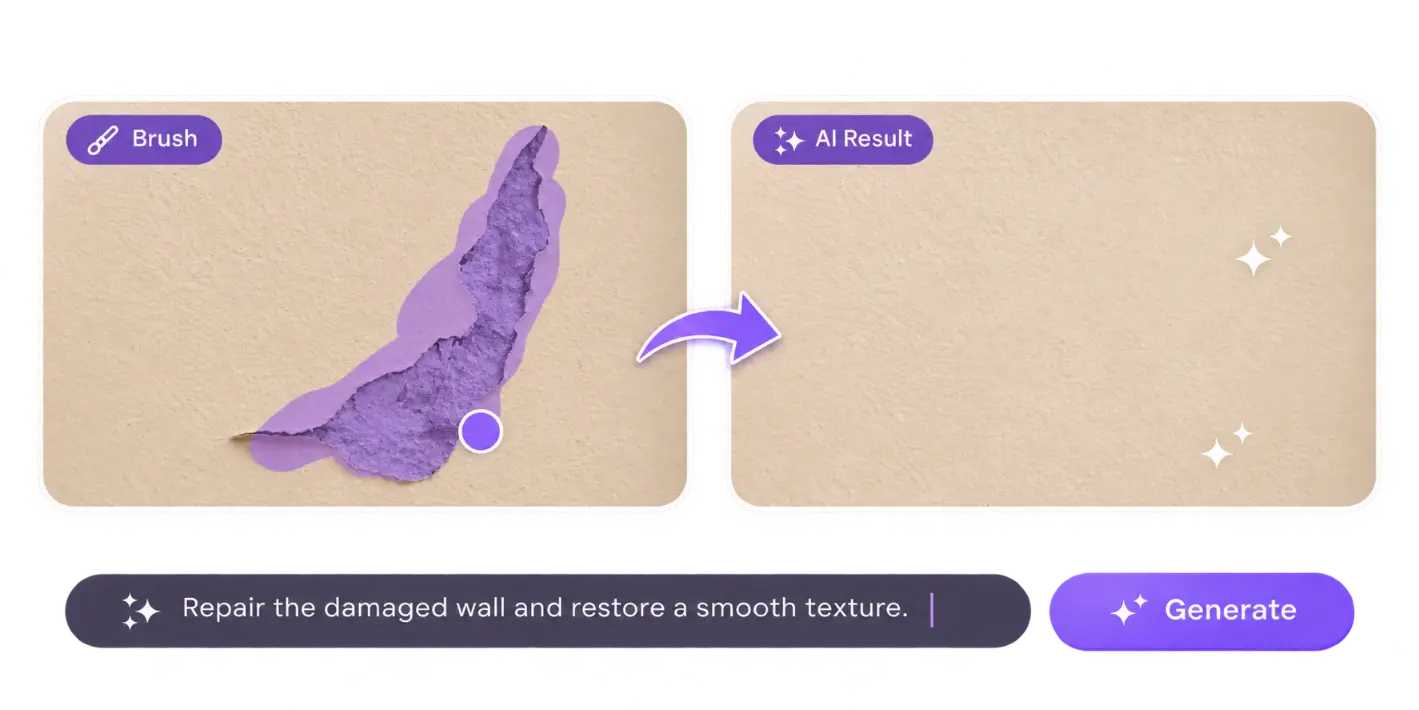
Repair a Small Damaged Area
Use a local repair when the issue is confined to a scratch, missing patch, or distracting visual artifact. Mark the damaged section and describe the texture or structure that should continue through it. Keep useful neighboring detail visible so the requested repair has a clear reference. Generated repair creates a plausible interpretation of missing content. It does not establish what was originally hidden or recover an exact historical record. For widespread fading, damage, or other whole-photo problems, explore Photo Restoration.
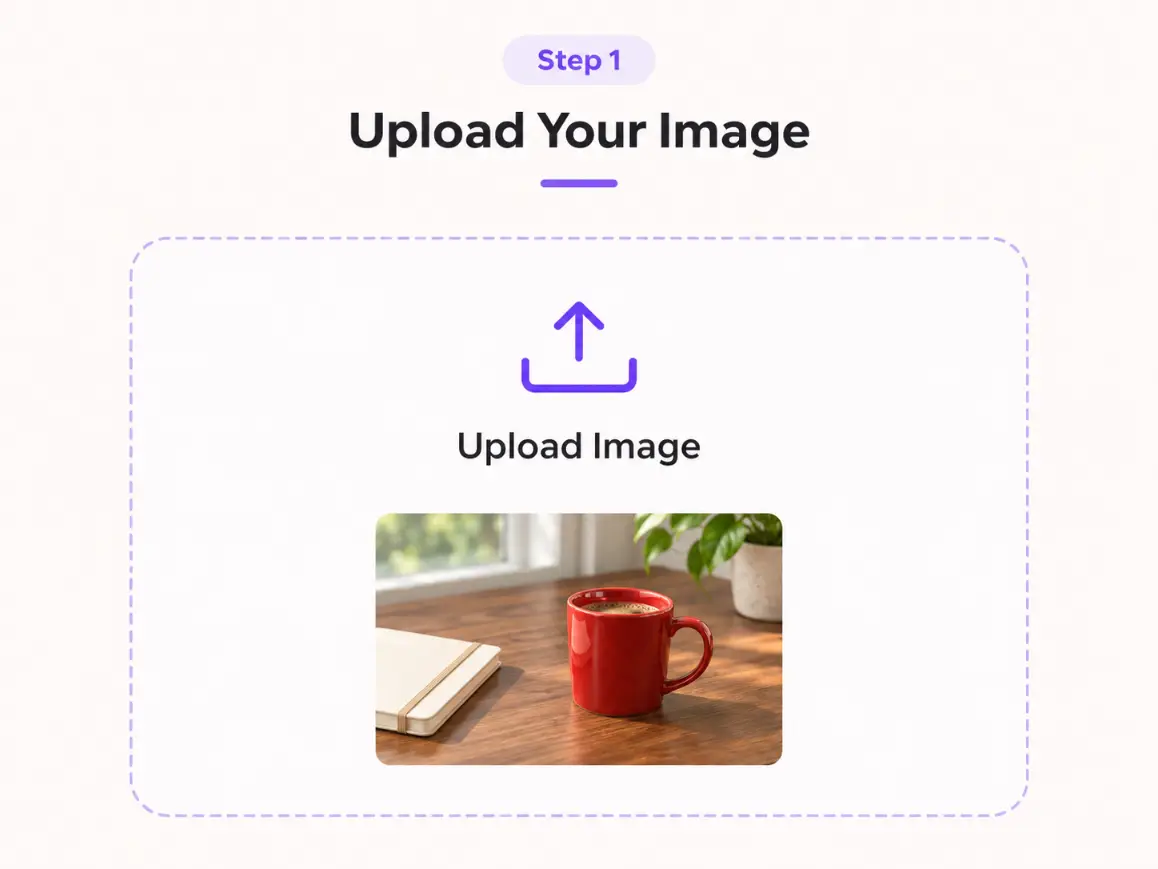
How to Inpaint an Image Online
Inpainting Prompt Examples
A useful prompt describes the content you want to see in the selected region. Add constraints only when they help resolve a specific uncertainty. Use these five examples as starting points and adapt them to your own image.
Replace a Car's Wheels
Use a tightly focused selection around the wheel and name the parts that must remain unchanged. Precise material, reflection, perspective, and lighting constraints help the replacement fit the original vehicle.
Replace only the selected front wheel's silver five-spoke alloy rim with a premium matte black multi-spoke performance alloy rim featuring thin sculpted spokes and subtle metallic highlights. Keep the existing tire, wheel diameter, wheel position, brake components, car body, and surrounding pavement unchanged. Match the original wheel perspective, realistic metallic reflections, soft overcast daylight, and natural shadows. Do not alter any other part of the vehicle or background.
Add a Lamp to a Bedside Table
Describe the new object's material, scale, position, and state, then identify the surrounding details that should stay intact. A contact shadow helps the lamp sit naturally on the tabletop.
Add one small mushroom-shaped table lamp made of matte ivory glass to the empty walnut bedside table. Place it naturally near the center of the tabletop, at a realistic scale. The lamp is switched off. Match the existing soft morning daylight and create a subtle realistic contact shadow beneath its base. Preserve the bed, bedding, wall, bedside table, camera angle, and surrounding composition.
Replace a Wall Artwork
When replacing framed artwork, describe the new subject while preserving the frame, dimensions, mounting position, perspective, reflections, and surrounding room details.
Replace the selected black-and-white geometric artwork with an elegant abstract landscape painting featuring muted terracotta hills, soft sand-colored forms, and a pale warm sky. Keep the original natural oak frame, artwork dimensions, wall position, perspective, and realistic reflections unchanged. Preserve the surrounding plaster wall, sideboard, ceramic vase, room lighting, and composition.
Change One Clothing Color
Keep the selection on the garment. Inspect seams, patterns, and printed details afterward, because a generated color change can also reinterpret texture.
Change the selected shirt fabric to muted navy blue. Retain its existing folds and the direction of the light. Preserve the person's face, hair, hands, and the surrounding setting.
Clear a Distracting Item
When your only goal is erasing something, the dedicated Object Remover offers a more focused cleanup workflow.
Remove the selected cable and continue the wooden desktop beneath it. Follow the visible grain direction and keep the nearby keyboard in place.
Use a tightly focused selection around the wheel and name the parts that must remain unchanged. Precise material, reflection, perspective, and lighting constraints help the replacement fit the original vehicle.


“Replace only the selected front wheel's silver five-spoke alloy rim with a premium matte black multi-spoke performance alloy rim featuring thin sculpted spokes and subtle metallic highlights. Keep the existing tire, wheel diameter, wheel position, brake components, car body, and surrounding pavement unchanged. Match the original wheel perspective, realistic metallic reflections, soft overcast daylight, and natural shadows. Do not alter any other part of the vehicle or background.”
Practical Uses for Image Inpainting
Local editing is most useful when the original image already works and a specific area needs attention.
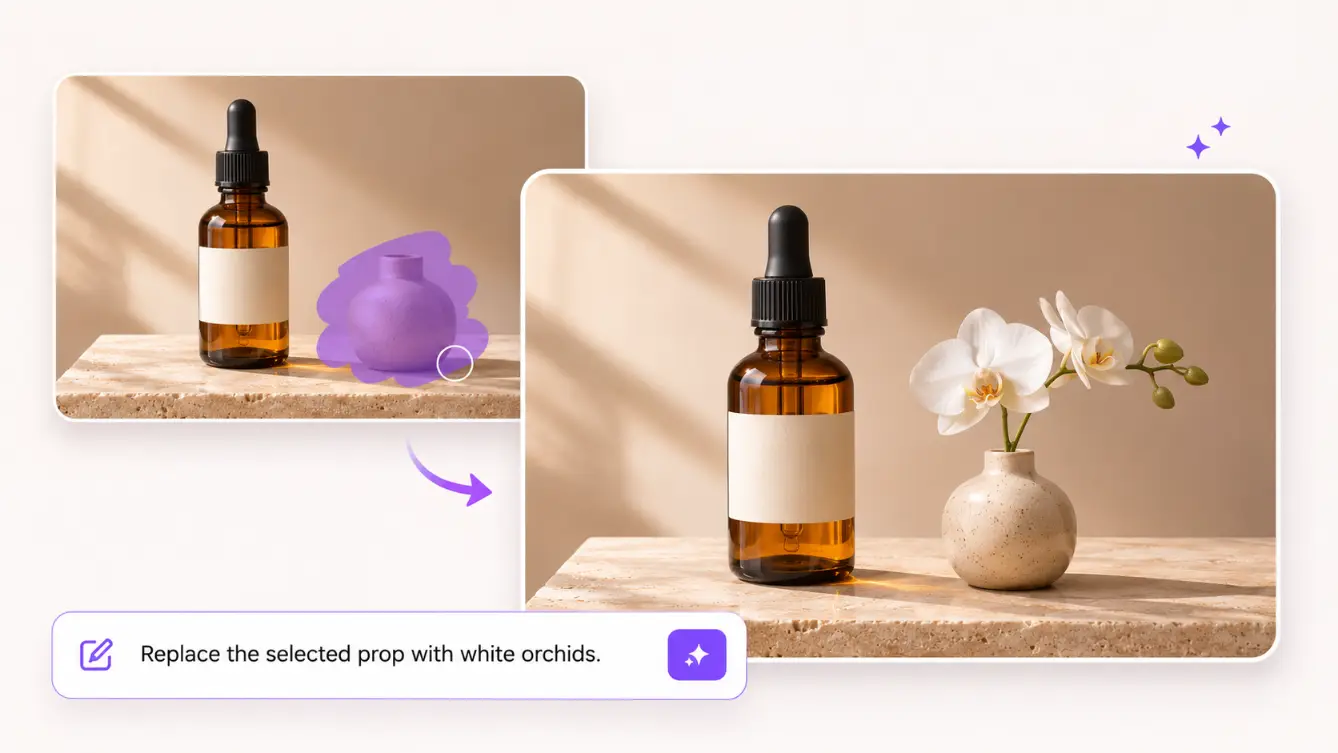
Product and Campaign Photography
Test a different supporting prop, add a modest decorative detail, or repair an unwanted patch in a product scene. Keep the actual product outside the selection when changing its surroundings. Review labels, reflections, colors, and object boundaries before using the result in a listing or advertisement. A generated prop is a visual interpretation of your description, not a guaranteed reproduction of a specific branded item.
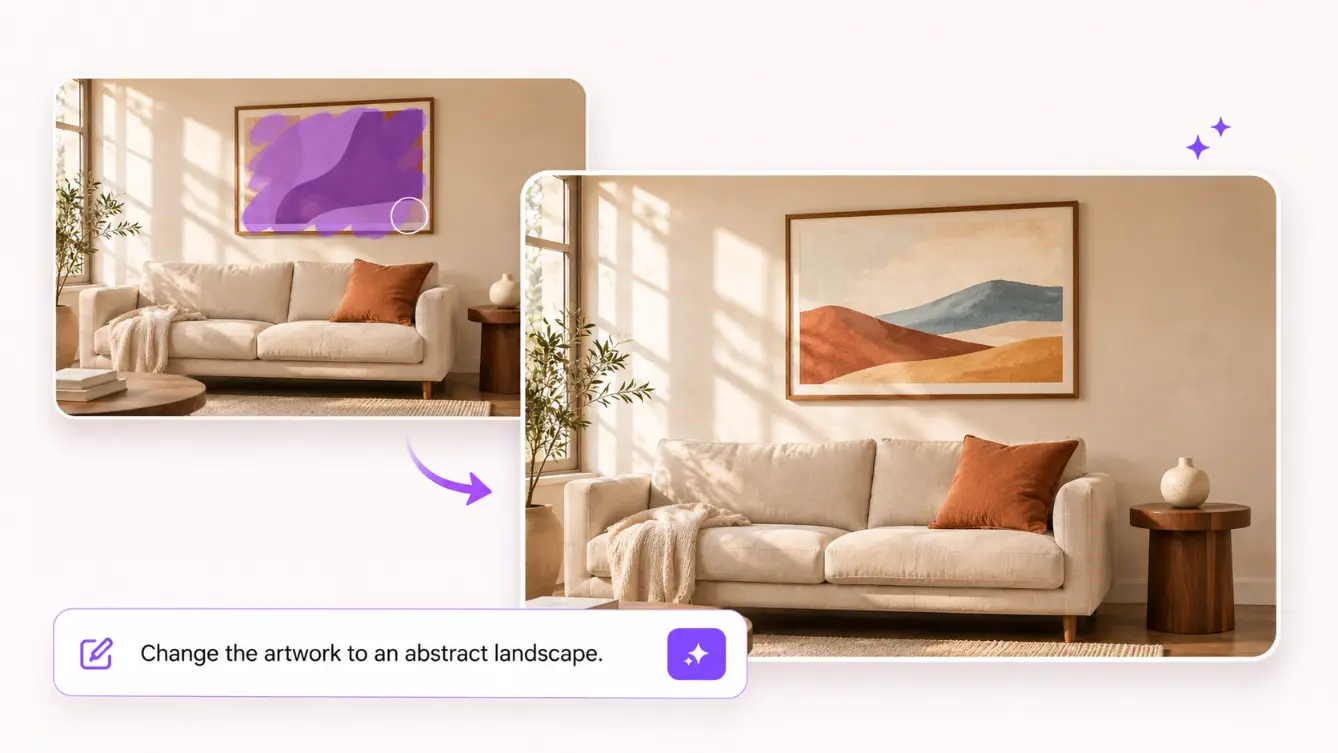
Interiors and Visual Concepts
Explore a new cushion color, a different wall print, or a small accessory in a room photograph. Local changes can help communicate an idea while keeping the original room as the reference. Check perspective and support surfaces so objects do not appear to float or intersect nearby furniture. A convincing image does not confirm real measurements or availability.
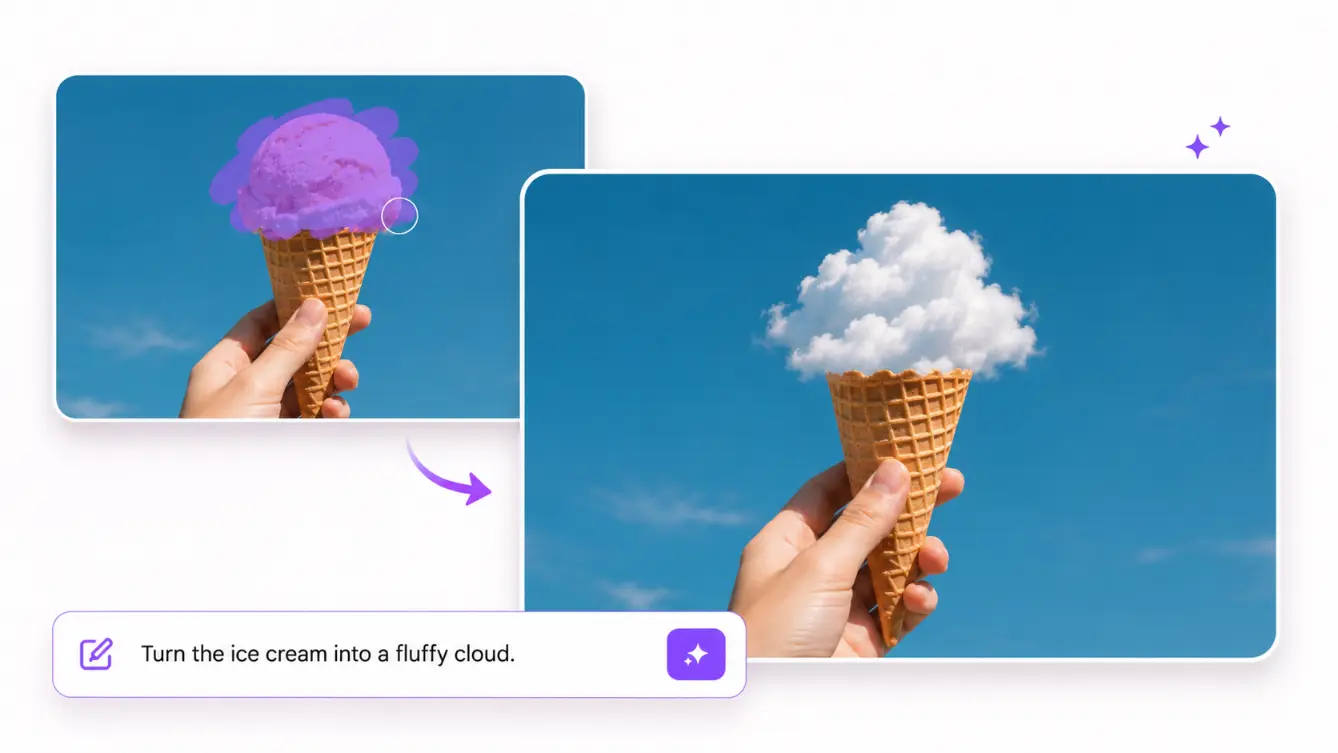
Everyday Photos and Creative Images
Repair a small distracting area in a personal photo or revise an awkward detail in a generated illustration. Work through complex changes one at a time so you can identify what improved and what still needs attention. If the entire picture needs a new visual treatment, start with the AI Photo Editor.
AI Inpainting FAQ
More Tools for Focused Image Editing
Continue with a focused Mixinflow tool when the next task is object removal, image extension, background editing, restoration, or upscaling.
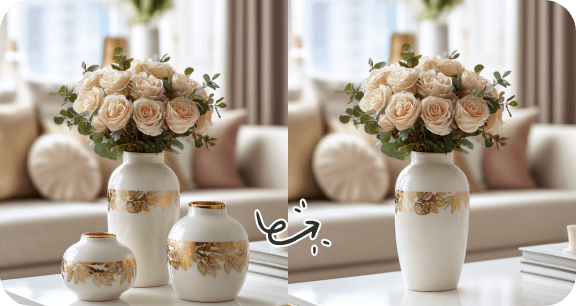
Remove Objects from Photos
Erase unwanted objects and naturally rebuild the background.
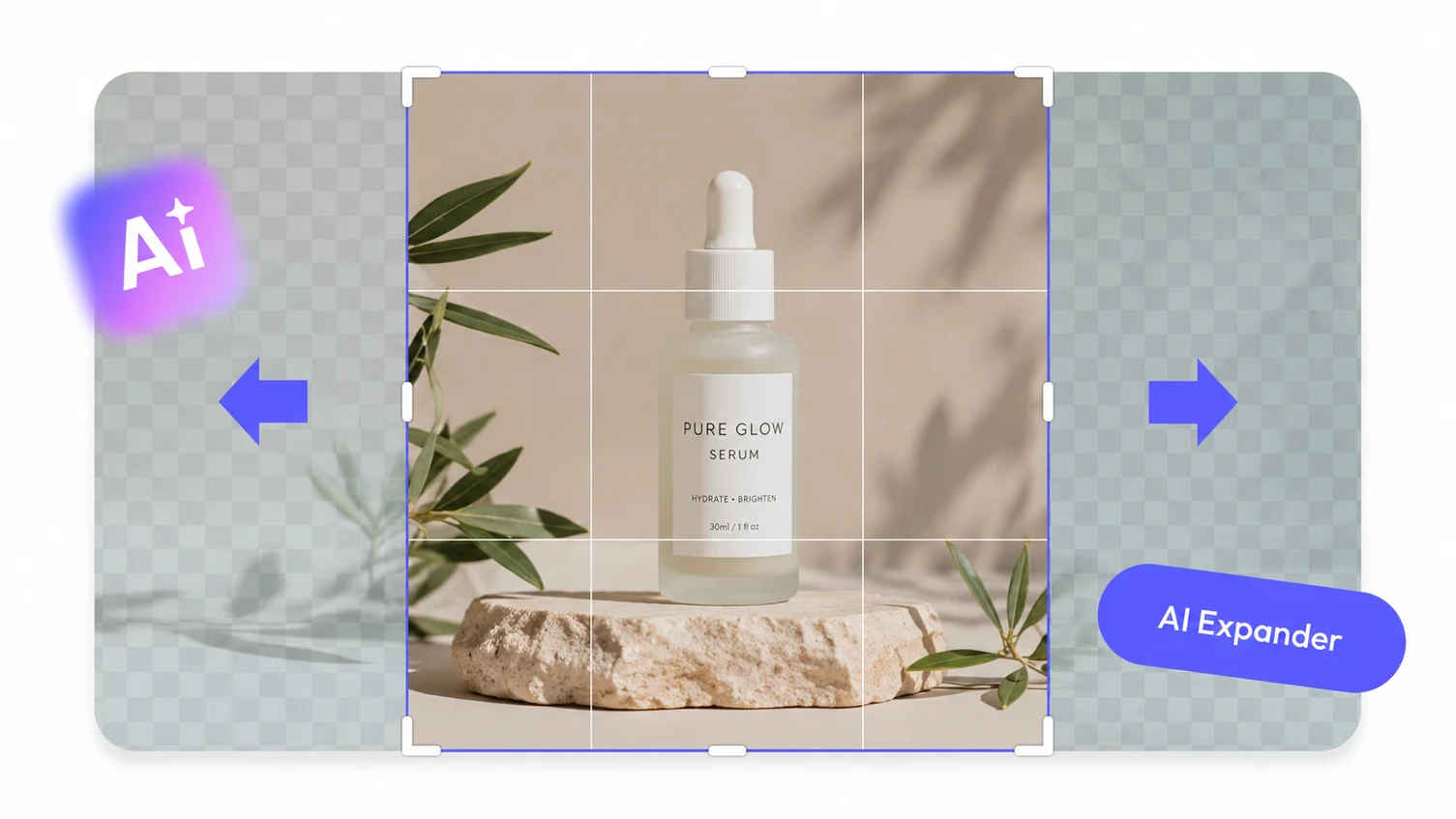
AI Image Extender
Expand an image beyond its original borders with AI.
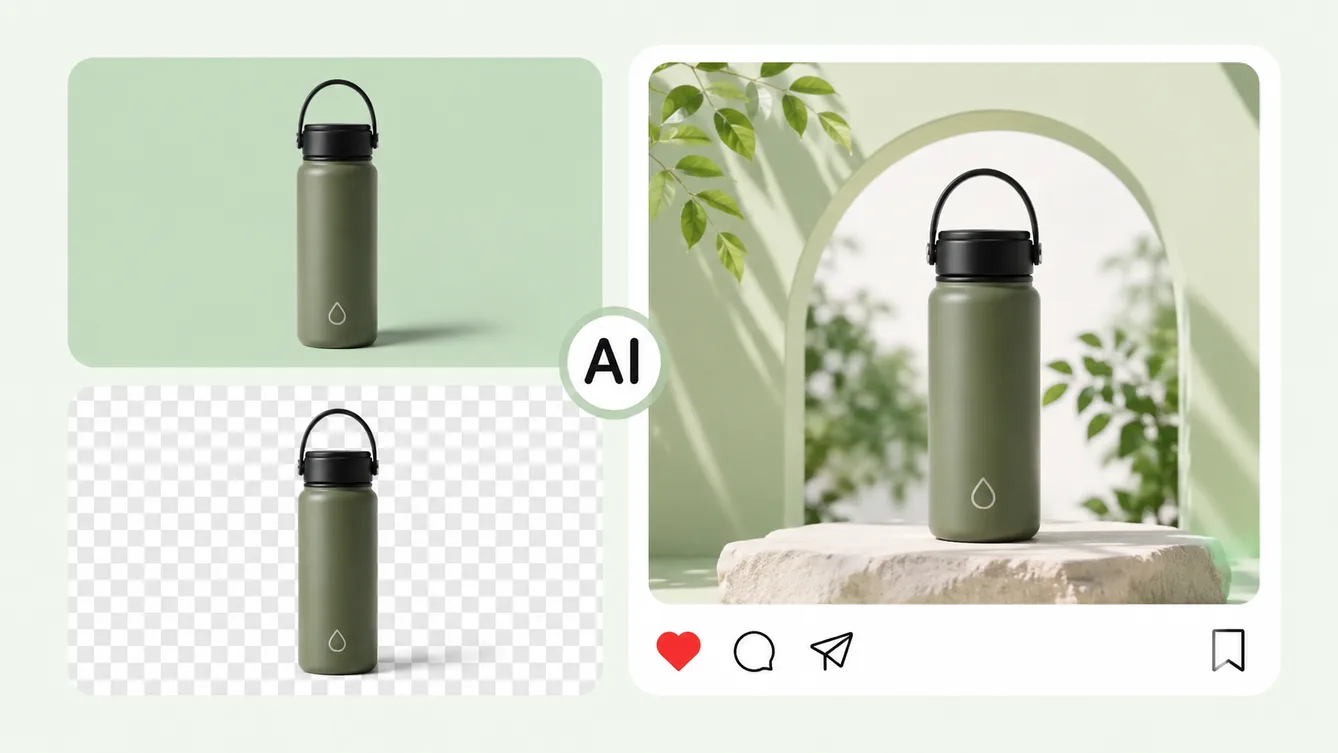
Change Image Background
Replace the original background with a new scene or color.
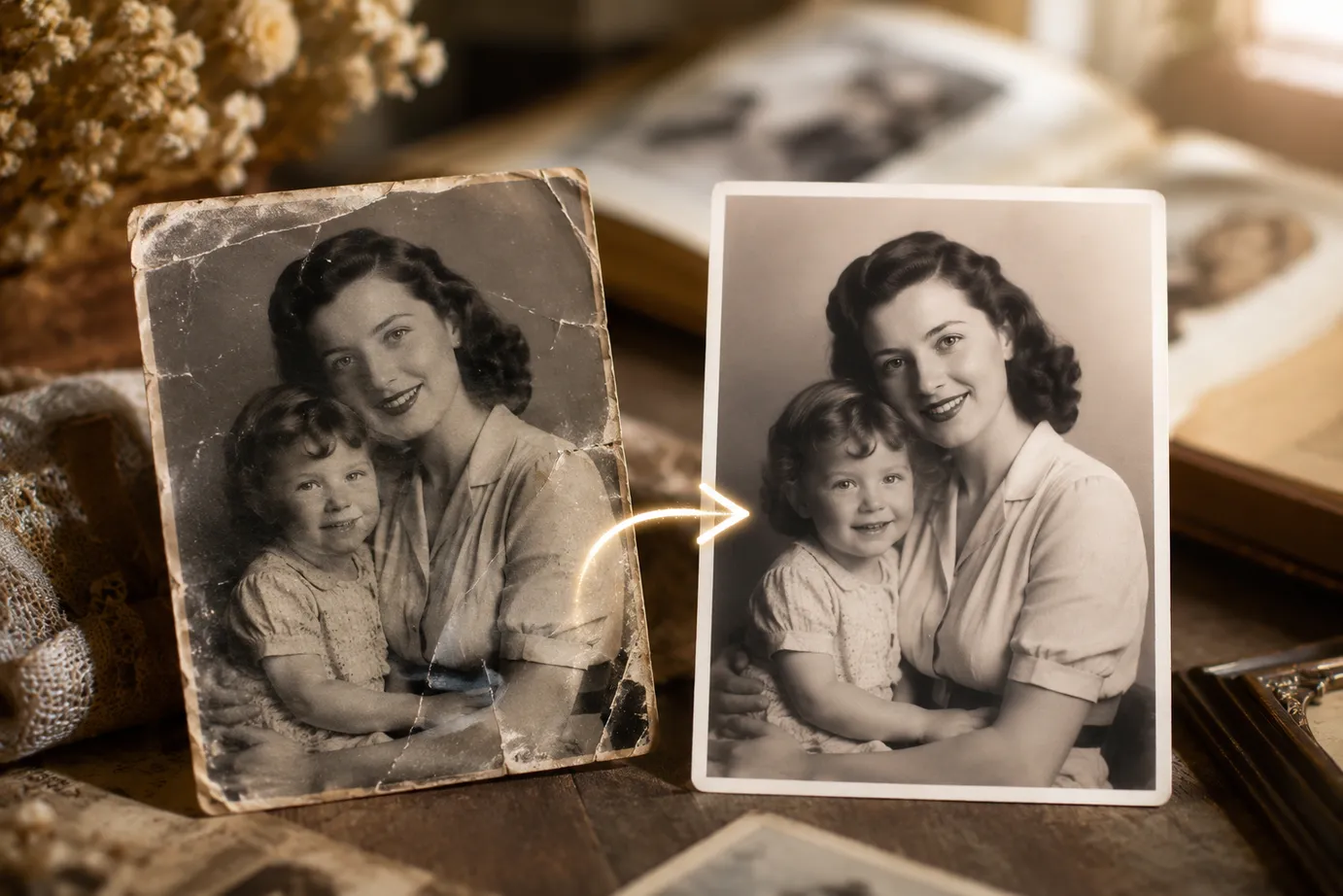
Restore Old Photos
Repair faded and damaged photos while preserving their character.
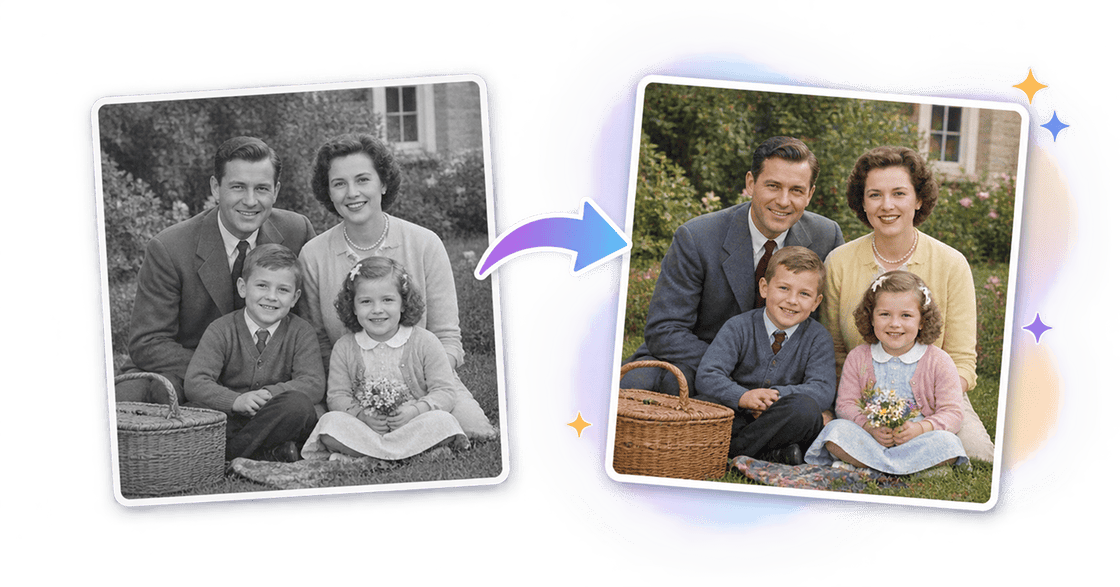
Colorize Photo
Add natural-looking color to black and white photos.
Make the Change Your Image Needs
Start with a photo you want to keep, select the part that needs attention, and describe the result. Use AI inpainting to explore a focused change, then review the details before putting the image to work.
Upload an Image to Inpaint