Faster visual creation
GPT Image 2.5 Flare is the default choice for most applications and everyday iterations where responsive generation matters.
Create a new visual or upload an existing photo and describe exactly what should change. GPT Image 2.5 on Mixinflow supports precise natural-language edits, better subject preservation, clearer text and layouts, multiple reference images, and transparent-background assets. Choose GPT Image 2.5 Flare for faster everyday work or GPT Image 2.5 Sunburst for polished creative control.
Text to image · Image editing · Up to 16 reference images · 1K, 2K and 4K
Explore four practical ways to edit portraits, product photos, posters, and multiple references. Choose the example closest to your project, copy its prompt structure, then replace the subject and preservation details with your own.
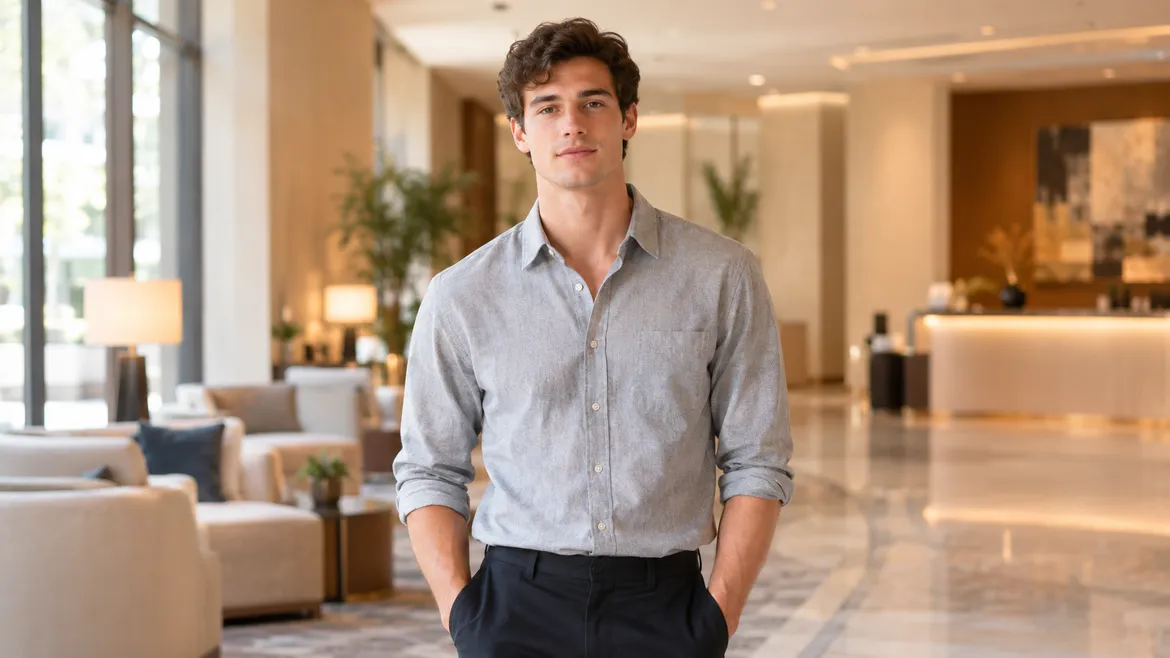
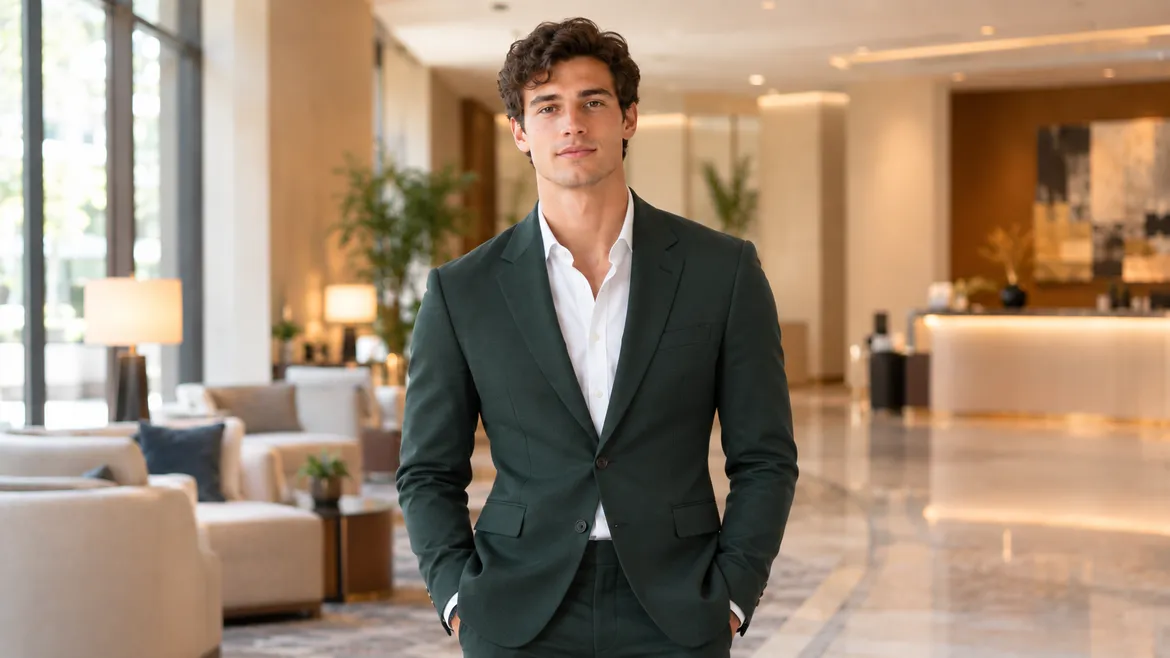
Example prompt: Replace the casual shirt with a dark green tailored suit. Preserve the person's face, hair, expression, pose, body proportions, background, lighting, and framing.
Example prompt: Place the skincare bottle on a pale stone platform with soft botanical shadows. Keep the bottle shape, label, logo, and packaging colors unchanged.
Example prompt: Change the headline from “SUMMER SALE” to “AUTUMN COLLECTION”. Keep the font style, size, placement, colors, illustrations, and the rest of the layout unchanged.
Example prompt: Create a natural group photo using the people from the uploaded reference images. Preserve each person's recognizable facial features and give the scene consistent indoor lighting.
Example prompt: Replace the casual shirt with a dark green tailored suit. Preserve the person's face, hair, expression, pose, body proportions, background, lighting, and framing.
GPT Image 2.5 is OpenAI’s image generation and editing model, designed for faster creation, more precise targeted changes, stronger reference-image fidelity, and more consistent creative iteration. On Mixinflow, GPT Image 2.5 can generate from a written description or transform uploaded images while following detailed instructions about what should change and what should remain recognizable.
GPT Image 2.5 Flare is the default choice for most applications and everyday iterations where responsive generation matters.
Focused natural-language instructions help GPT Image 2.5 target an outfit, product, object, background, headline, or design element.
GPT Image 2.5 improves how people, products, pets, characters, lighting, and materials carry from reference images into a new scene.
Use auto or ten supported aspect ratios, choose 1K, 2K, or 4K, request one to four images, and upload as many as 16 references.
GPT Image 2.5 combines image generation and reference-guided editing in one practical Mixinflow workflow. These capabilities focus on real creative tasks without promising pixel-perfect locking.


Use GPT Image 2.5 to update an outfit, object, product, background, or piece of text without intentionally redesigning the entire picture. State the target change first, then tell GPT Image 2.5 which faces, poses, colors, lighting, framing, and surrounding details should remain consistent. This preservation-first prompt structure gives targeted edits a clearer creative boundary.
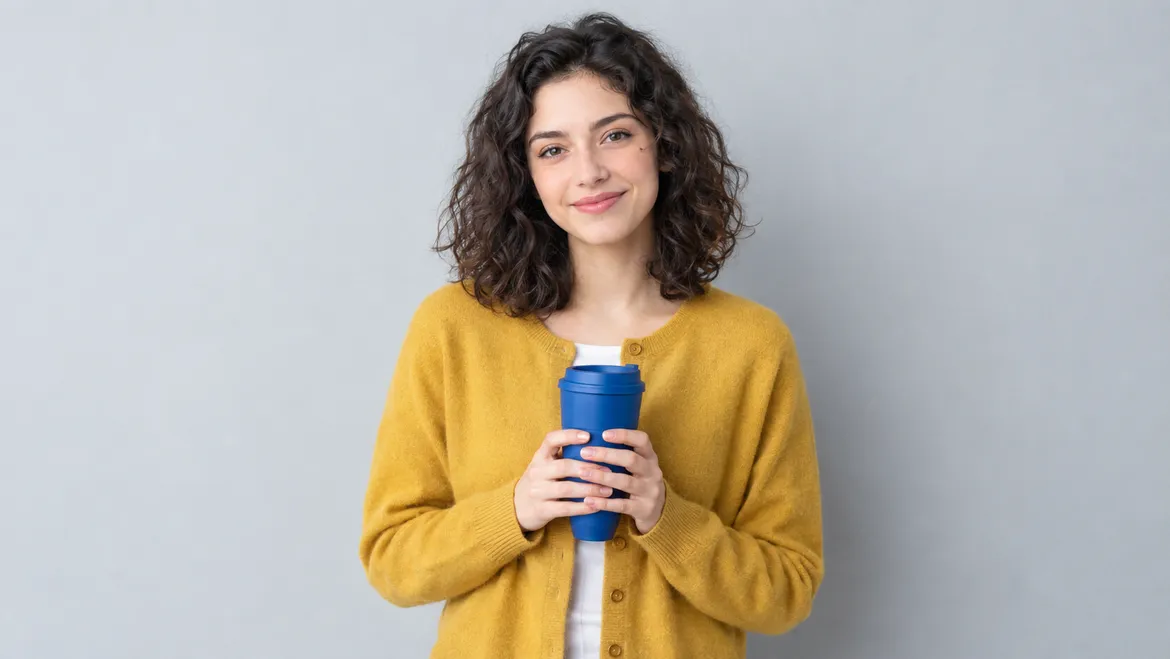
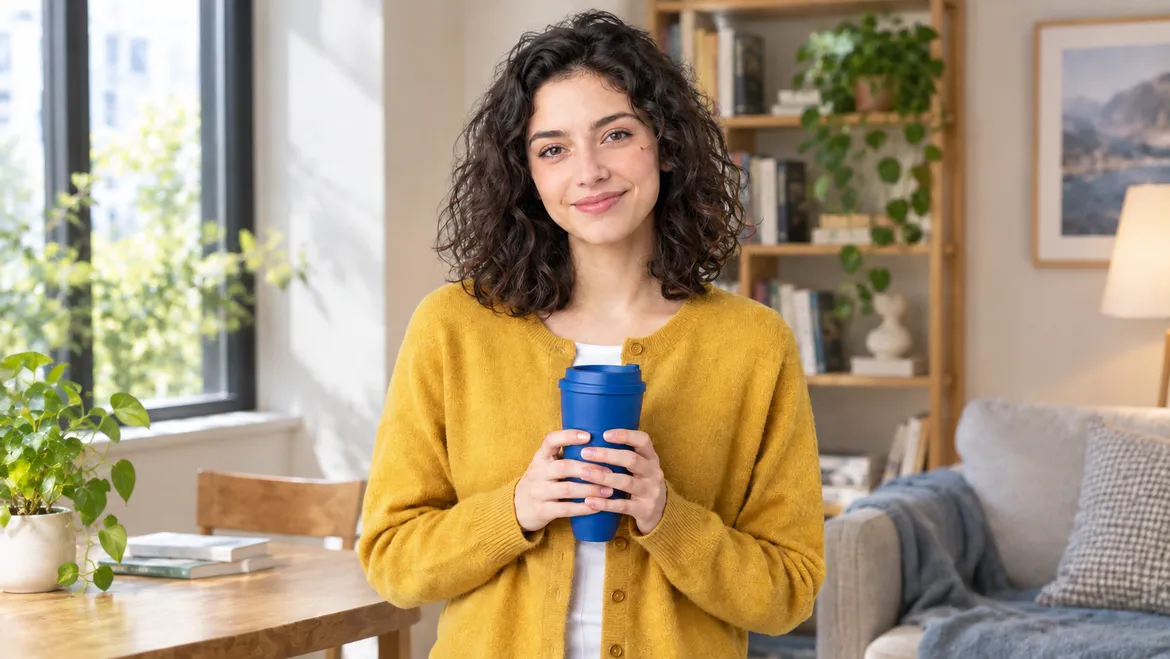
Start from a portrait, pet photo, character, or product image and use it as the visual anchor. GPT Image 2.5 improves reference fidelity so recognizable features, material textures, lighting cues, and overall composition can carry into a new setting. Generative results can still change small details, so review identity-sensitive and brand-sensitive work before use.


GPT Image 2.5 lets you build a practical step-by-step workflow by using the latest generated image as the next reference. Change a headline, replace an object, refine the background, or simplify a layout in separate passes. Smaller focused requests are easier to review than one overloaded prompt and help you keep earlier creative decisions visible.
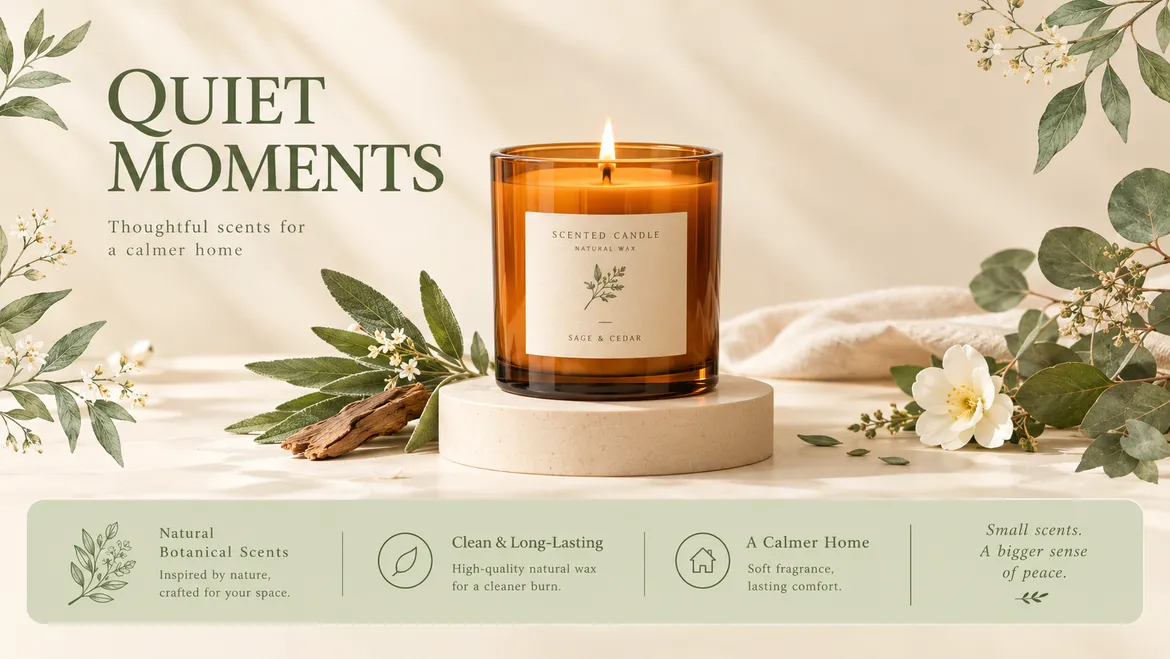
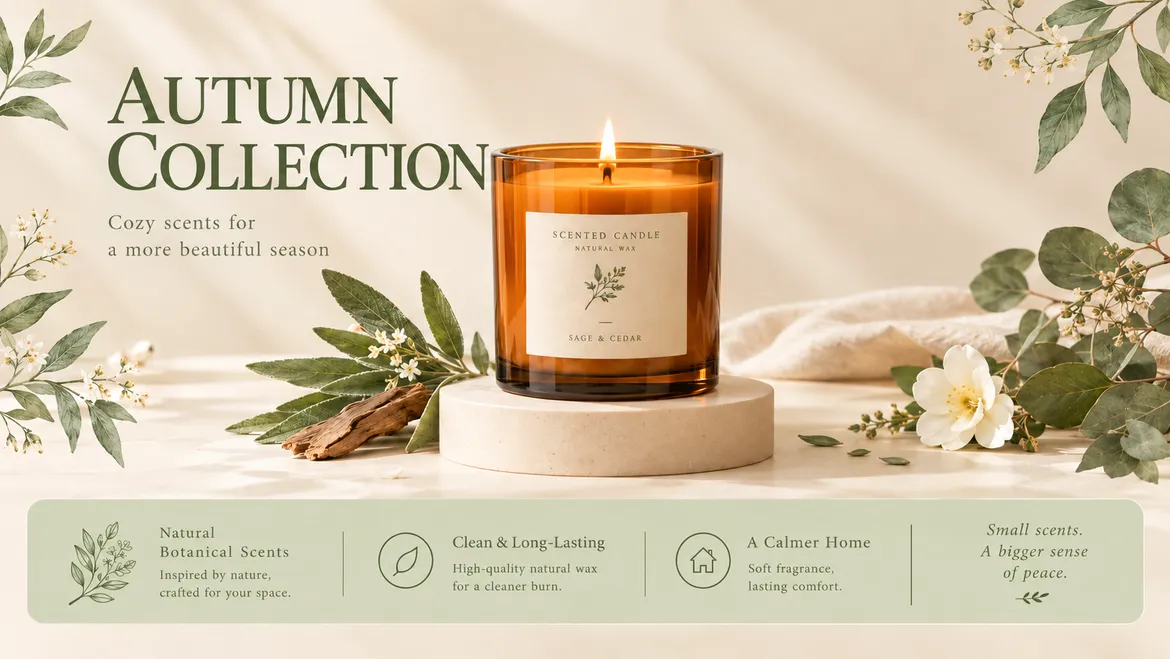
Generate posters, invitations, product cards, social graphics, thumbnails, and presentation visuals with GPT Image 2.5. Put exact wording in quotation marks, explain its position and hierarchy, and describe the surrounding layout. GPT Image 2.5 offers improved text rendering, but important spelling, logos, prices, and legal copy must still be checked before publishing.
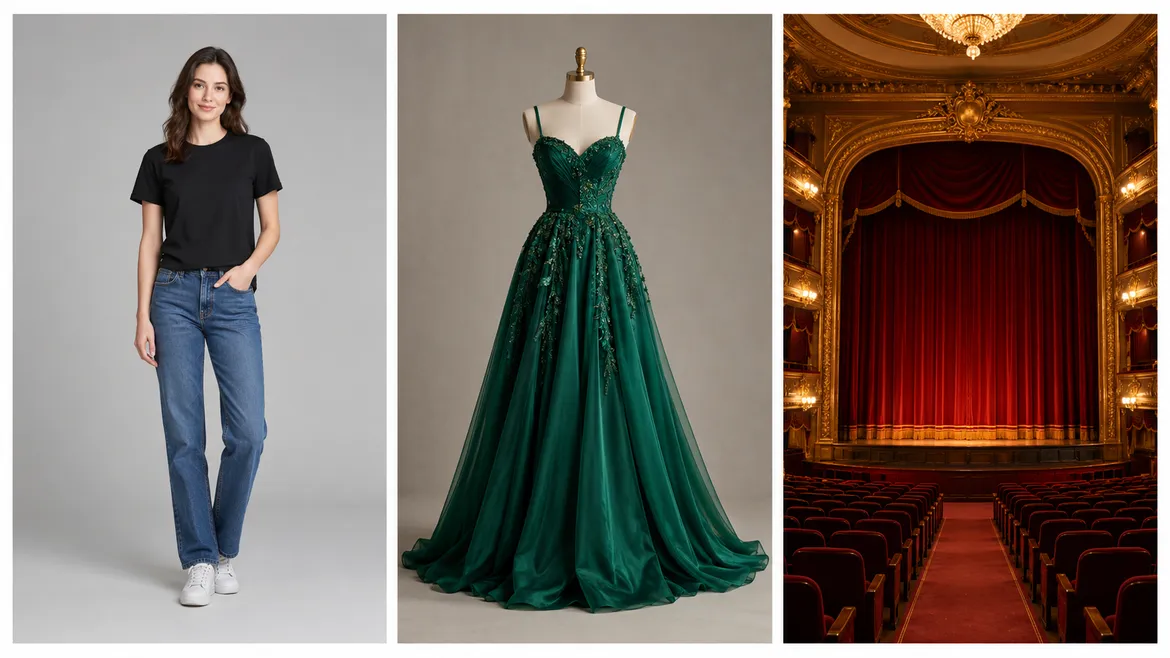
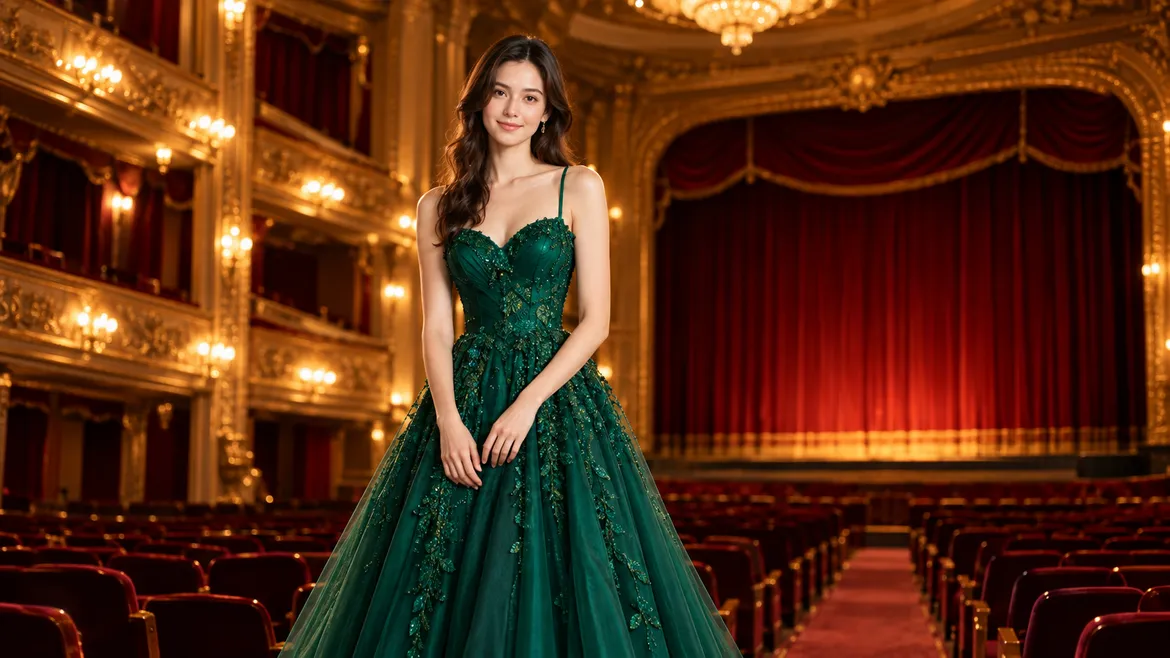
GPT Image 2.5 accepts as many as 16 reference images through the connected API. Use Image 1 for the main subject, Image 2 for clothing, Image 3 for lighting, and another image for composition or color direction. Role-based instructions reduce ambiguity and make a complex GPT Image 2.5 generation easier to control and evaluate.
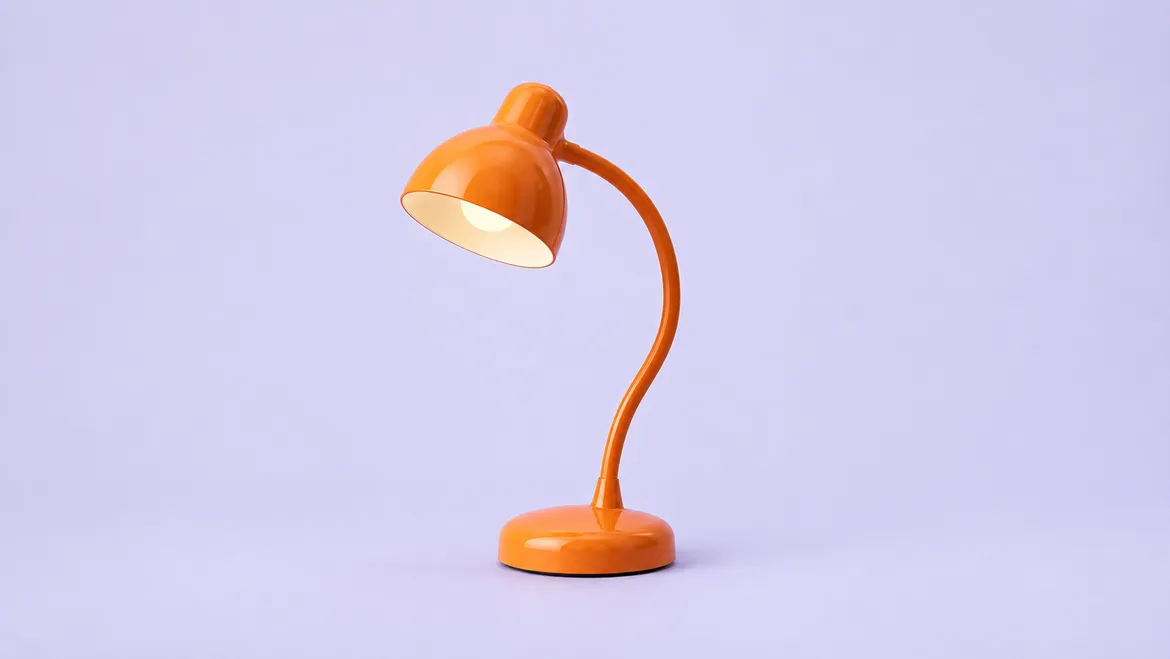
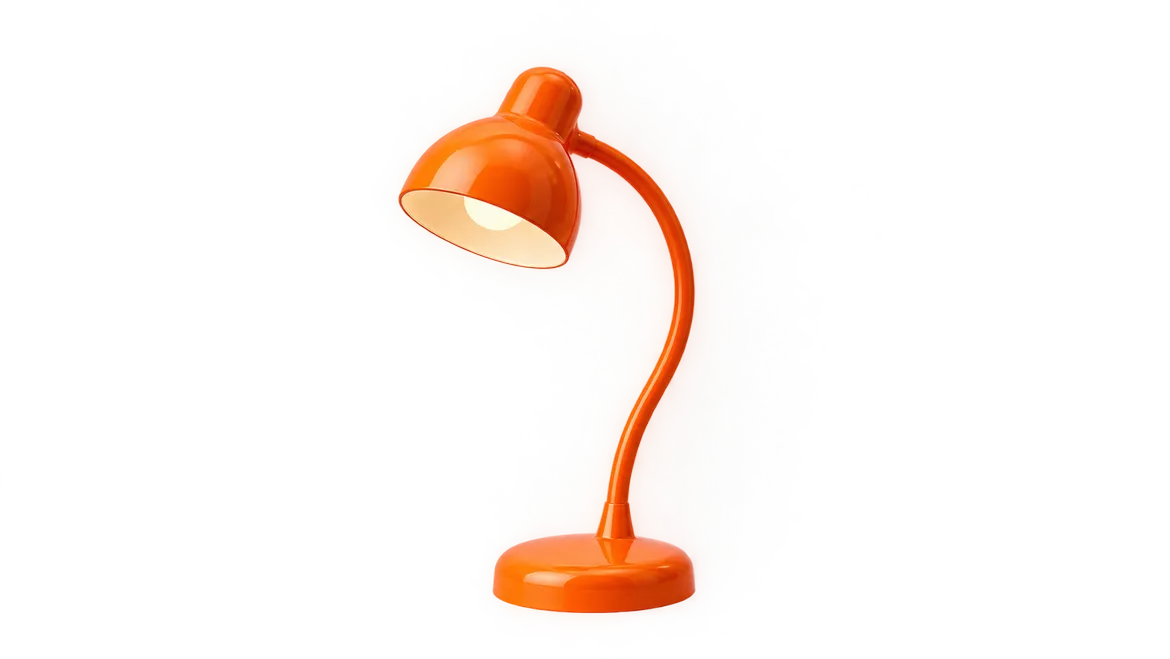
Ask GPT Image 2.5 for isolated products, decorative elements, stickers, web graphics, presentation illustrations, or ecommerce assets on a transparent background. Transparent output is useful for layouts that will continue in another design tool. Check edge quality around hair, glass, fine textures, and soft shadows before placing the asset into production artwork.
Move from a written idea or reference photo to a downloadable GPT Image 2.5 result in three focused steps.
Describe a new visual from scratch, or upload a portrait, product, design, pet photo, illustration, or other source that GPT Image 2.5 should edit. You can add multiple references when every image has a clearly defined purpose.
Tell GPT Image 2.5 what to change, then list the people, objects, text, composition, camera angle, colors, or lighting that should stay consistent. Select Flare for speed or Sunburst for a more quality-focused run.
Inspect the GPT Image 2.5 output for faces, text, hands, logos, layout details, and product accuracy. Download the result you like or use the newest image as a reference for another focused editing pass.
Use GPT Image 2.5 for concrete production tasks where text-to-image generation, photo editing, reference fidelity, and fast variation belong in the same workflow.
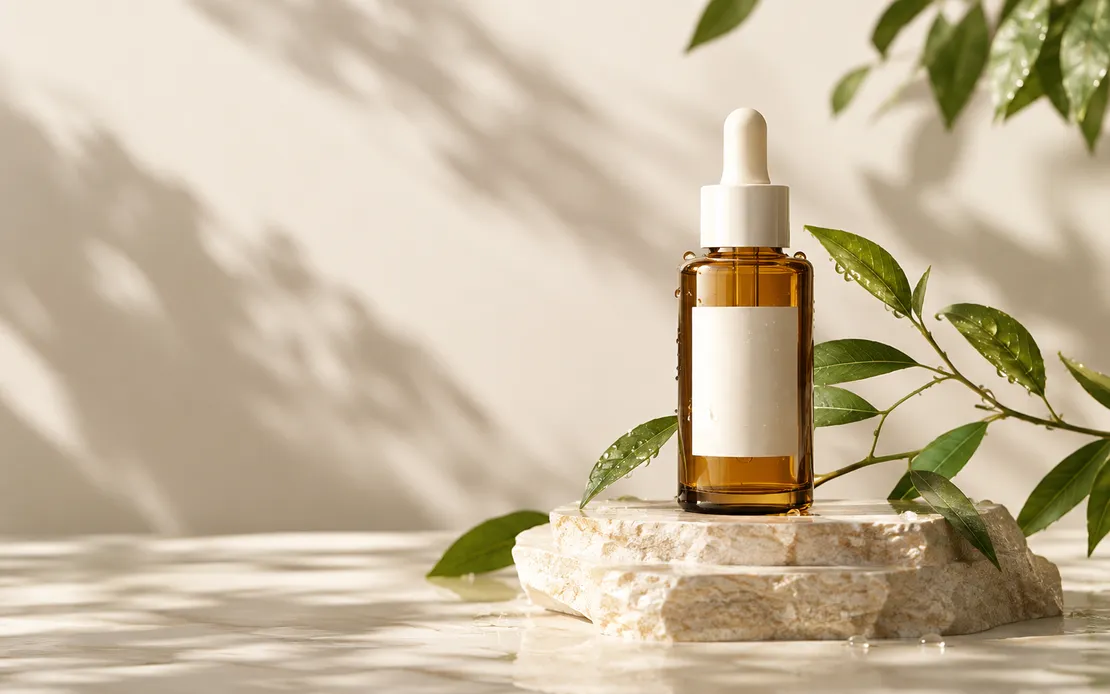
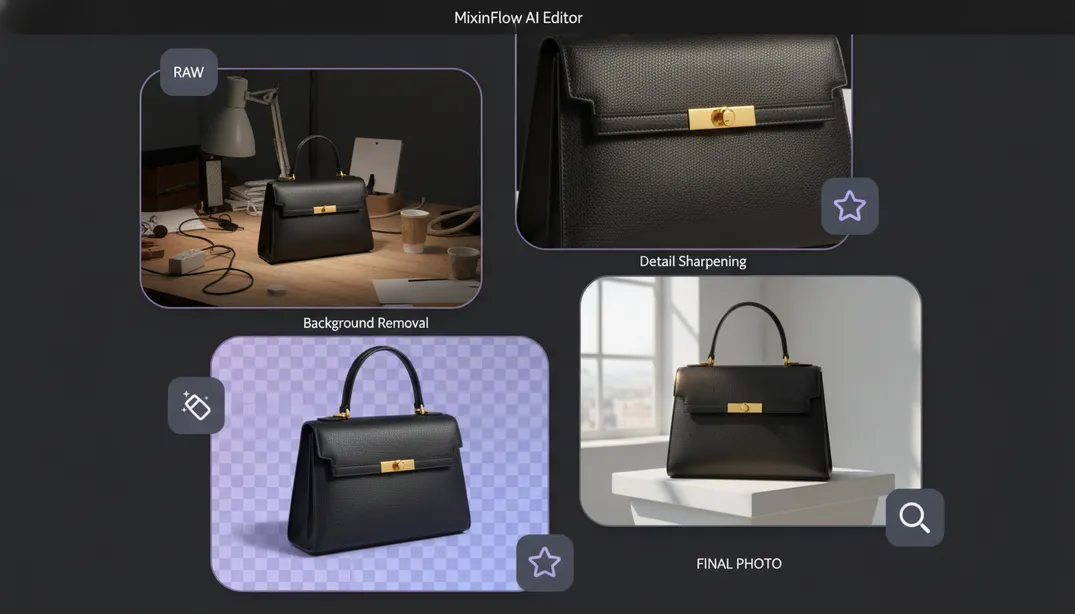
Place products in new studio settings, produce campaign variations, update packaging presentations, add realistic shadows, or create transparent ecommerce assets while asking GPT Image 2.5 to retain the important product details.
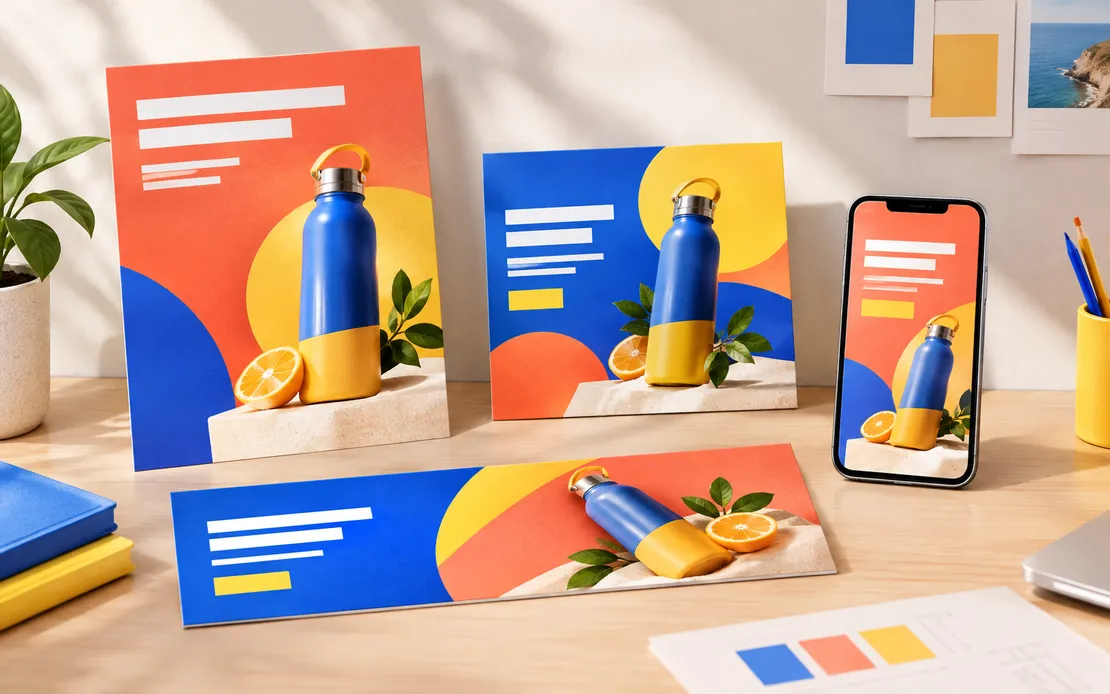
Create posters, advertisements, social posts, thumbnails, launch graphics, and channel-specific variations. GPT Image 2.5 can explore several compositions from one creative direction across square, vertical, and wide formats.
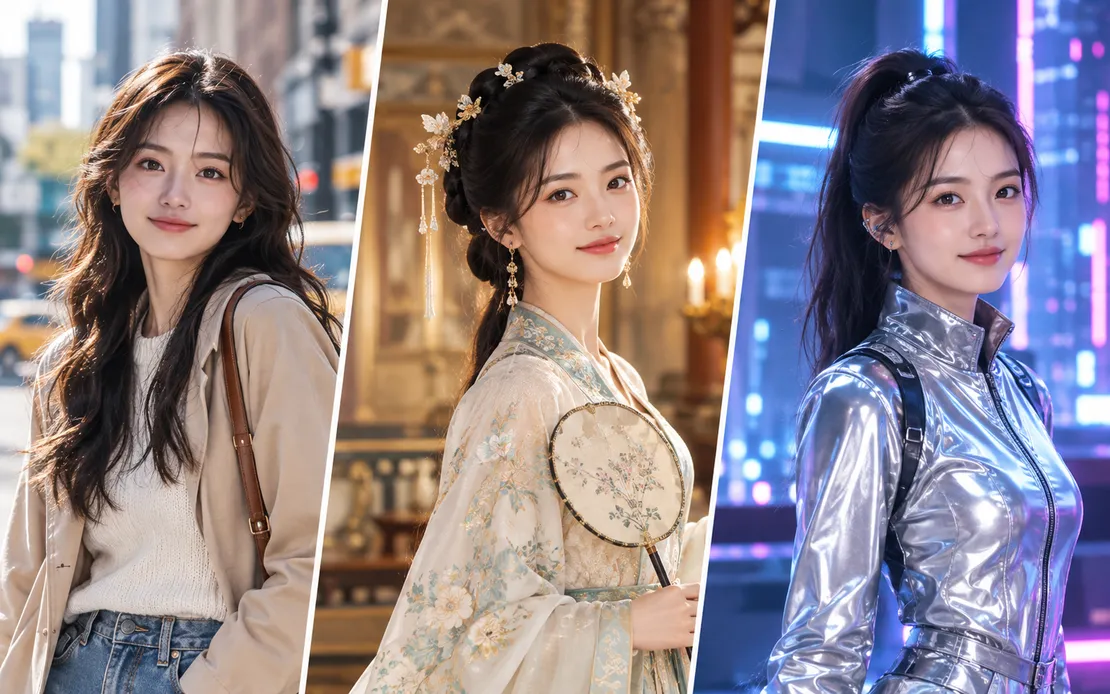
Change outfits, environments, lighting, or visual treatment while keeping the person or character recognizable. Give GPT Image 2.5 explicit preservation instructions and review facial details before publishing.

Generate transparent illustrations, presentation visuals, invitation concepts, stickers, product cards, web graphics, and early layout directions that can continue into a broader design workflow.
Choose your version
Both options use the GPT Image 2.5 Ext API and support text-to-image generation, image editing, multiple references, 1K to 4K resolution, and one to four outputs. Pick the GPT Image 2.5 version that matches the pace and finish of the task.
| Workflow | GPT Image 2.5 Flare | GPT Image 2.5 Sunburst |
|---|---|---|
| Primary strength | Faster GPT Image 2.5 generation for most applications. | Higher-quality GPT Image 2.5 output and finer creative control. |
| Best for | Social content, prompt testing, daily edits, and rapid variations. | Advertising assets, polished product work, and complex refinements. |
| Wait profile | Shorter wait for iteration-focused workflows. | Longer quality-focused generation profile. |
| Mixinflow role | Default GPT Image 2.5 mode. | Premium GPT Image 2.5 mode. |
GPT Image 2.5 prompts
A reliable GPT Image 2.5 prompt separates the task, requested change, protected details, and visual requirements. Concrete language is easier to follow and easier for you to evaluate after generation.
Edit the uploaded portrait. Change only the black T-shirt to a cream-colored wool sweater. Preserve the person's facial features, expression, hairstyle, pose, body proportions, camera angle, background, and lighting. Make the clothing fit naturally with realistic folds and contact shadows. Do not add text, logos, or accessories.
GPT Image 2.5 improves editing consistency, but a generated edit may still alter small details outside the requested area. Faces, hands, dense layouts, exact product features, text, prices, and logos should be reviewed carefully before commercial use.
Natural-language preservation instructions improve control but do not guarantee pixel-perfect locking. When an element must remain completely unchanged, use the GPT Image 2.5 result as part of a layered or masked editing workflow. You are responsible for having the necessary rights to reference images, trademarks, likenesses, and other source material.
A GPT Image 2.5 result can become the starting point for another focused task. Resize it, remove a background or object, extend the canvas, upscale the output, or enhance a photo without making this model page an isolated workflow.
Turn detailed prompts into polished images with strong composition.
Generate expressive scenes and visual concepts from text prompts.
Create refined images with clear layouts and accurate text rendering.
Create fast image variations and edits with simple instructions.
Choose GPT Image 2.5 Flare for fast iterations or Sunburst for a polished quality-focused run, then generate from text or edit as many as 16 references in Mixinflow.
Try GPT Image 2.5