Colorize Photos Online with AI

Automatically add natural-looking color to black-and-white photos while preserving the original people, details, and character.

Upload a Photo to Colorize

Upload a black-and-white or sepia photo to add natural color automatically.

JPG, JPEG, PNG, or WebP · Max 25 MB

Try a sample:
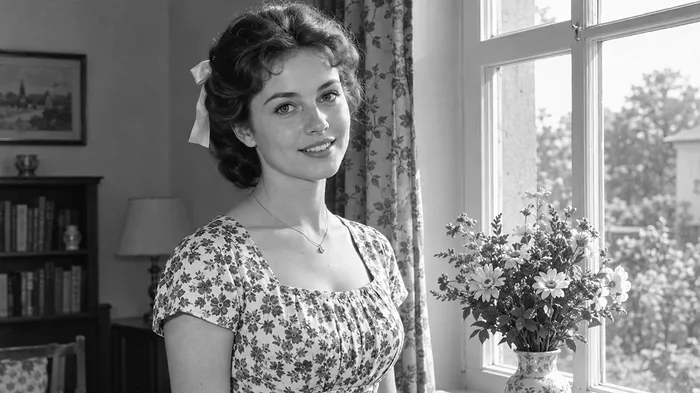
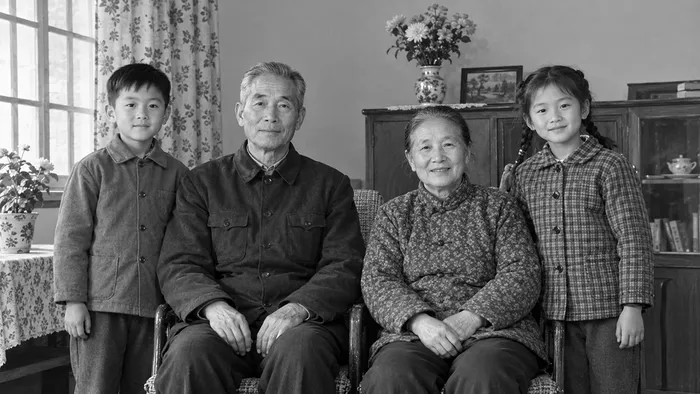
Black-and-white portrait before colorization
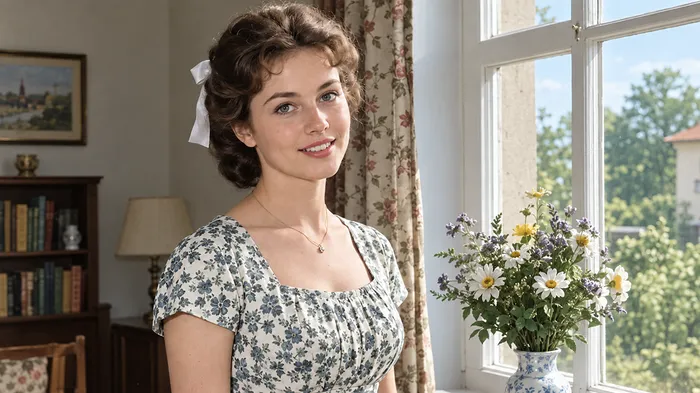
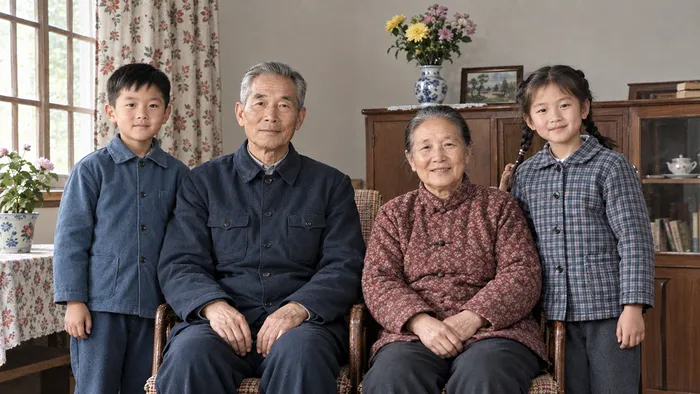
Portrait after natural AI colorization
BeforeColorized
2 free images · No sign-up requiredAutomatic AI colorizationIdentity and detail protection

Try the AI Photo Colorizer on These Photos

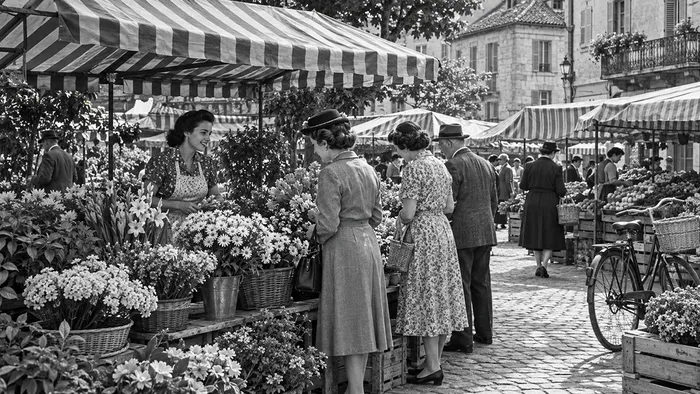
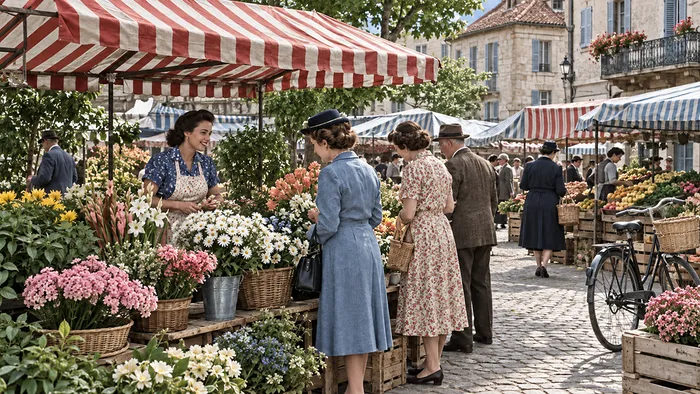
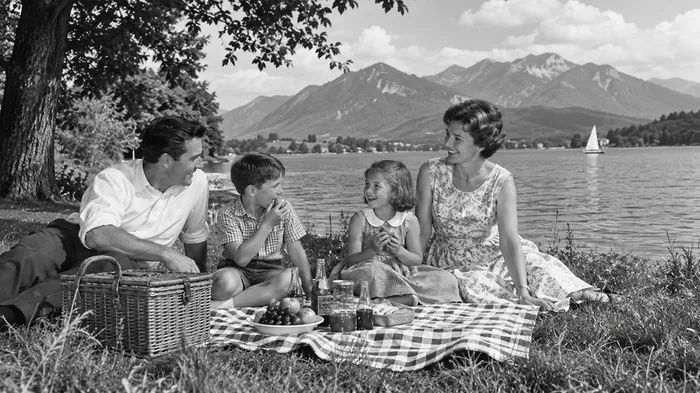
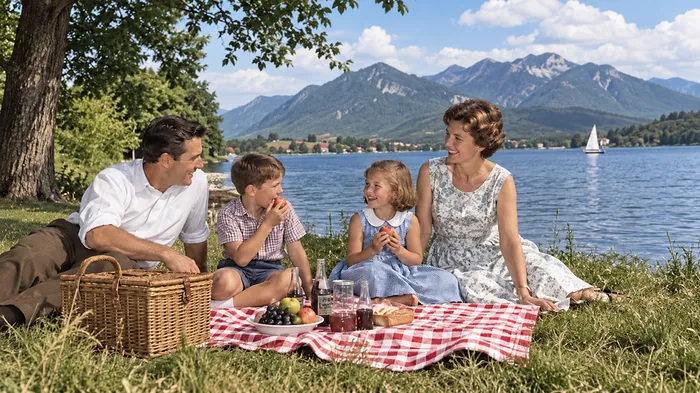
See how the Mixinflow photo colorizer can colorize photo subjects with different faces, materials, backgrounds, and historical settings. Drag the divider to compare each black-and-white source with its colorized result.

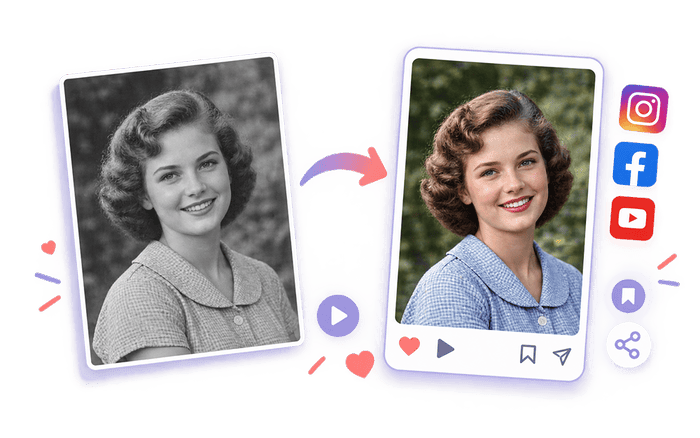
Colorize photo portraits with coordinated skin, hair, eye, clothing, and background tones while keeping the person’s identity and expression recognizable.

Black-and-white portrait before and after AI photo colorization before upscaling
Black-and-white portrait before and after AI photo colorization after upscaling

Natural AI Colorization That Respects the Original Photo

A good image colorizer should do more than place a tint over the frame. Mixinflow analyzes semantic regions and tonal relationships so you can colorize photo content with believable variation, restrained saturation, and a faithful connection to the source.

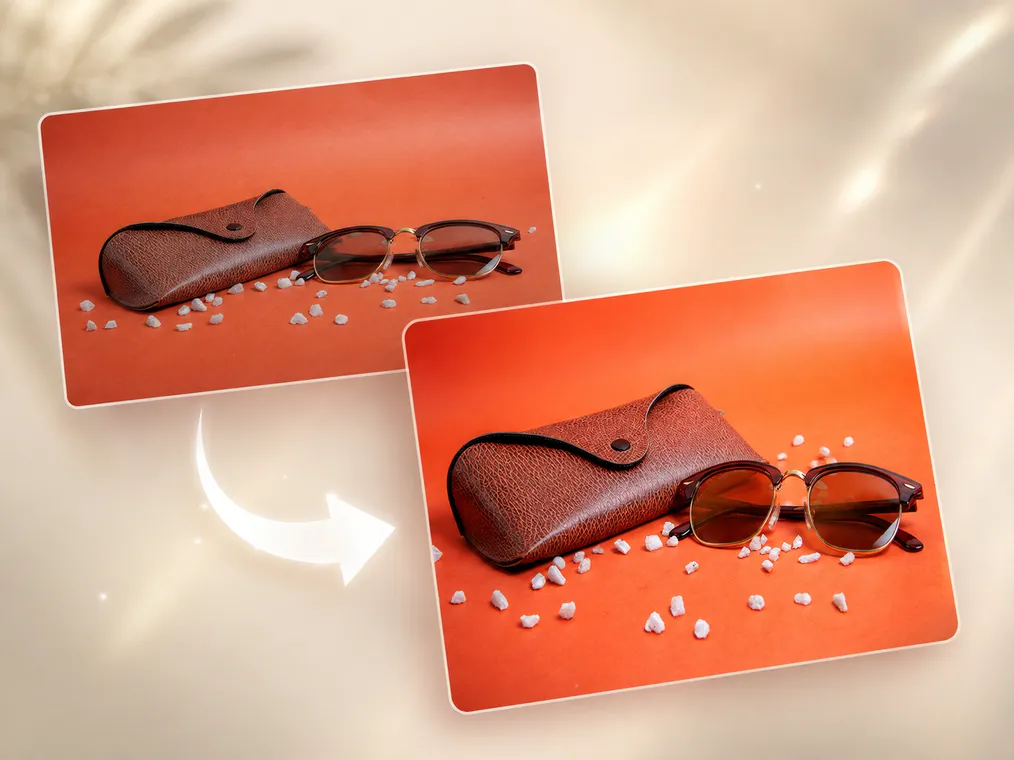
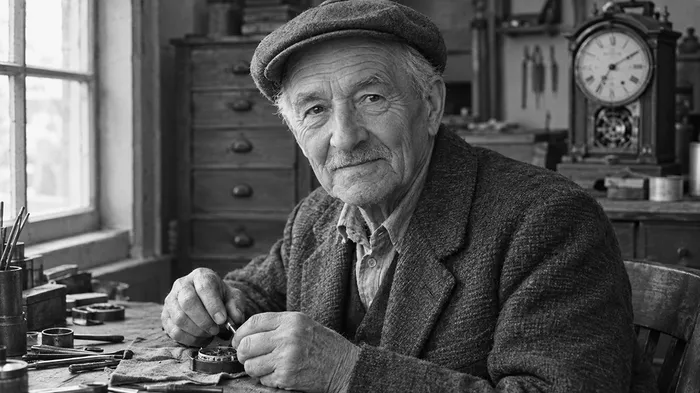
Create Natural-Looking Colors before enhancement
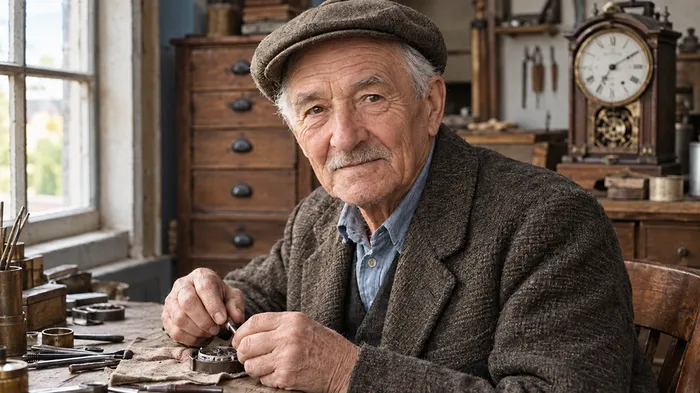
Create Natural-Looking Colors after enhancement
BeforeAfter

Create Natural-Looking Colors

Colorize photo subjects with colors that work together across the whole frame. The AI photo colorizer considers skin, hair, eyes, clothing, furniture, sky, plants, roads, and nearby objects rather than applying one flat tone. It balances saturation against the original shadows and highlights, helping the finished colorize image result look photographic instead of painted. Exact historical colors cannot always be known from grayscale alone, but Mixinflow aims for plausible, coherent choices that make portraits and scenes easier to connect with.

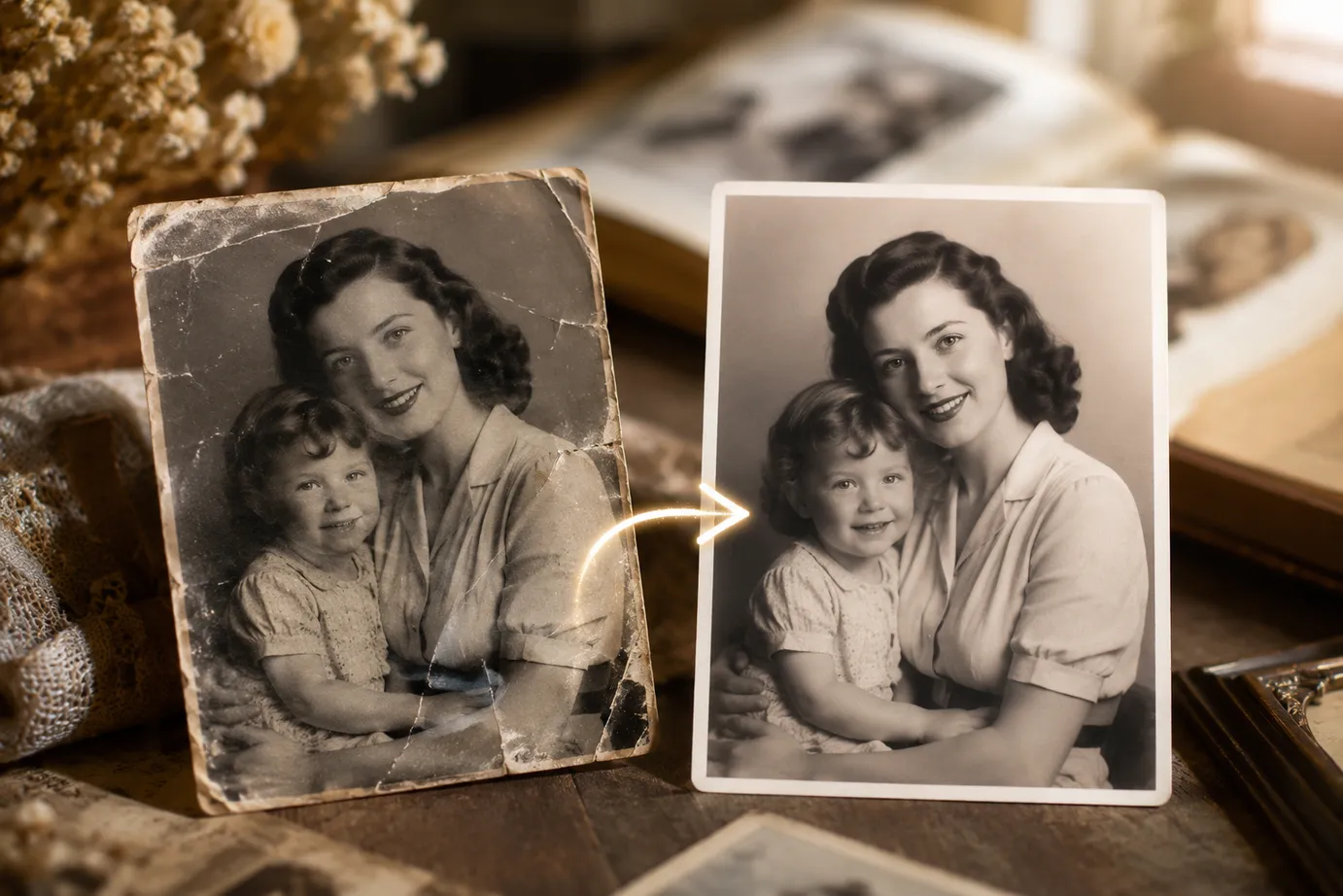
Preserve Faces and Original Details before enhancement
Preserve Faces and Original Details after enhancement
BeforeAfter

Preserve Faces and Original Details

When you colorize photo portraits, the person should remain the same person. Mixinflow is instructed to protect facial structure, expression, age, pose, hair shape, clothing, texture, lighting direction, framing, and composition. The photo colorizer adds chromatic information without intentionally beautifying a face, changing a hairstyle, replacing garments, or modernizing the scene. Fine details remain grounded in the uploaded image, which is especially important when you colorize old photos of relatives, weddings, school groups, or community history.

Recognize People, Objects, and Scenes before enhancement
Recognize People, Objects, and Scenes after enhancement
BeforeAfter

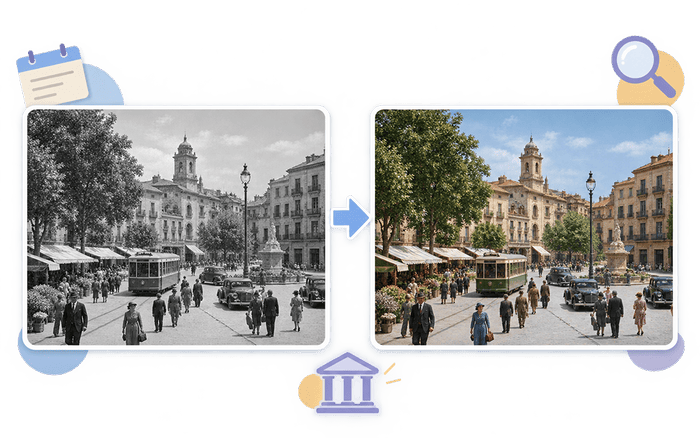
Recognize People, Objects, and Scenes

The AI photo colorizer interprets what different areas are likely to represent before choosing color. It can distinguish people from background surfaces and treat skin, vegetation, open sky, masonry, fabric, vehicles, and interior objects differently. This scene-aware approach helps colorize black and white photos with more variation and spatial logic than a simple overlay. Whether you colorize image files containing one portrait or a busy street, each region receives color in relation to the broader lighting and context.

Colorize Photos Automatically before enhancement
Colorize Photos Automatically after enhancement
BeforeAfter

Colorize Photos Automatically

You do not need a brush, selection mask, layer stack, color palette, or advanced photo-editing experience. Upload an image and let Mixinflow colorize photo content automatically. The image colorizer analyzes the source, generates a result, and presents a before-and-after comparison for review. This direct workflow makes it practical to colorize photo archives one image at a time while still checking every face and meaningful detail before downloading.

How to Colorize a Photo Online

The Mixinflow AI photo colorizer turns a technical editing task into three clear steps. Start with the highest-quality scan available whenever you colorize photo originals, and keep that source untouched after the colorize photo workflow.

1

Upload a Black-and-White Photo

Select a JPG, JPEG, PNG, or WebP file up to 25 MB. A clean, high-resolution scan gives the photo colorizer more facial texture, object boundaries, and tonal information to interpret. You can also colorize image files with sepia or lightly faded tones.
2

Let AI Add Natural Color

Mixinflow studies the people, objects, setting, light, shadows, and grayscale relationships, then uses its AI photo colorizer to add restrained, coordinated hues. There are no manual masks or palettes to configure when you colorize photo content.

3

Preview and Download the Result

Drag the comparison control to inspect the source and colorized result. Check faces, clothing, important objects, and period details, then download the colorize photo output or upload another image.

Ways to Use a Photo Colorizer

People colorize photo collections for personal memory, historical interpretation, publishing, education, and creative storytelling. Mixinflow keeps the workflow approachable while encouraging careful review of colors that cannot be proven from grayscale evidence alone.

Bring Family Memories Back to Life

Bring Family Memories Back to Life

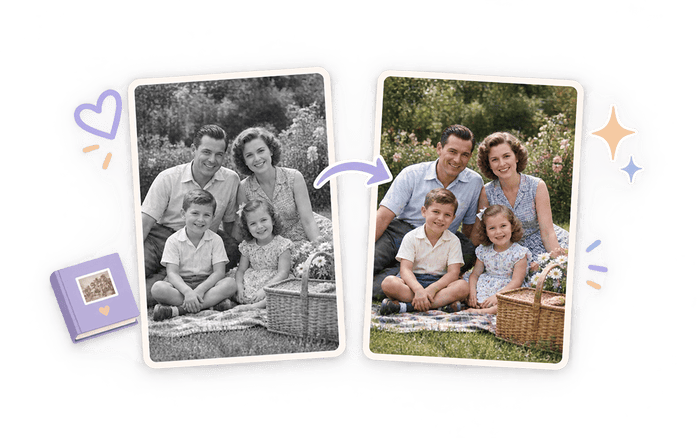
Colorize photo albums to make parents, grandparents, childhood homes, celebrations, and everyday family moments feel more immediate to a modern audience. Natural skin and clothing tones can help younger relatives connect with an old picture while the original expression, pose, lighting, and composition remain central. Keep the black-and-white scan alongside the colorize photo result when preserving a family archive.

Colorize Old Portraits and Wedding Photos

Colorize Old Portraits and Wedding Photos

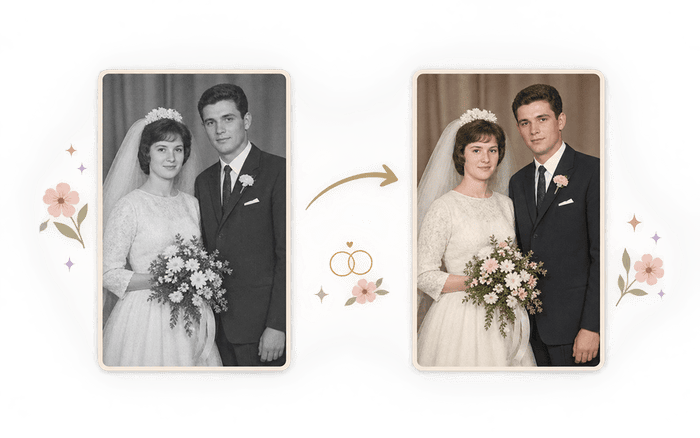
Use the photo colorizer for formal portraits, wedding photographs, school pictures, military portraits, and studio prints. The AI photo colorizer can coordinate skin, hair, flowers, fabric, and background tones without requiring hand-painted masks. When an exact uniform, medal, dress, or bouquet color matters, compare the result with written records or family knowledge.

Add Context to Historical Photographs

Add Context to Historical Photographs

Colorize black and white photos of neighborhoods, public events, transport, architecture, farms, and landscapes to help viewers distinguish materials and scene elements. An image colorizer can make a historical photograph easier to read, but generated hues are informed interpretations rather than documentary proof. Label colorized versions clearly in academic, museum, journalistic, or archival work.

Prepare Archival Photos for Stories and Social Media

Prepare Archival Photos for Stories and Social Media

Colorize photo scans for a family history article, anniversary post, documentary thumbnail, classroom project, local-history page, or social media story. Color can attract attention and reveal visual relationships that are less obvious in grayscale. Download the result, keep the source safe, and avoid presenting uncertain colors as verified historical fact.

Colorization vs. Photo Restoration, Unblurring, and Upscaling

Choose the workflow that matches the actual problem in your source. To colorize photo content is to add hue; it is not the same as repairing damage, reversing blur, or increasing pixel dimensions.

Mixinflow toolWhat it changesUse it when
Colorize PhotoAdds plausible color to grayscale or sepia people, objects, clothing, and environments while aiming to preserve the original image.You want to colorize black and white photos that are already reasonably clear and intact.
Restore PhotoRepairs visible scratches, stains, creases, tears, fading, noise, and other age-related damage.The old photo is physically damaged or heavily faded before you colorize photo details.
Unblur ImageImproves recognizable detail affected by mild motion blur, camera shake, or missed focus.Faces and edges are blurry; improve clarity before asking an image colorizer to interpret them.
Upscale ImageIncreases resolution and output dimensions for larger screens, layouts, or prints.The photo is clear but too small. Colorize image content first, then upscale the approved result.

One photo may need more than one workflow. Preserve an untouched master scan and review the output after every step instead of repeatedly processing the only copy.

Colorize Photo FAQs

Bring Your Black-and-White Photos to Life

Add natural color to old portraits, family memories, and historical images in a few moments with an automatic colorize photo workflow.

Colorize a Photo

No installation required · Preview before downloading

Colorize Photo Online – Free AI Photo Colorizer | Mixinflow