




Visible Pixel Squares
Smooth enlarged blocks into more natural color and tonal transitions.
Remove pixelation and restore clear, natural details from low-resolution images. Upload once, let Mixinflow AI identify visible pixel blocks, repair rough edges, and create a cleaner image in seconds.
JPG, JPEG, PNG, WebP, or AVIF · Max 25 MB
A useful unpixelate image tool does more than blur square blocks. Mixinflow reads visible pixelation, compression damage, edges, faces, text, and texture together, then applies a careful repair route. The goal is a clear image with believable detail—not heavy sharpening, plastic skin, or a redesigned subject.
When you unpixelate image files with Mixinflow, AI first evaluates how severe the pixelation is and where it appears. It looks for enlarged square blocks, stair-step edges, JPEG ringing, color banding, and lost fine detail. You do not need Photoshop, manual masks, or technical settings: upload the image and the pixel remover chooses a measured correction for the visible damage.
A pixelated image often has several problems at once. Mixinflow can depixelate image edges that look jagged, soften compression traces around lettering, and recover more natural transitions in skin, hair, fabric, foliage, and product surfaces. The unpixelate image workflow protects the original framing, colors, identity, and composition instead of simply smearing pixels across the picture.
Removing pixels can reveal that the source is still too small for its intended use. When appropriate, the unpixelate image process can also create a larger, clearer result so details are easier to view or share. Enlargement is applied with restraint: Mixinflow aims to avoid haloed outlines, over-sharpened texture, face distortion, and the waxy look common in aggressive pixel remover filters.
Use Mixinflow to unpixelate image details that became blocky through low resolution, cropping, screenshots, or repeated JPEG compression.
Smooth enlarged blocks into more natural color and tonal transitions.
Repair stair-step edges around faces, objects, logos, and text.
Reduce ringing, block artifacts, and noisy roughness around details.
The best way to unpixelate image content depends on why it looks blocky. Mixinflow analyzes the damage first, then uses targeted AI enhancement rather than one strong blur filter for every upload.
| Image problem | What the pixel remover improves | Typical source |
|---|---|---|
| Low-resolution pixelation | Smooths visible square blocks and restores more continuous edges, colors, and small visual details. | Tiny originals, enlarged profile photos, cropped images, and old web graphics. |
| Jagged or aliased edges | Reduces stair-step outlines while preserving clean boundaries around people, objects, lettering, and shapes. | Screenshots, resized logos, game captures, illustrations, and heavily scaled images. |
| JPEG artifacts | Reduces compression blocks, ringing, mosquito noise, and rough patches around high-contrast detail. | Messaging app downloads, social media saves, thumbnails, and repeatedly exported JPEGs. |
| Lost fine detail | Recovers plausible texture and clearer local contrast without intentionally changing the main subject or composition. | Small portraits, product photos, scans, and images prepared for larger displays. |
An AI pixel remover can improve visible damage, but it cannot guarantee the exact recovery of detail that was never captured. Check the before-and-after comparison when faces, text, or factual accuracy matters.
Mixinflow gives you a fast online way to unpixelate image files before sharing, publishing, archiving, or using them in a design. The workflow stays simple: upload, let AI assess the pixelation, compare the repair, and download the clearer result.
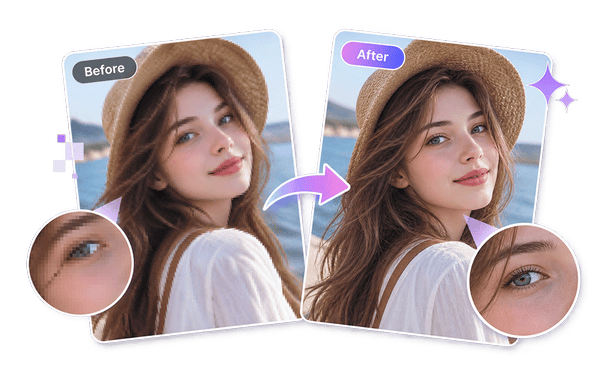
Unpixelate image portraits that were saved too small, cropped from a larger photo, or compressed by a social platform. Mixinflow focuses on natural facial structure, hair, skin texture, and edges while avoiding excessive smoothing or face reshaping.
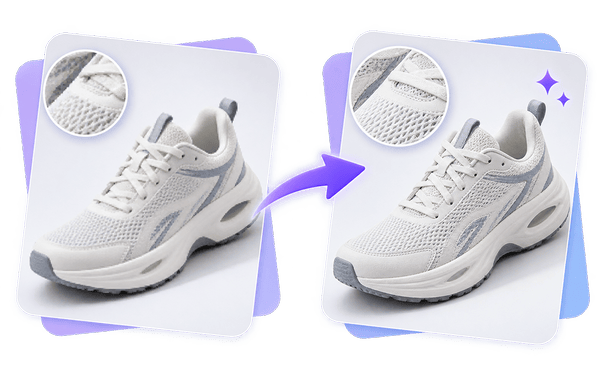
Use the pixel remover for small product shots, listing images, labels, screenshots, and simple graphics. It can reduce rough outlines and JPEG artifacts so a depixelate image result looks clearer, while you should still verify every word, number, and logo when precision is important.
Unpixelate image scans and older files before keeping them in a family archive or sharing them with others. The AI can reduce blockiness and visible compression damage while retaining the character of the source, rather than making an old photograph look unnaturally polished.
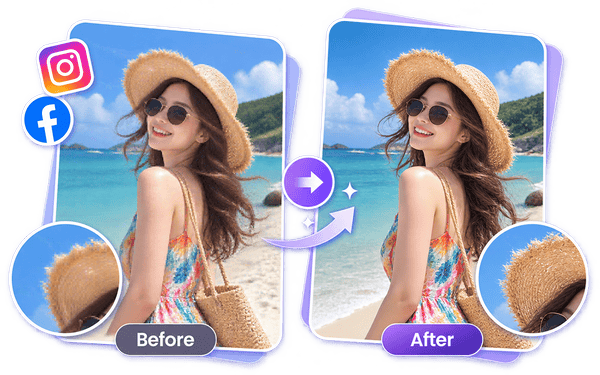
Images downloaded from websites and chat apps often carry multiple rounds of resizing and compression. Mixinflow can remove pixelation from image files, clean rough color transitions, and provide a more presentable version for a post, presentation, mood board, or online store.
The Mixinflow unpixelate image workflow is built for a fast, no-installation repair. You can start with two free images and no sign-up, without learning Photoshop or adjusting complex restoration controls.
Choose a JPG, JPEG, PNG, WebP, or AVIF image up to 25 MB. For the strongest unpixelate image result, start with the highest-quality original you can find instead of a screenshot or a file that has been repeatedly compressed.
Mixinflow automatically identifies visible pixel blocks, rough edges, compression artifacts, and missing detail. It selects an appropriate restoration approach, repairs the image, and may carefully increase resolution where that helps the result look clearer and more usable.
Move the before-and-after slider and use local zoom to inspect the unpixelate image result. If it looks right, download the clear image in your preferred format. Your uploaded image is automatically deleted to help protect privacy.
Upload a low-resolution or blocky image and let Mixinflow AI restore a clearer, more natural result in seconds.
Unpixelate Image Free2 free images · No sign-up required · No installation needed