1
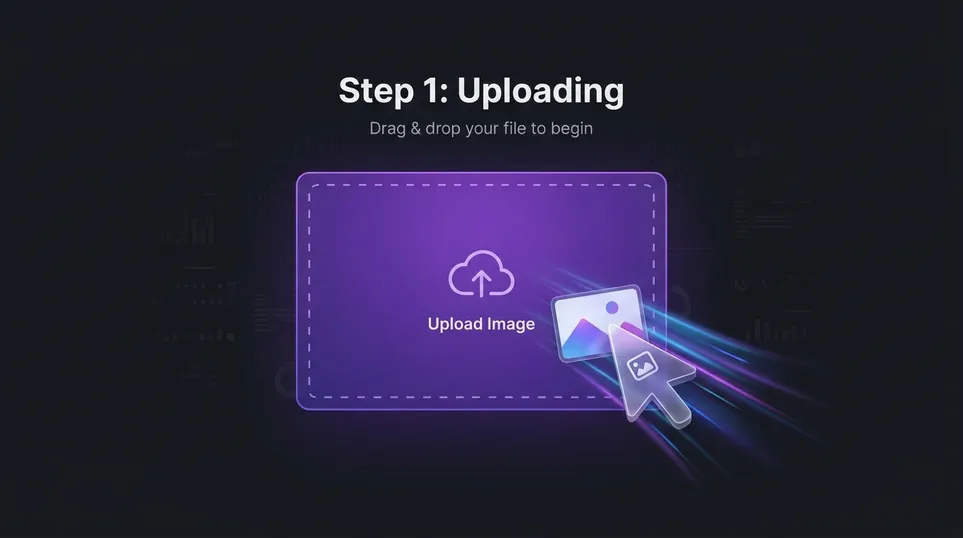
Upload your image
Add a JPG, PNG, or WEBP file from your device, or start with a sample image to test the crop image workflow first.
Crop images online with Mixinflow for social media, ecommerce, websites, profile photos, and custom layouts. Choose a ratio, reframe the subject, and export a clean crop in seconds.
Supports JPG, PNG, and WEBP up to 25MB
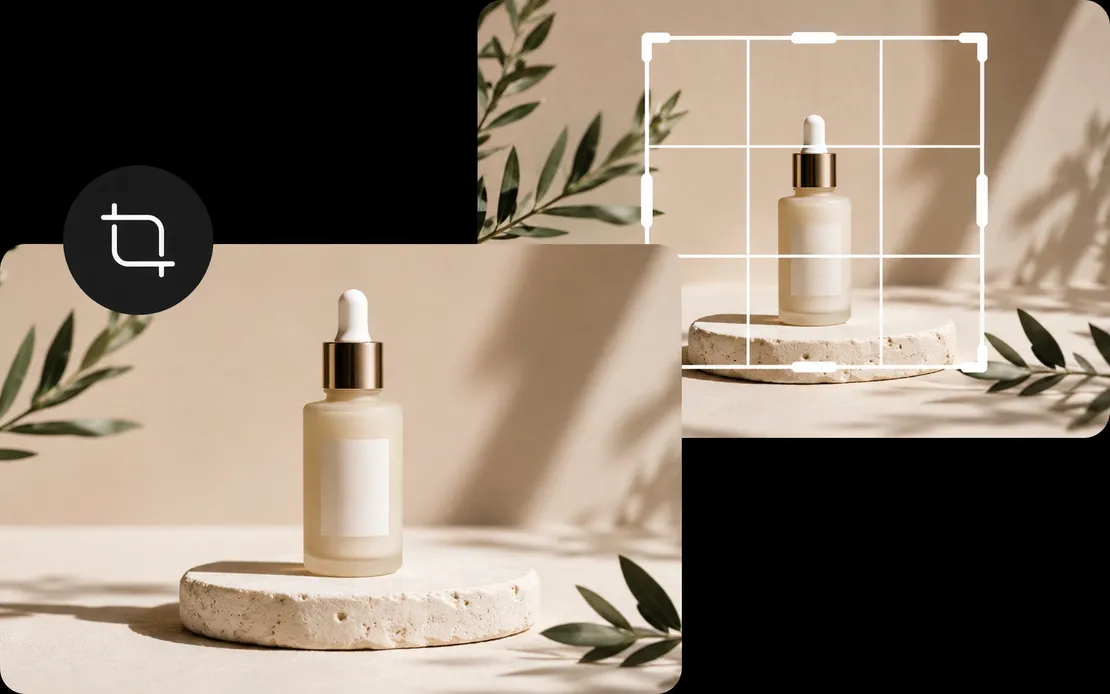
Crop an image in three quick steps, then download it or continue editing inside Mixinflow.
Add a JPG, PNG, or WEBP file from your device, or start with a sample image to test the crop image workflow first.
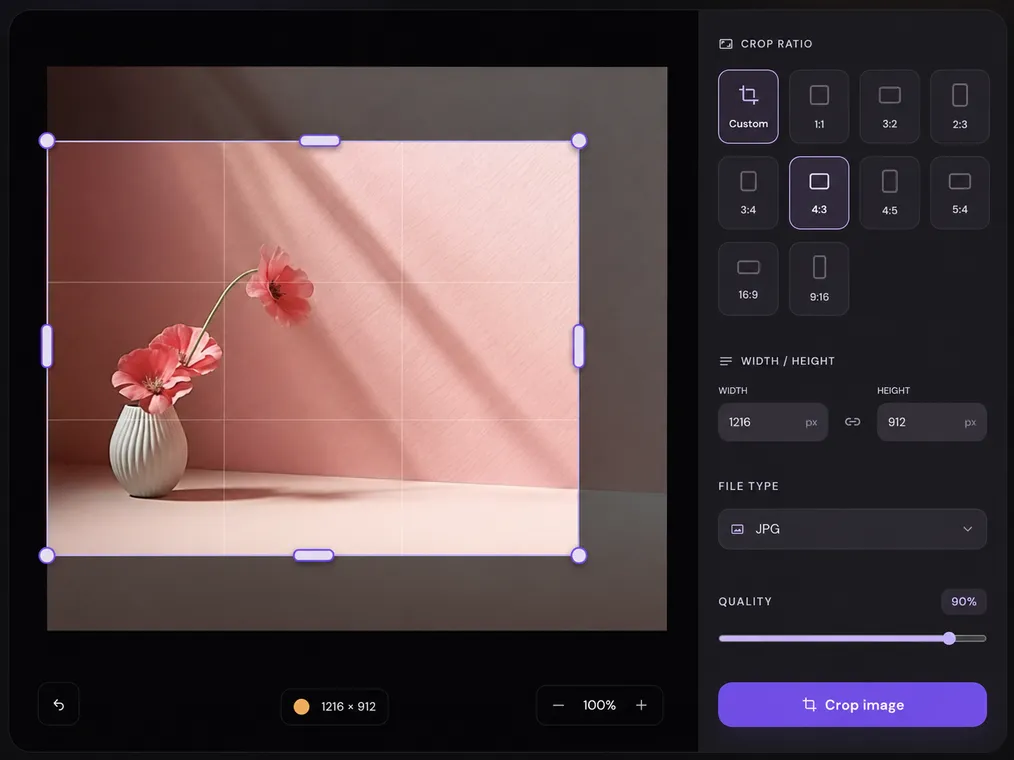
Switch between original, square, portrait, landscape, wide, or custom proportions depending on where the image needs to go.
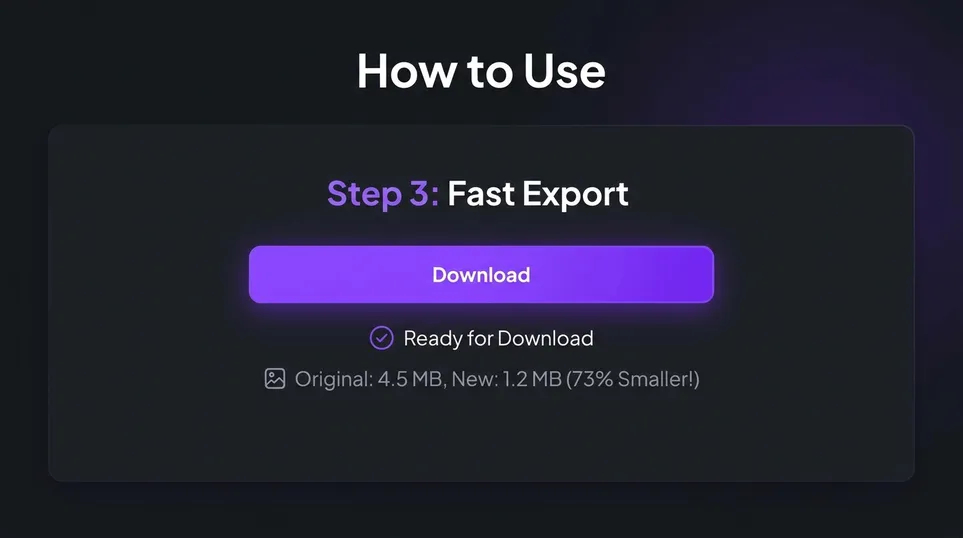
Move the image into position, tighten the composition with zoom, then export the cropped image when it looks right.
A good image cropper should make framing feel fast, precise, and repeatable. Mixinflow keeps the workflow simple while still giving you control over the final composition.

Many crop image tasks happen because the asset must fit a banner, a card, a product slot, or a landing page section. Mixinflow helps you move from source image to a better-framed publishing asset without opening a heavier desktop workflow first.

Switch between crop ratios and keep adjusting until the composition feels right. If the image is still too tight after cropping, you can move into other Mixinflow workflows for resize, cleanup, or canvas extension.
Use the right frame for the destination so the crop feels intentional instead of squeezed, awkward, or overly tight.
Square crop ratios are useful for profile photos, thumbnail grids, feed posts, and product tiles where the image needs a compact, balanced frame.
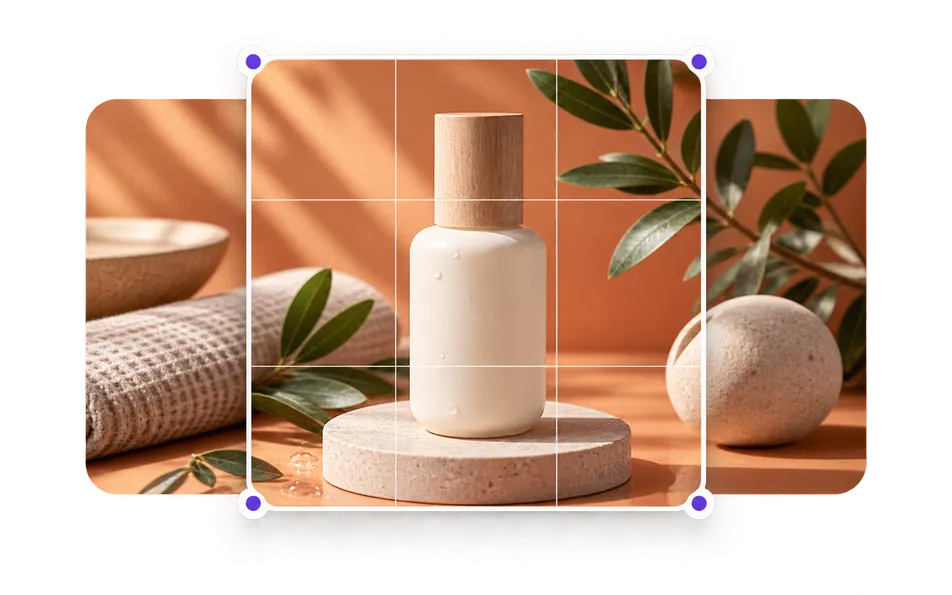
Use Mixinflow when you need to crop a photo online for social, ecommerce, web, or profile layouts that show up again and again.
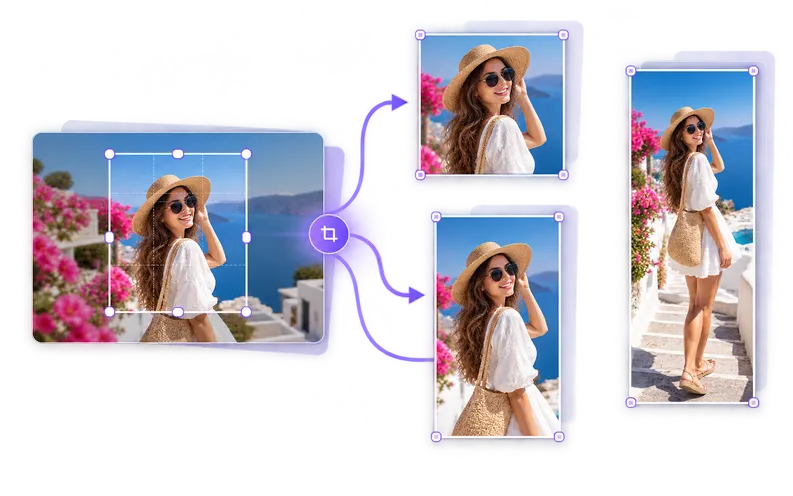
Crop image files into square, portrait, and vertical layouts for feed posts, stories, ad creatives, and social campaign assets.
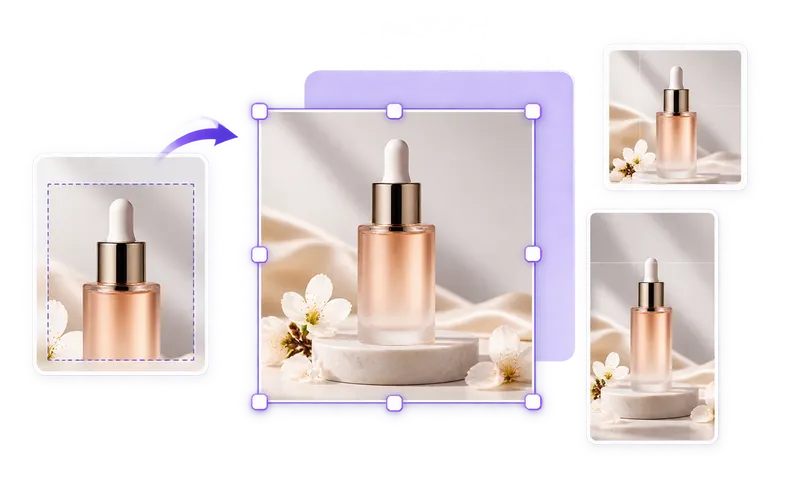
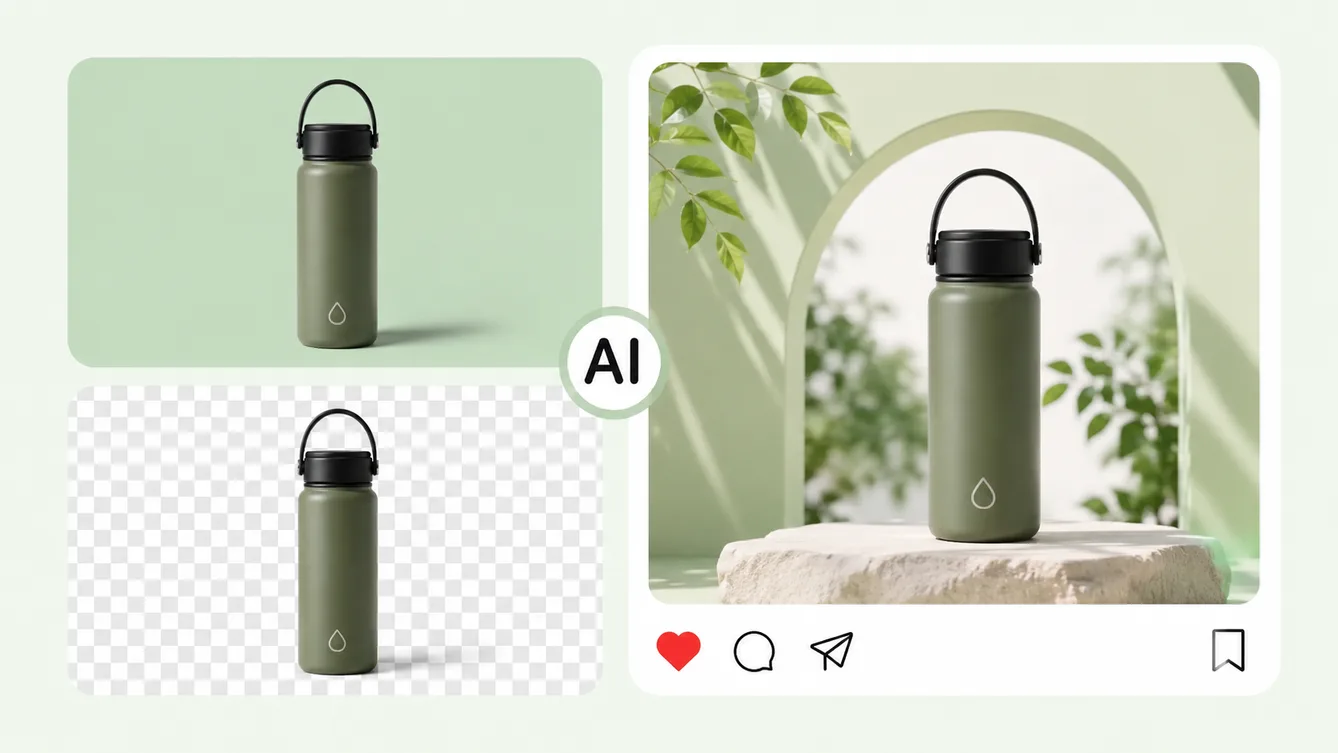
Crop product shots so the subject sits cleanly inside listings, collection cards, promo graphics, and marketplace layouts.
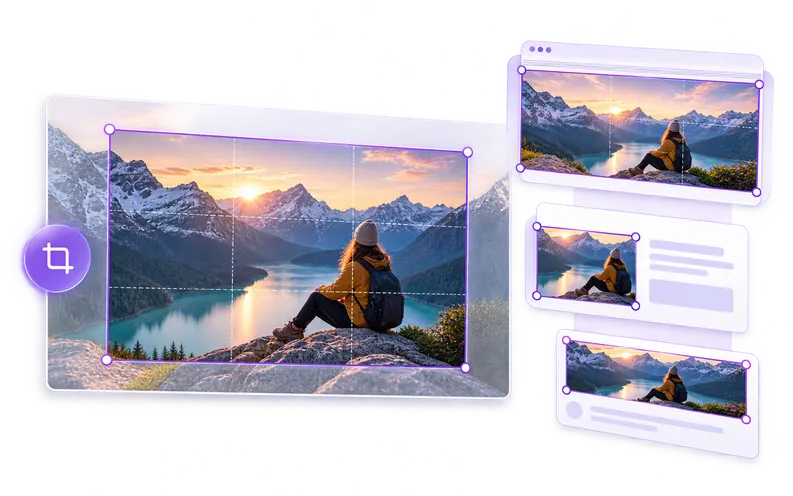
Use a website image cropper for hero banners, blog thumbnails, article headers, and landing page visuals that need a precise frame.

Crop portraits, headshots, and creator photos into clean profile-ready frames for team pages, bios, and avatars.
These workflows solve different problems. Choose the one that matches whether you need to trim the frame, change the canvas size, reduce file weight, or add more surrounding space.
| Tool | What it changes | Best for |
|---|---|---|
| Crop | Removes pixels from the edges of the image. | Improving composition and fitting a new frame. |
| Resize | Changes the image dimensions or aspect ratio. | Matching a publishing size or layout requirement. |
| Compress | Reduces file weight while keeping the same frame. | Faster loading, uploads, and file-size limits. |
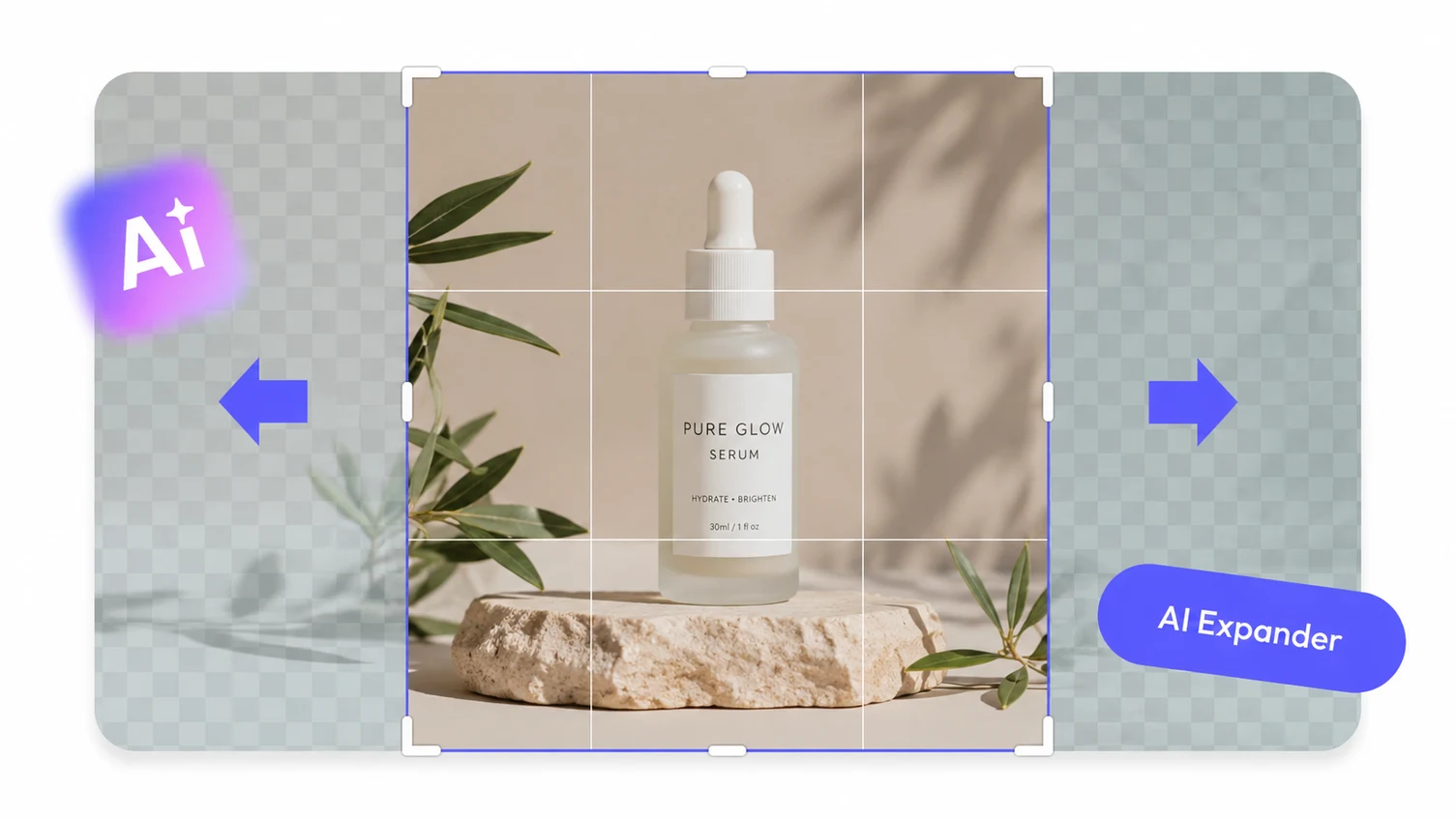
| Extend | Creates new visual content beyond the original frame. | Adding breathing room when the crop is too tight. |
Upload a photo, choose the right crop ratio, and download a cleaner image in seconds.
Start cropping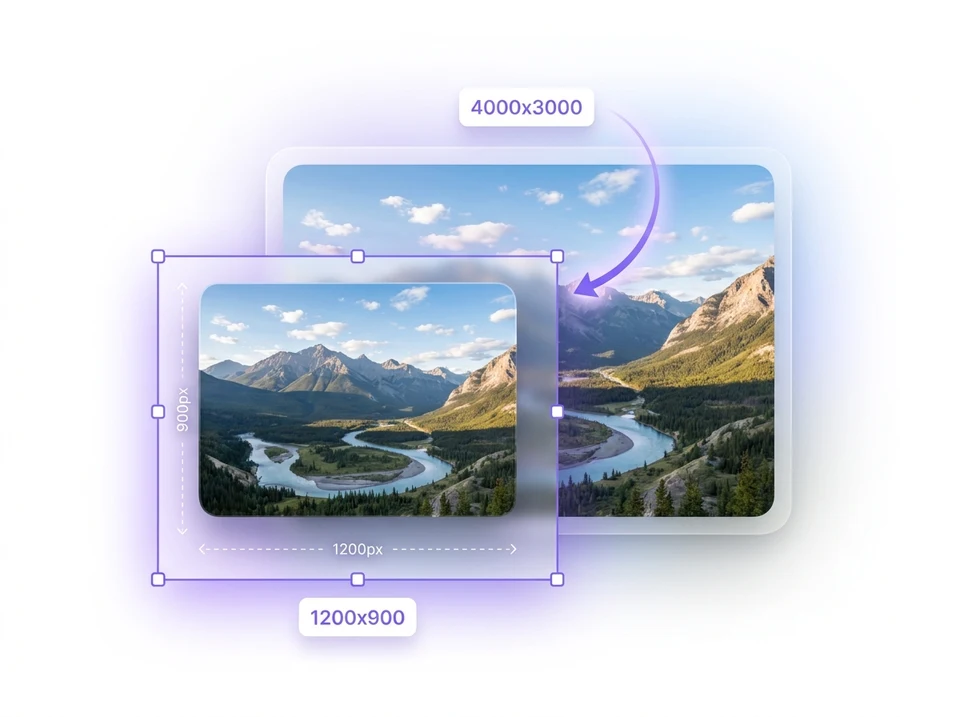
Crop images to social-ready aspect ratios
Use Mixinflow when you need a more practical crop image workflow for square posts, portrait layouts, vertical stories, and other social placements that depend on the right frame.
- Square, portrait, and vertical crop presets
- Great for Instagram, stories, reels, and ads
- Keeps the subject centered inside the frame
Start cropping