

Seedream 5.5 AI Image Generator & Editor

Create images from a text prompt or start with a photo you want to change. Explore how Seedream 5.5 handles lighting, selected details, text-heavy layouts, and transparent assets. Start with your own idea or browse an example to see what to ask for.

20

What’s New in Seedream 5.5

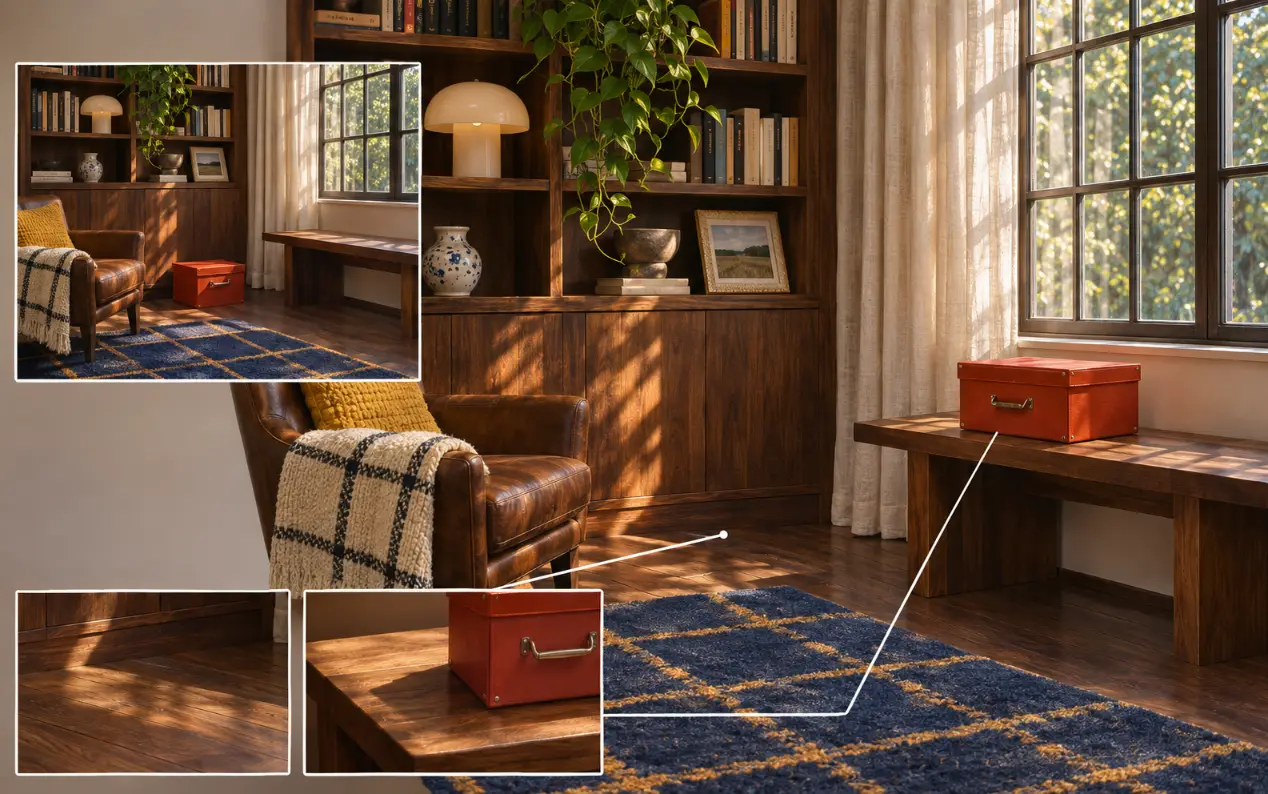
When a design goes through several rounds of feedback, small changes outside the requested area can accumulate. Seedream 5.5 is designed to preserve unedited areas more closely as you revise an image, helping a series of changes stay visually connected.

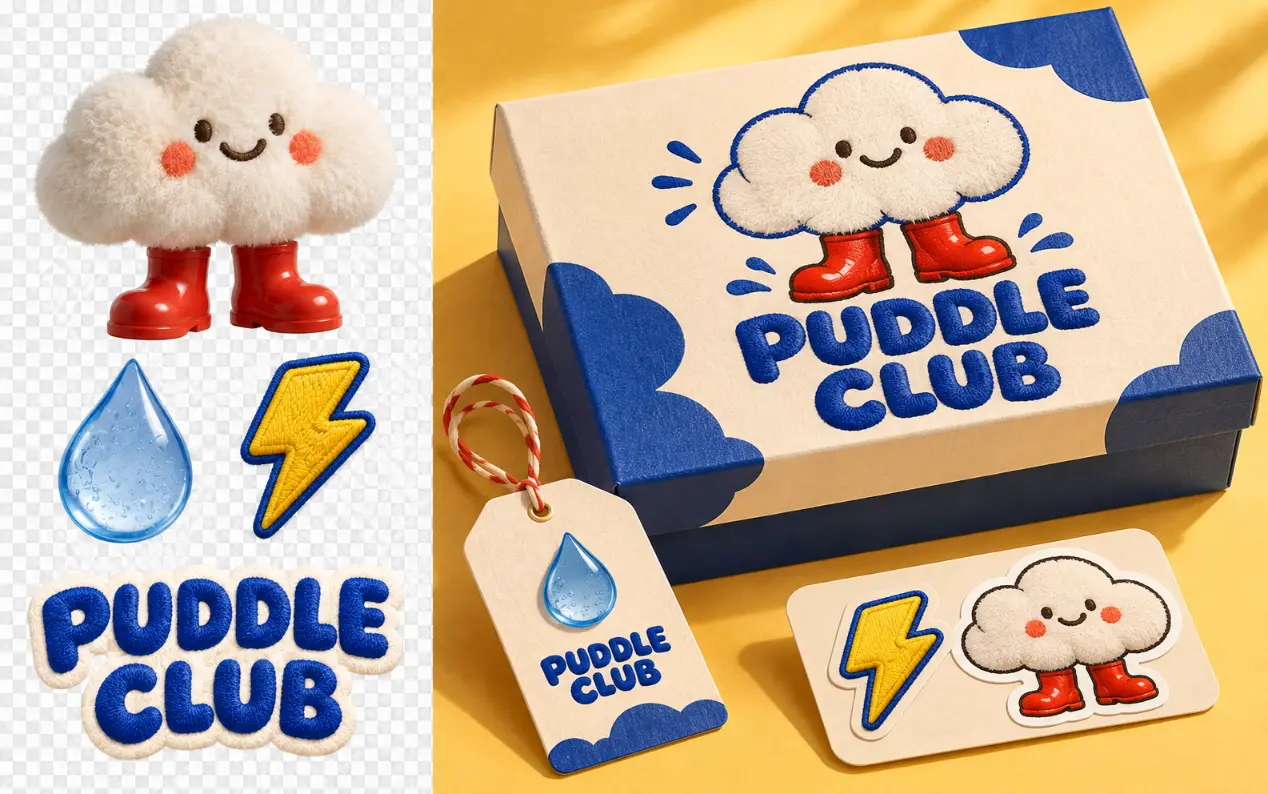
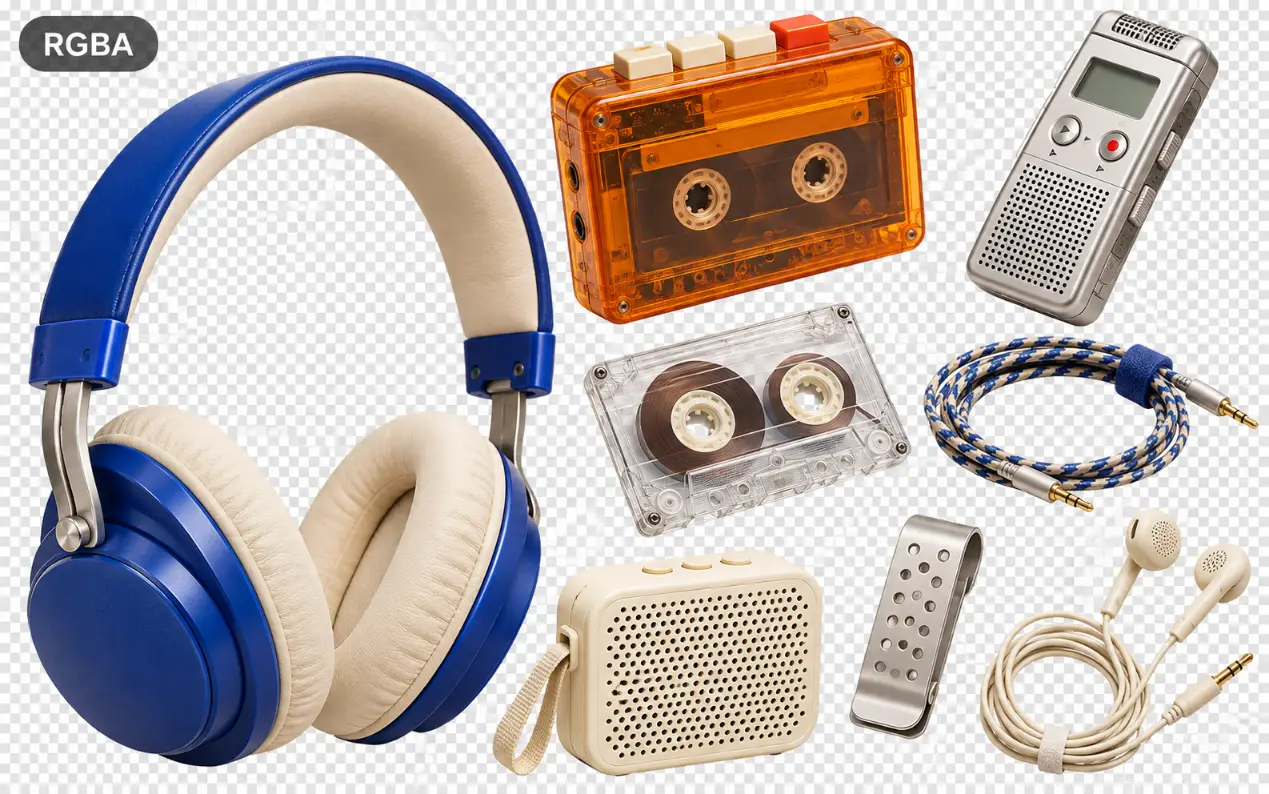
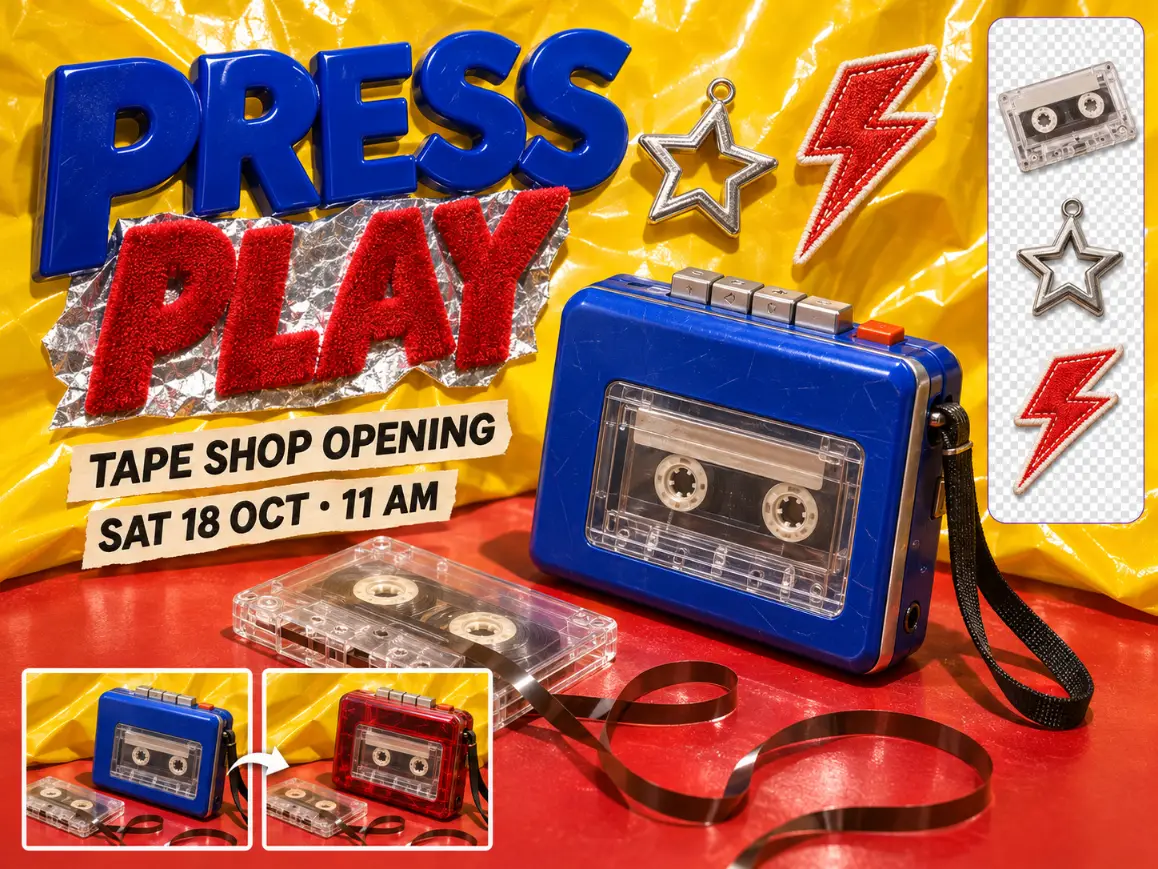
The model can generate transparent and partially transparent pixels directly. Use this capability to create independent assets such as lettering, illustrations, or decorative elements that can be placed over other artwork.

Seedream 5.5 improves the rendering of light, skin, and materials alongside dense text. Those improvements show up in very different tasks, from an unposed portrait lit by a window to an exhibit graphic with small labels beside a series of illustrations.
Seedream 5.5 image editing, transparent output, natural detail, and text rendering capabilities.
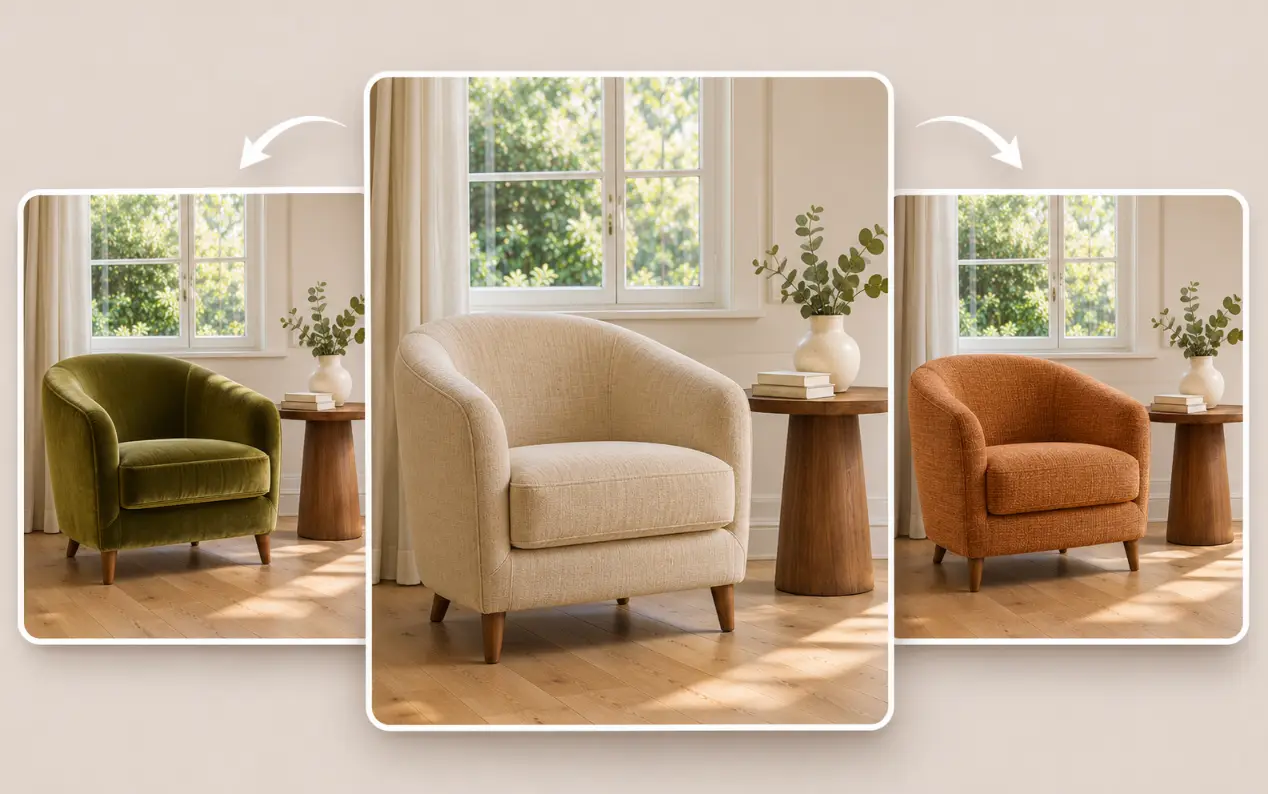
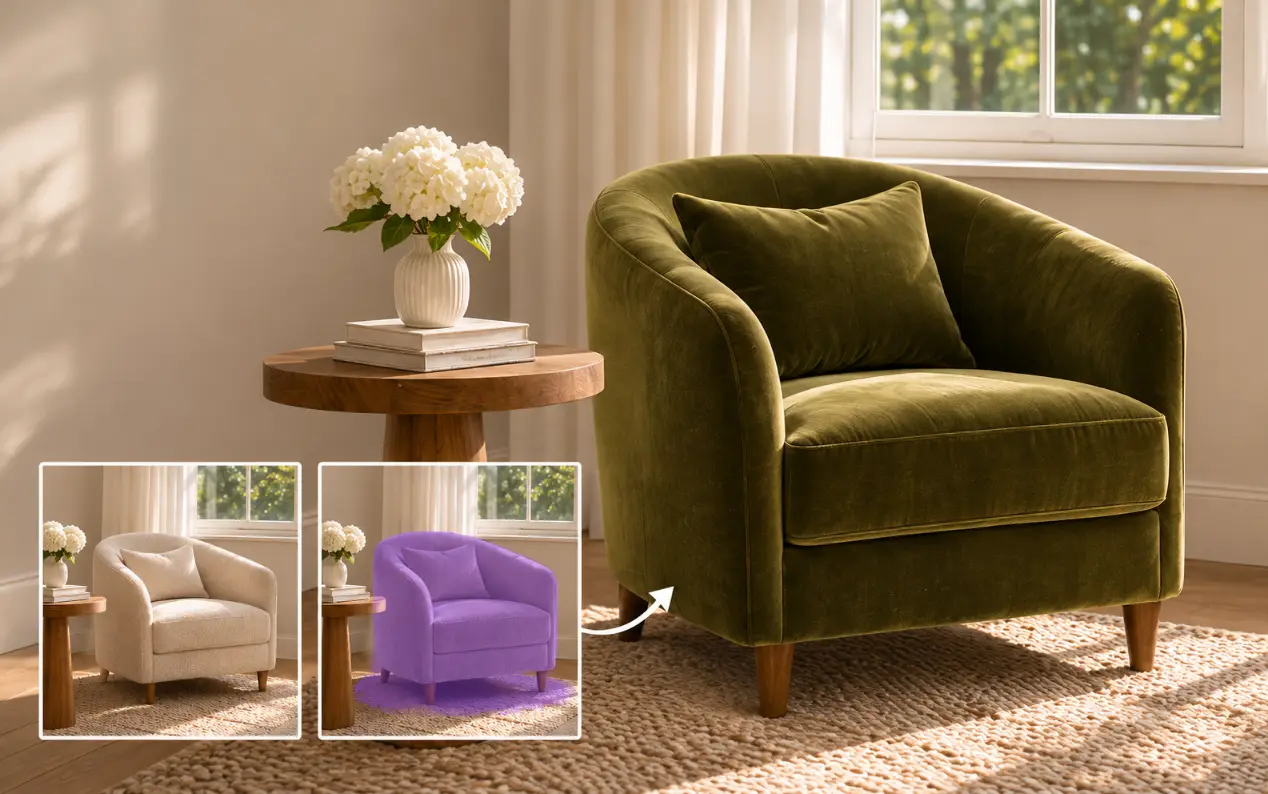
Living-room photo, purple selection over an armchair, and the resulting olive-green velvet replacement.

Edit Selected Areas Without Reworking the Scene

A photo can already have the right framing and atmosphere while one detail needs a different color, shape, or finish. In this living-room example, a beige armchair becomes an olive-green velvet chair. The edit covers the chair and its contact shadow so the replacement still feels grounded on the floor.

Try This Prompt
ByteDance Seed official demonstration of consistent revisions across 100 edits.

Keep Details Consistent Across Revisions

When each edit starts from the previous result, small shifts in color or texture can become more noticeable over time. Seed trained Seedream 5.5 to preserve unedited regions at the pixel level. In its official demonstration, Seed edited an image of the same person 100 times, using the previous result as input. Even after changes to clothing and props, the model could still work on details such as a ring or an eyeglass frame.

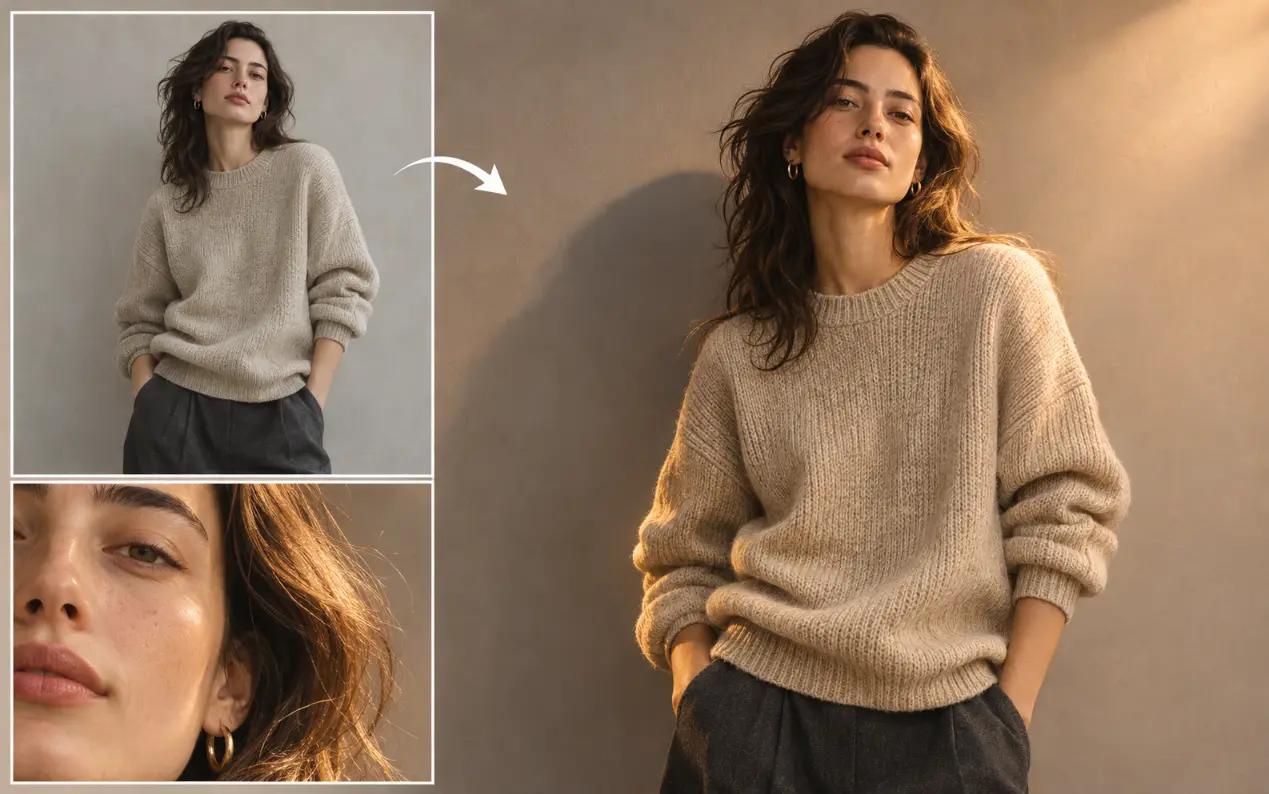
The same portrait in soft window light and warm cinematic side light.

Change the Lighting and Mood of a Photo

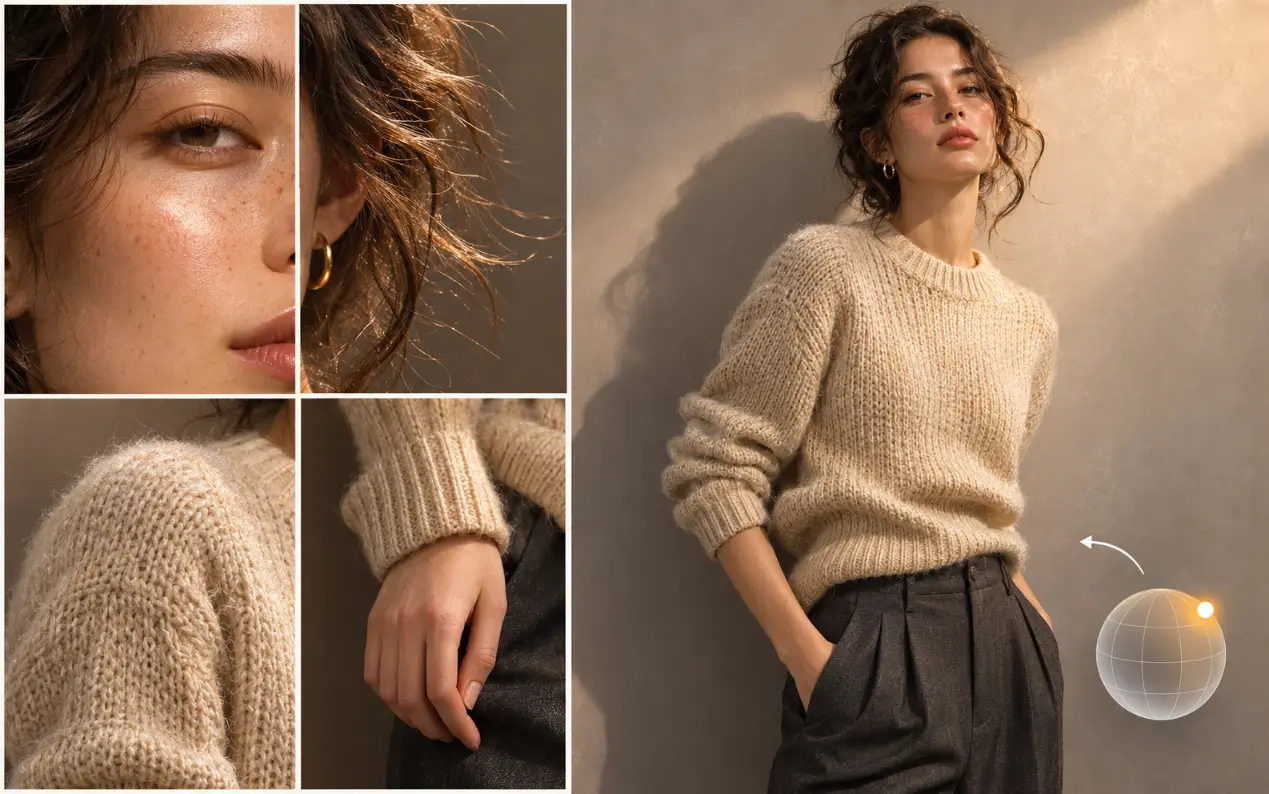
Soft window light gives a portrait gradual shadows and a quiet mood. A warmer light from the side brings out the cheekbone and hairline, while cooler ambient light can give the room a different atmosphere. Use the same portrait for both versions to see how the light interacts with the face, clothing, and background.

Try This Prompt
A window-lit portrait and a rainy street scene with close-ups of fabric texture and wet pavement.

Generate Photorealistic Images with Natural Textures

A convincing image often comes down to how different surfaces react to the same light. In a casual portrait, look for skin texture, loose strands of hair, and the weave of a sweater in shadow. In a rainy street scene, look at how a car’s paint reflects light differently from the wet pavement and how mist softens objects in the distance.

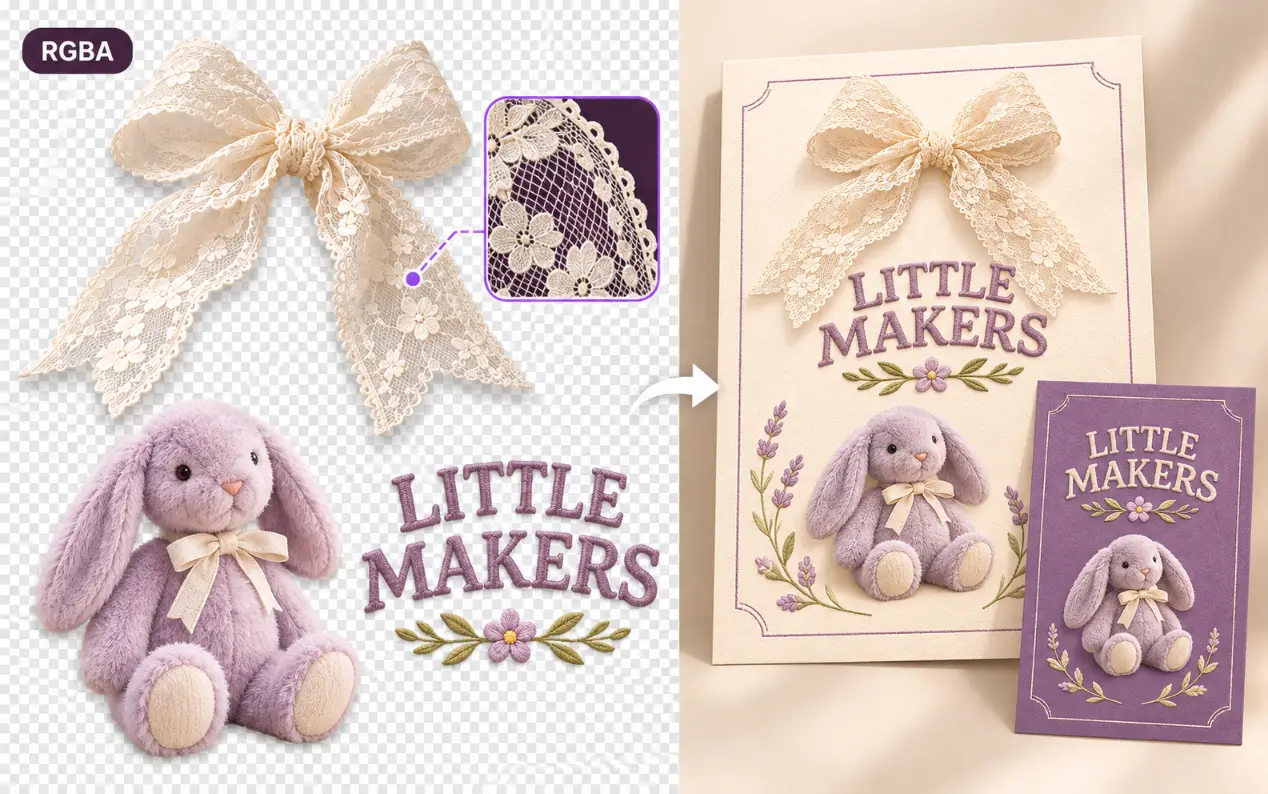
Transparent ivory lace bow and reusable plush character assets shown over light and deep-purple designs.

Generate Native Transparent PNG Assets

Look Closely at the Edges

Seedream 5.5 supports native RGBA output from a text description or a reference image. The alpha channel allows individual pixels to be fully transparent, partly transparent, or opaque. An ivory lace bow shows all three in one asset. The embroidery stays solid, the tiny openings between threads reveal the background, and the fine veil at the edges lets some of the background color through.
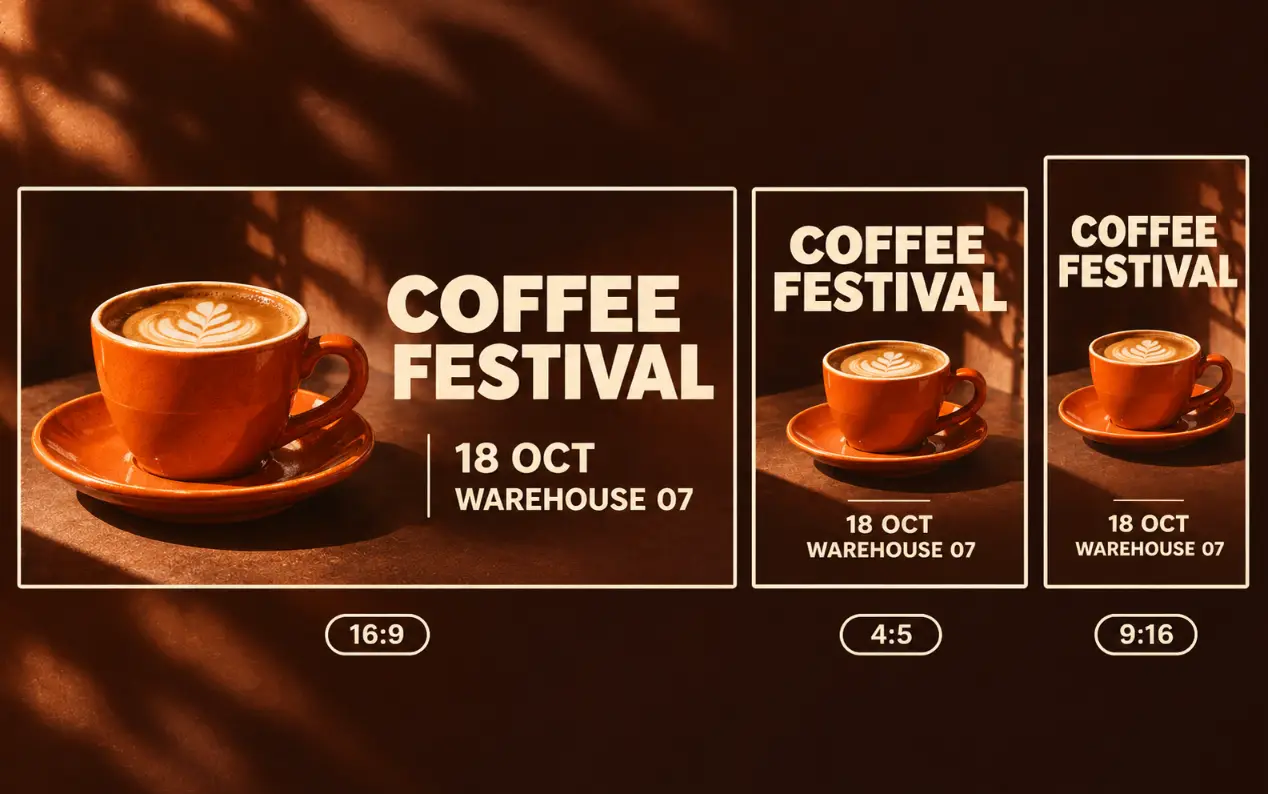
A coffee festival design rearranged as a wide banner, a feed poster, and a vertical story.

Reflow the Same Poster for Different Formats

An event campaign can need a wide banner, a feed post, and a vertical story. Start with the same coffee festival name, illustration, date, and venue. In the 16:9 banner, the illustration sits beside the event details. In the 4:5 layout, the title goes above the image and the date and venue move below it. The 9:16 story version stacks those elements with more space between them.

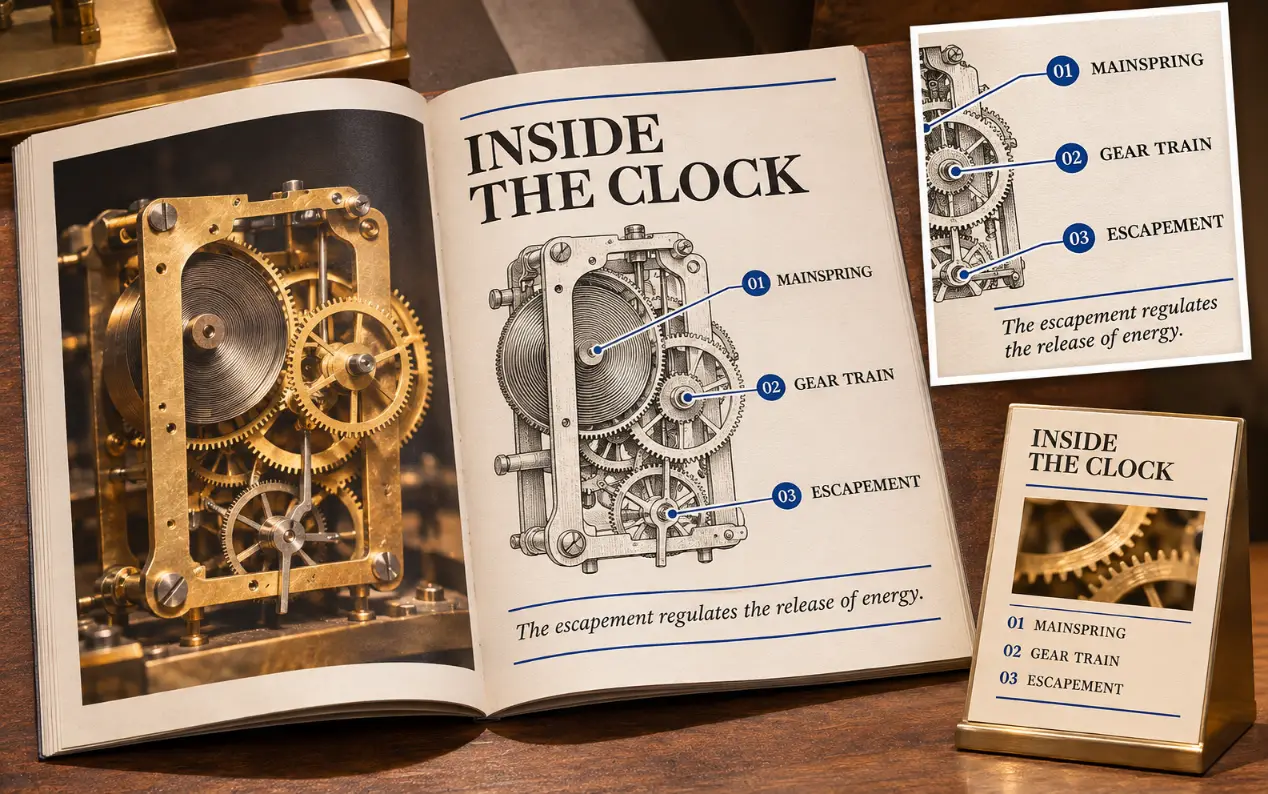
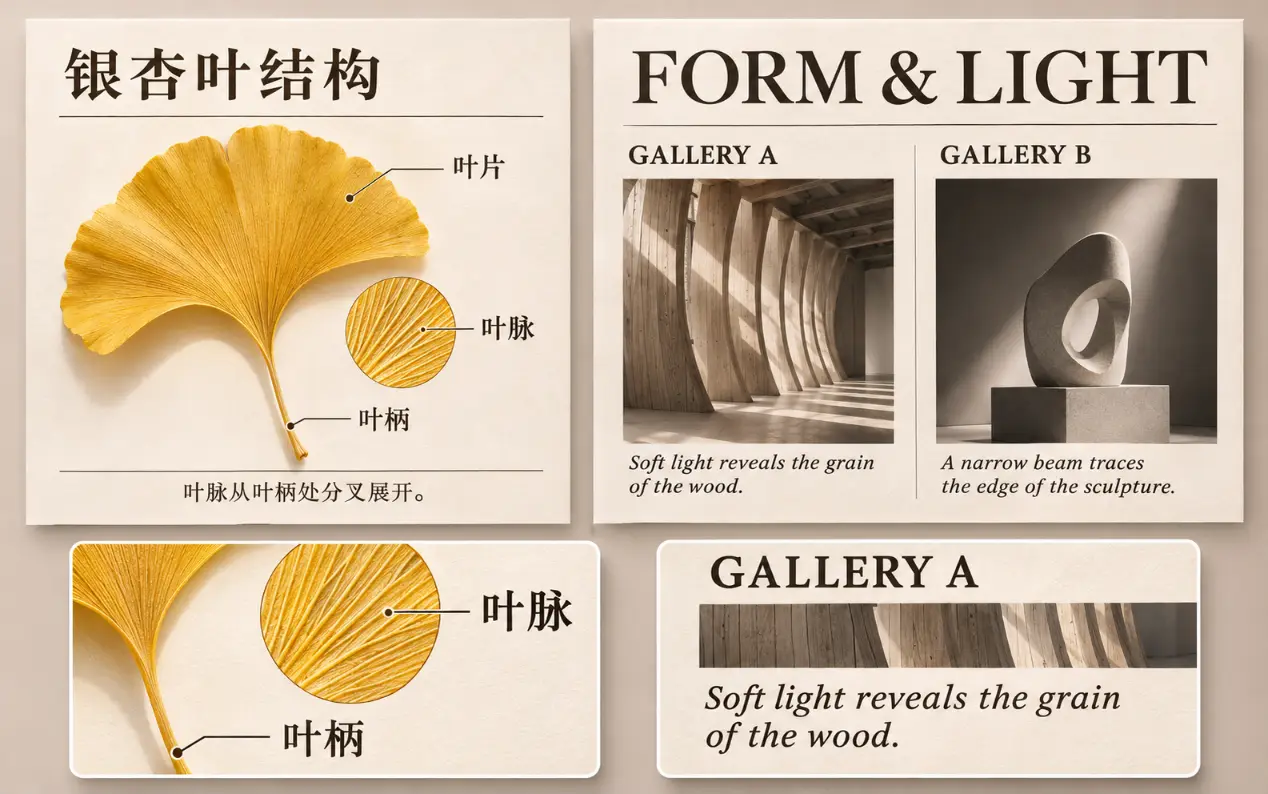
A Chinese botanical diagram and an English exhibition guide with enlarged label and caption details.

Render Small Text in Posters and Infographics

Seedream 5.5 improves the rendering of dense text and complex character shapes. Seed illustrates this with a Chinese butterfly infographic and an English newspaper-style composition. The examples below use a Chinese botanical diagram with several short labels and an English exhibition guide with headings, captions, and compact information blocks.

Seedream 5.5 Examples & Prompts

Explore six practical Seedream 5.5 examples, then load any prompt into the editor and adapt it to your image.

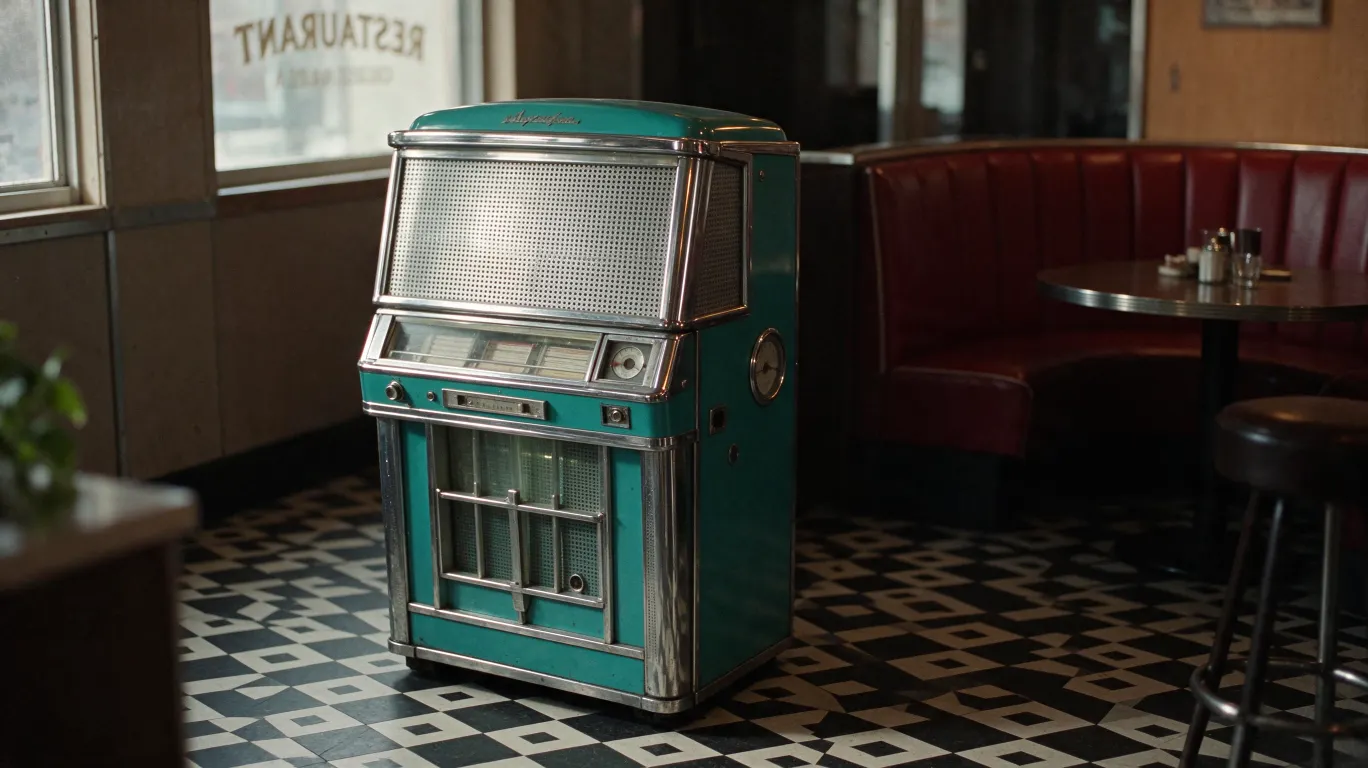
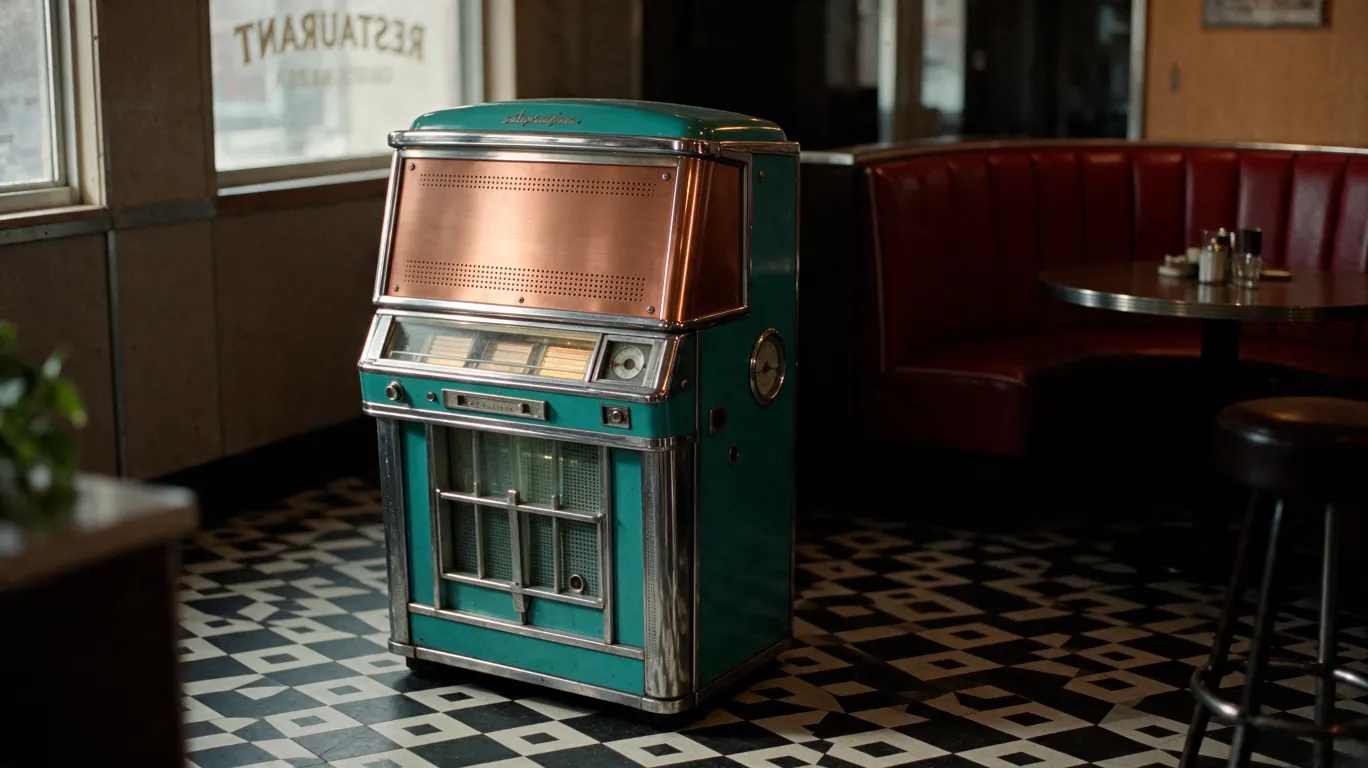
Turquoise diner jukebox with its silver speaker grille changed to brushed copper. beforeTurquoise diner jukebox with its silver speaker grille changed to brushed copper. after
BeforeAfter
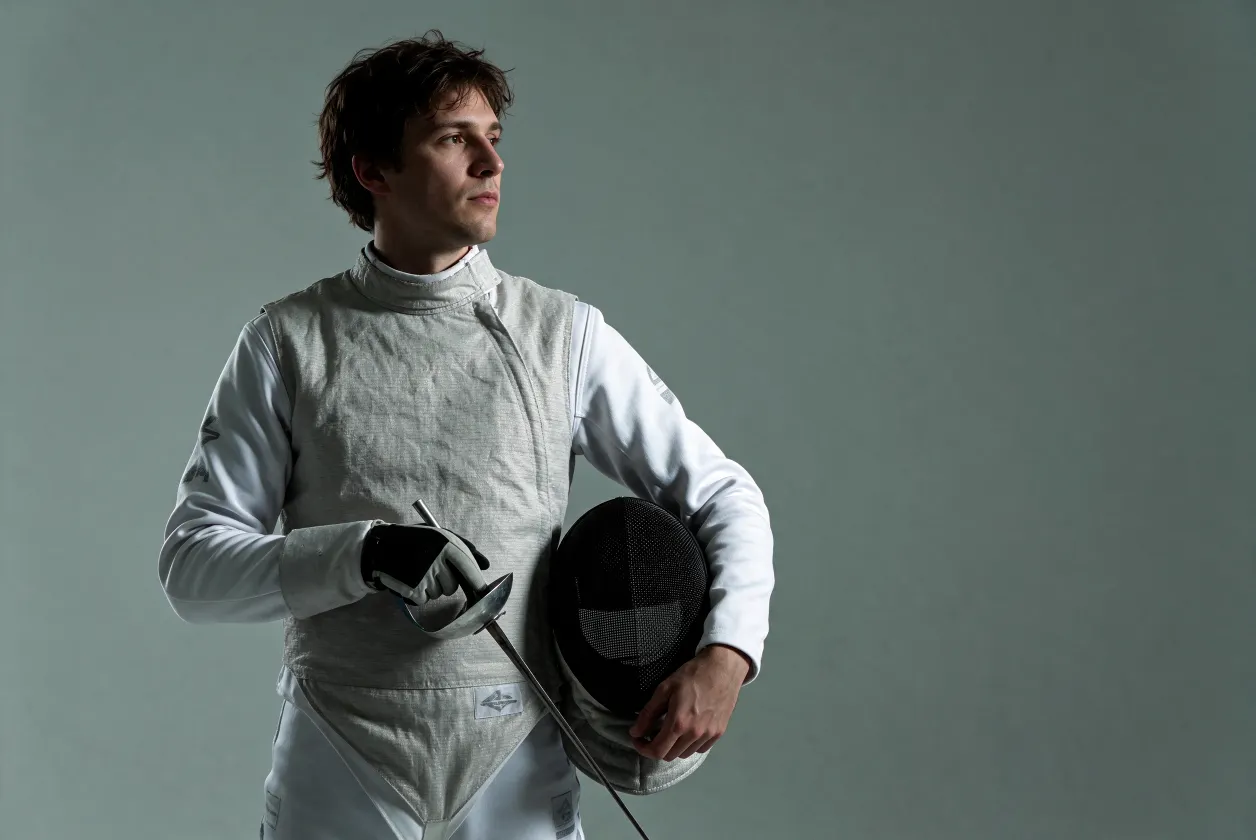
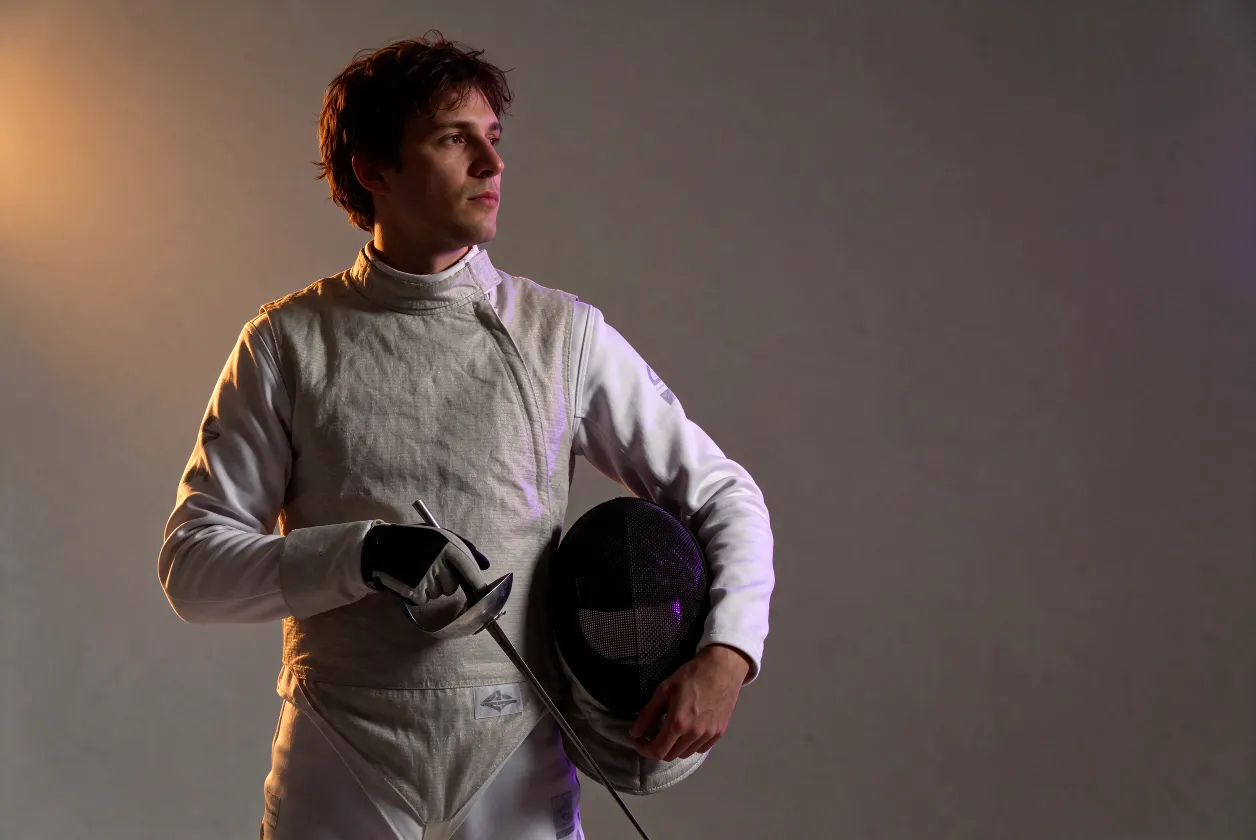
Studio portrait of a fencer changed from neutral light to warm cinematic rim lighting. beforeStudio portrait of a fencer changed from neutral light to warm cinematic rim lighting. after
BeforeAfter
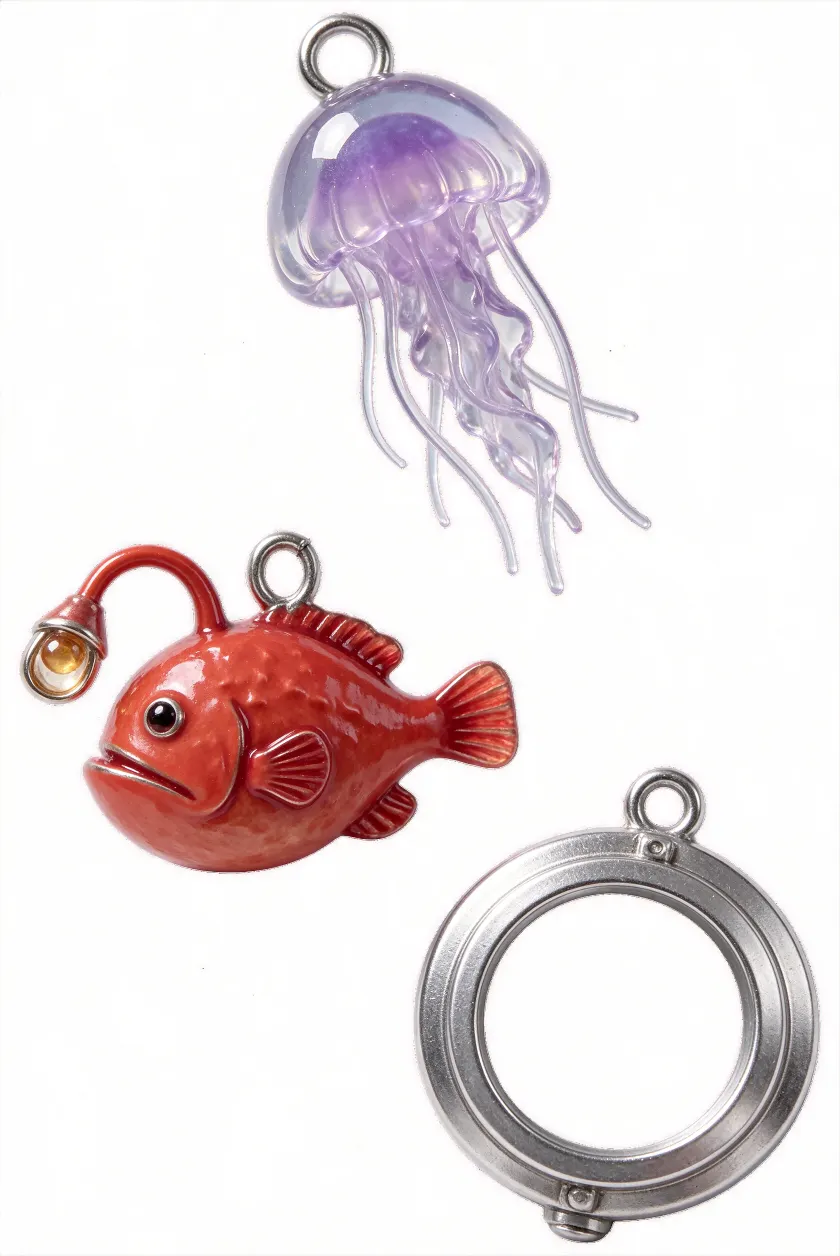
Lavender jellyfish, red anglerfish, and silver porthole pendant charms.
Midnight Swim event poster with swimmers in orange caps under blue night lighting.
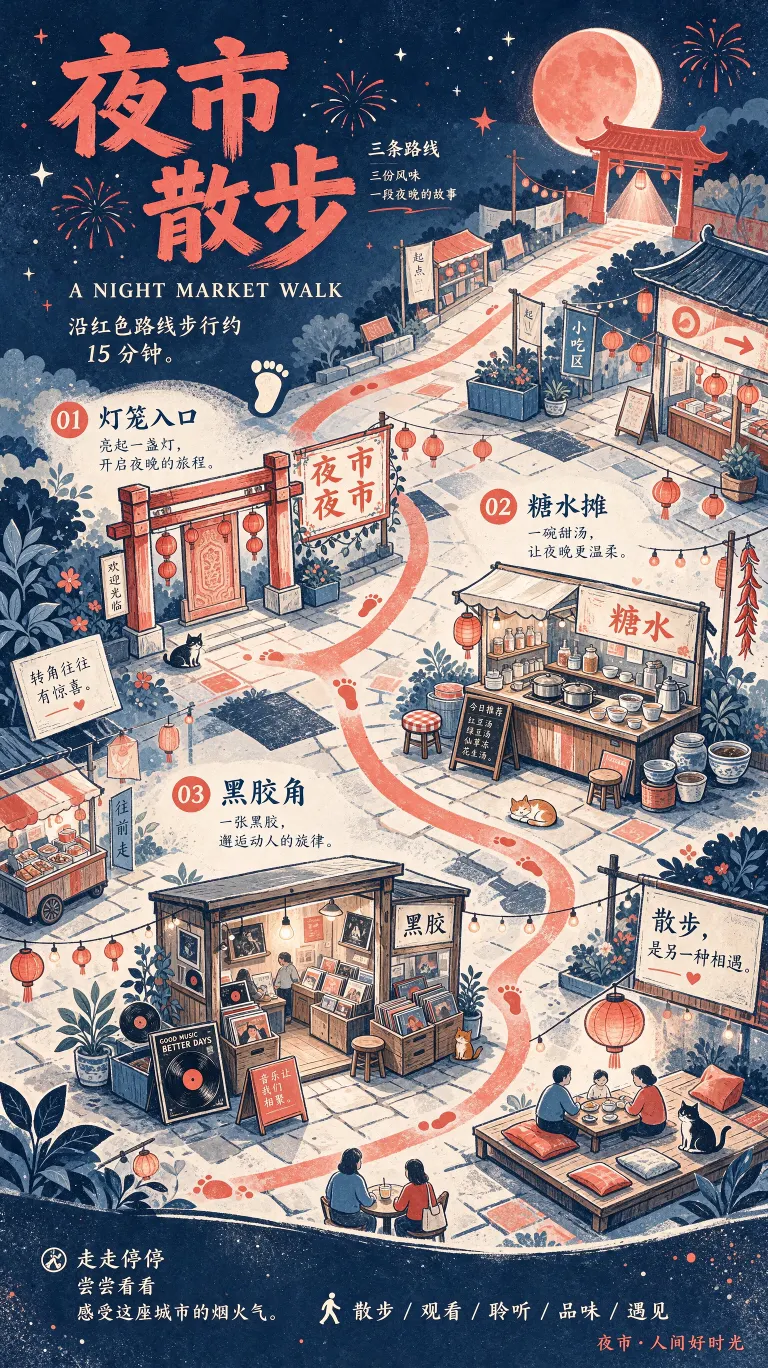
Illustrated Chinese night-market walking guide with three numbered stops.
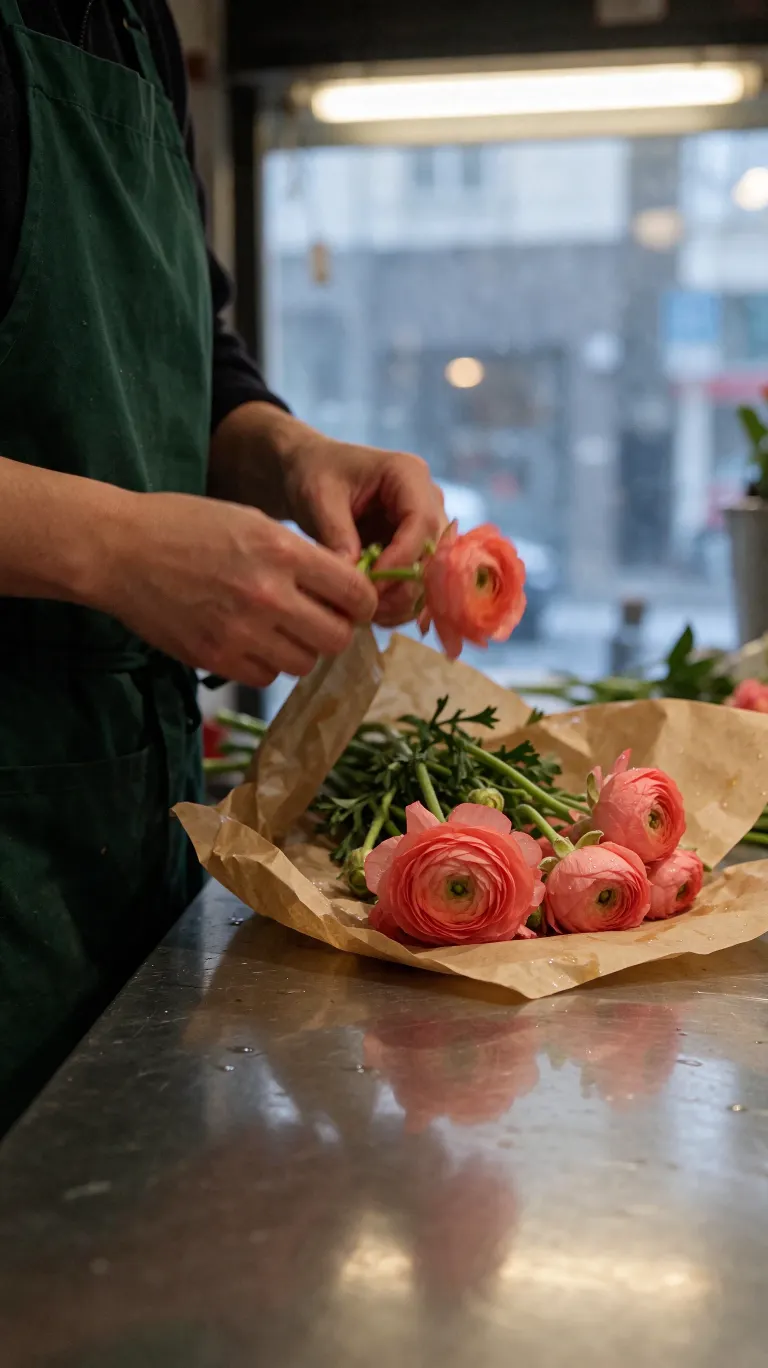
Florist wrapping coral ranunculus flowers at a stainless-steel worktable.

Where Seedream 5.5 Fits in Real Workflows

Seedream 5.5 e-commerce product image workflow

E-commerce Product Images

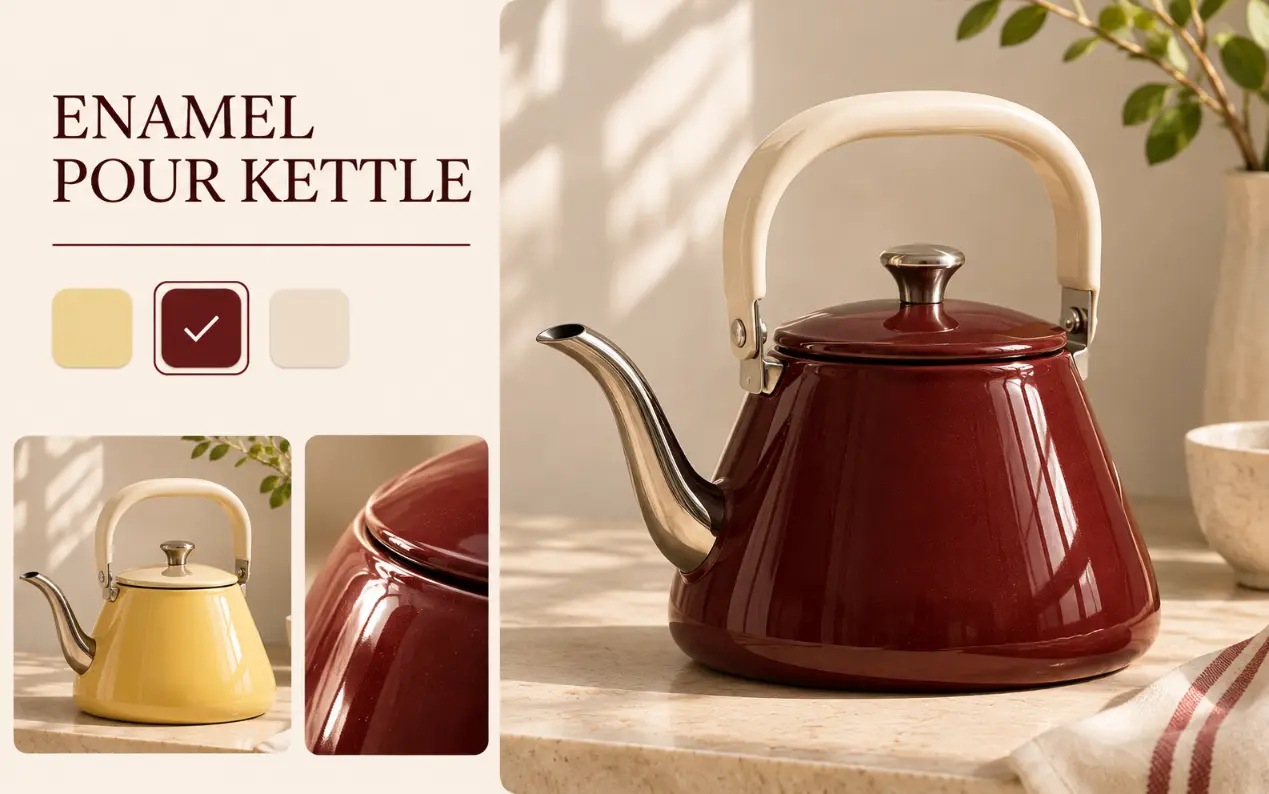
Use an existing product photo to explore a color or finish change. Compare the result against the source and check logos, labels, proportions, and shadows before handing it off for review.

Seedream 5.5 campaign artwork workflow

Campaign Artwork

Start with one approved event design and develop versions for a banner, a feed post, and a story. Keep the same event information and check how clearly each layout presents it.

Seedream 5.5 reusable brand assets workflow

Brand Assets

Build a set of transparent character poses, decorative lettering, or graphic elements. Arrange the pieces across multiple layouts and reuse the same visual details throughout a campaign.

Seedream 5.5 editorial and educational graphics workflow

Editorial and Educational Graphics

Develop an illustrated guide with labeled parts and short captions. Use a clear reading order and verify the final labels against the original copy.

Seedream 5.5 vs. Seedream 5.0 Pro

TaskWhat Seedream 5.5 adds or improves
Revising an imageGreater consistency in areas outside the requested edit.
Creating standalone assetsNative RGBA output for transparency and partial transparency.
Generating realistic imageryMore natural rendering of light, skin, and surfaces.
Designing with small textClearer dense text and more accurate complex character shapes.

How to Use Seedream 5.5 on Mixinflow

Step 1

Start with a Prompt or Upload a Photo

Describe an image you want to create. To revise an existing picture or design, upload it as the starting point.

Step 2

Describe What to Create or Change

For a new image, specify the subject, lighting, and any exact wording. For an edit, describe the change and the details to preserve. If a selection control is available, use it to mark the area you want to edit.

Step 3

Generate, Review, and Download

Check the result at full size. Review the edges, wording, and details that matter to your task. Refine the prompt if needed, then download the result.

Seedream 5.5 FAQ

Check the credit cost shown in the editor before you generate. The cost depends on the model and the settings you select.

Start Creating with Seedream 5.5

Start with a prompt, upload a photo, or try one of the examples above.