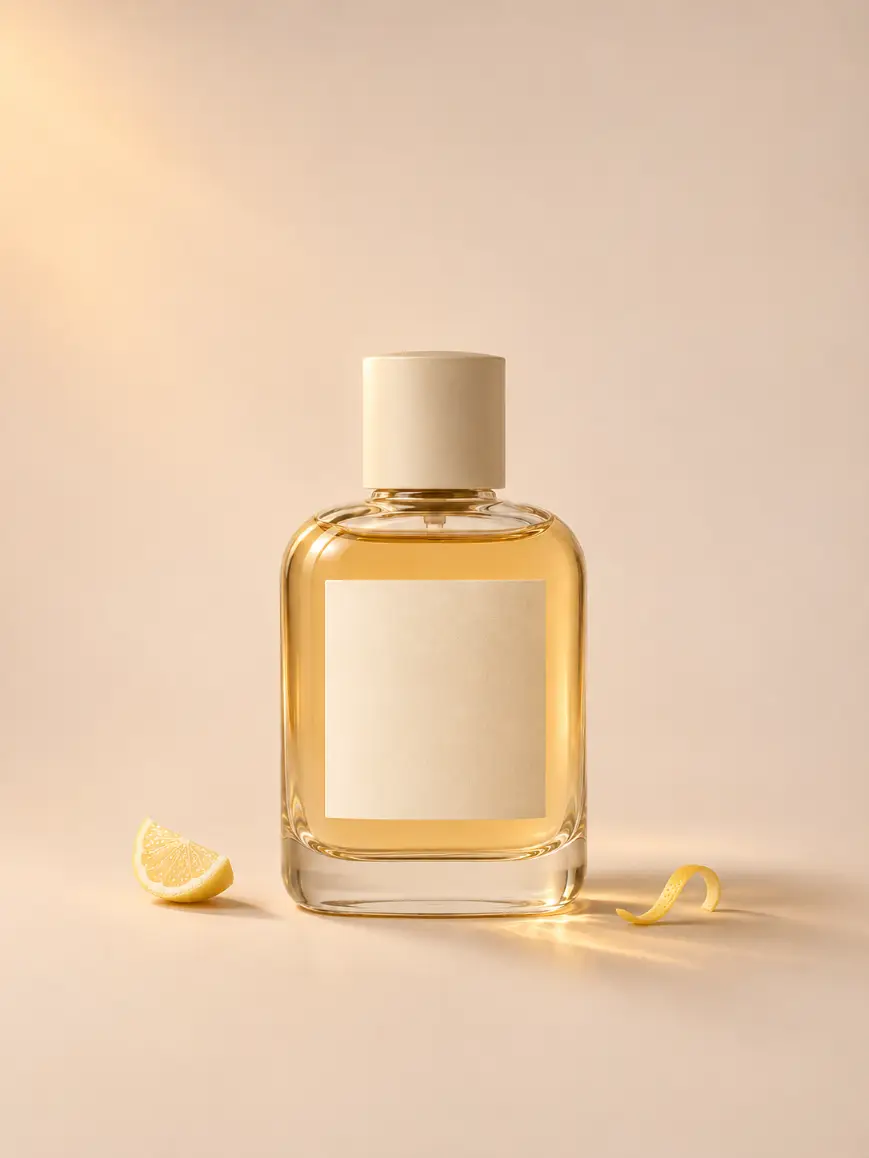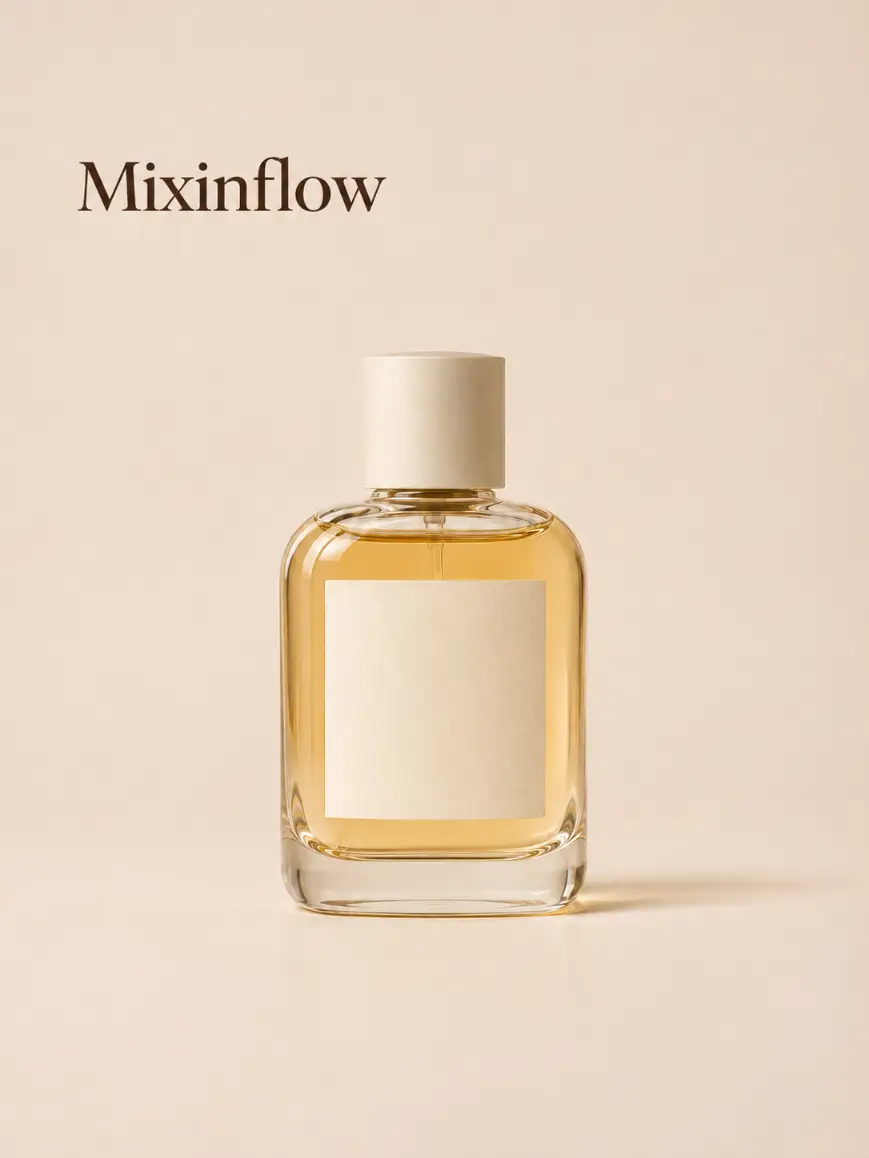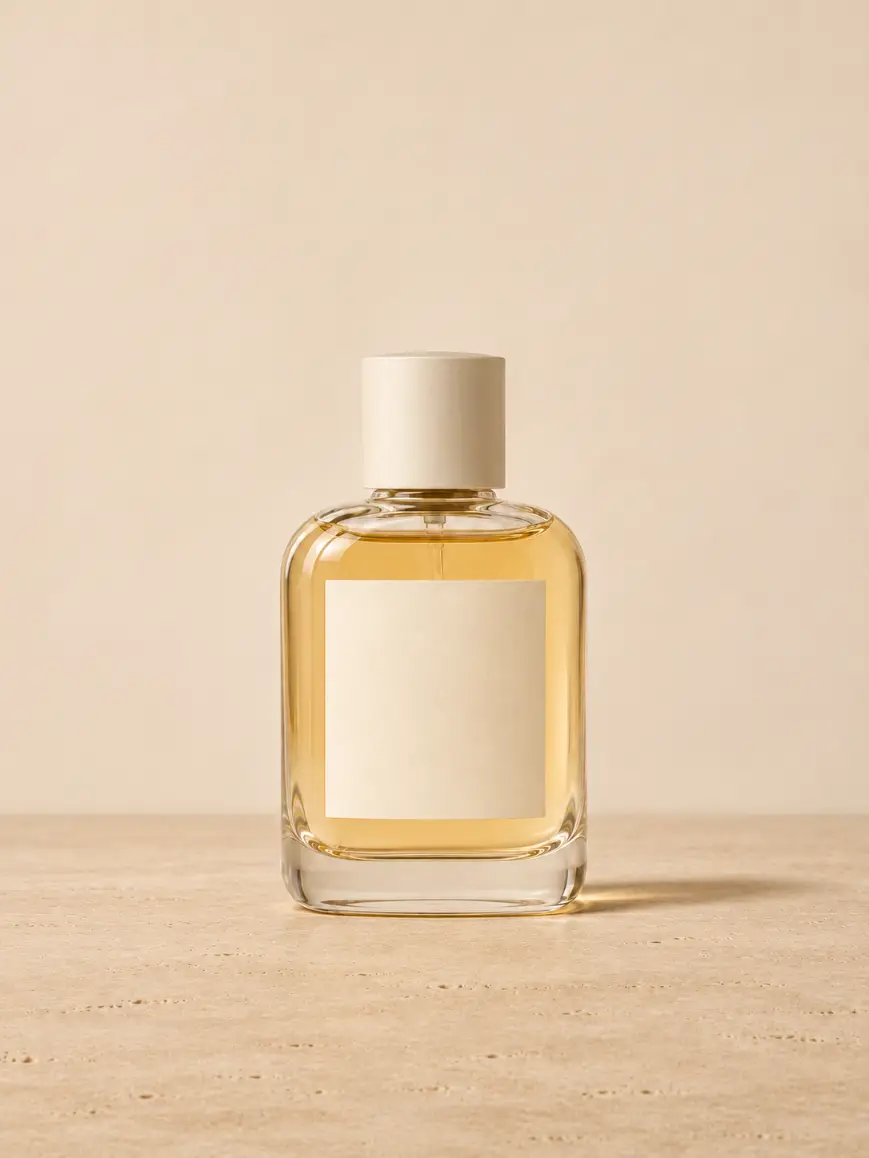
Place the perfume bottle on a warm travertine surface in a minimal editorial studio.
Create new visuals or edit a photo with simple text prompts. Upload an image, describe what should change, and keep refining the result while preserving the people, products, and details that matter.
Generate from a prompt
Edit an uploaded image
Refine important details
GPT Image 2.6 helps you move from an idea to a finished visual without rebuilding the image for every change. Start from a text prompt to create something new, or upload a photo and describe the edit you need. Use follow-up prompts to refine a background, color, layout, clothing item, or product scene.
One good source image can become a full set of creative directions. Generate a first version, then make focused changes one at a time. For example, turn a plain product photo into a seasonal campaign image, change the styling, and adapt the composition for a new placement.
Use direct prompts for the best result. Name what should change, then name the important elements to preserve. A specific request is easier to refine than several unrelated changes in one prompt.
Start from a text prompt to create something new, or upload a photo and describe the edit you need.
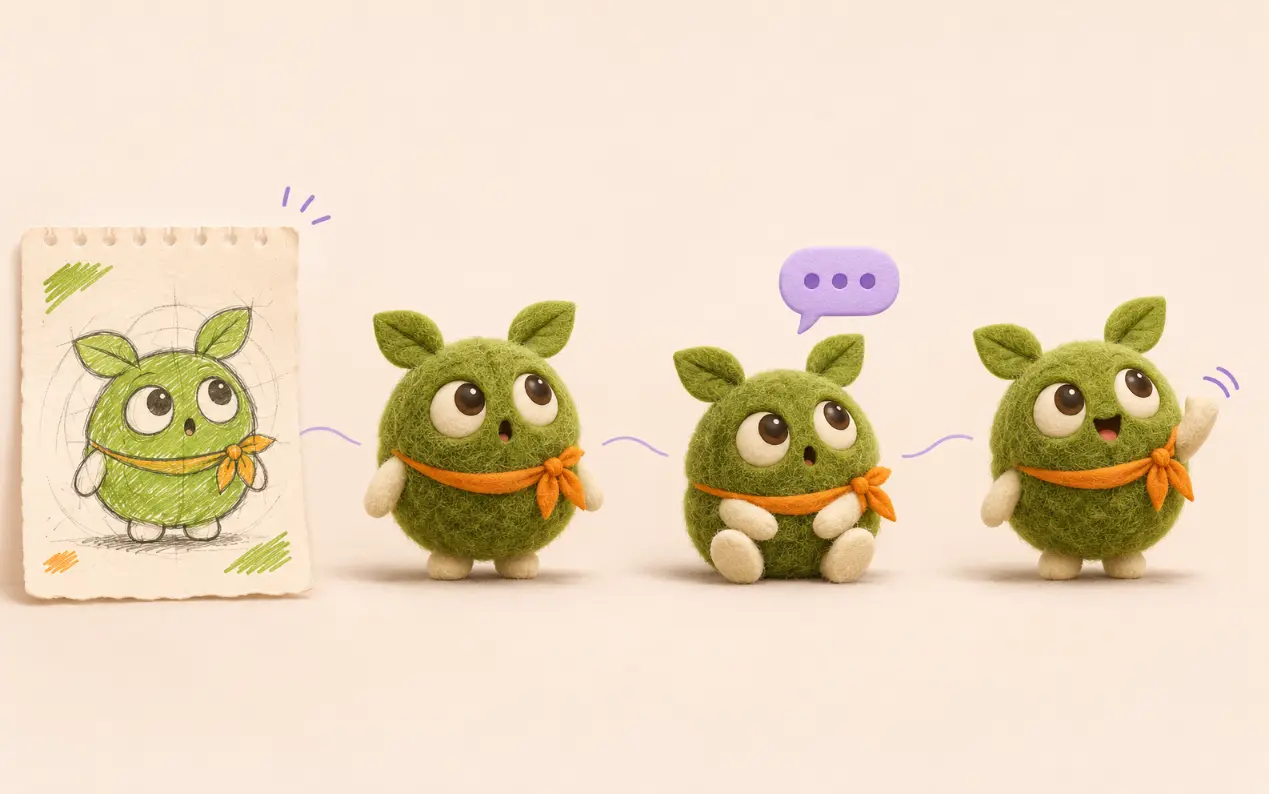
Turn a clear description into an original image. Specify the subject, scene, style, lighting, aspect ratio, and visual details that matter to your result.
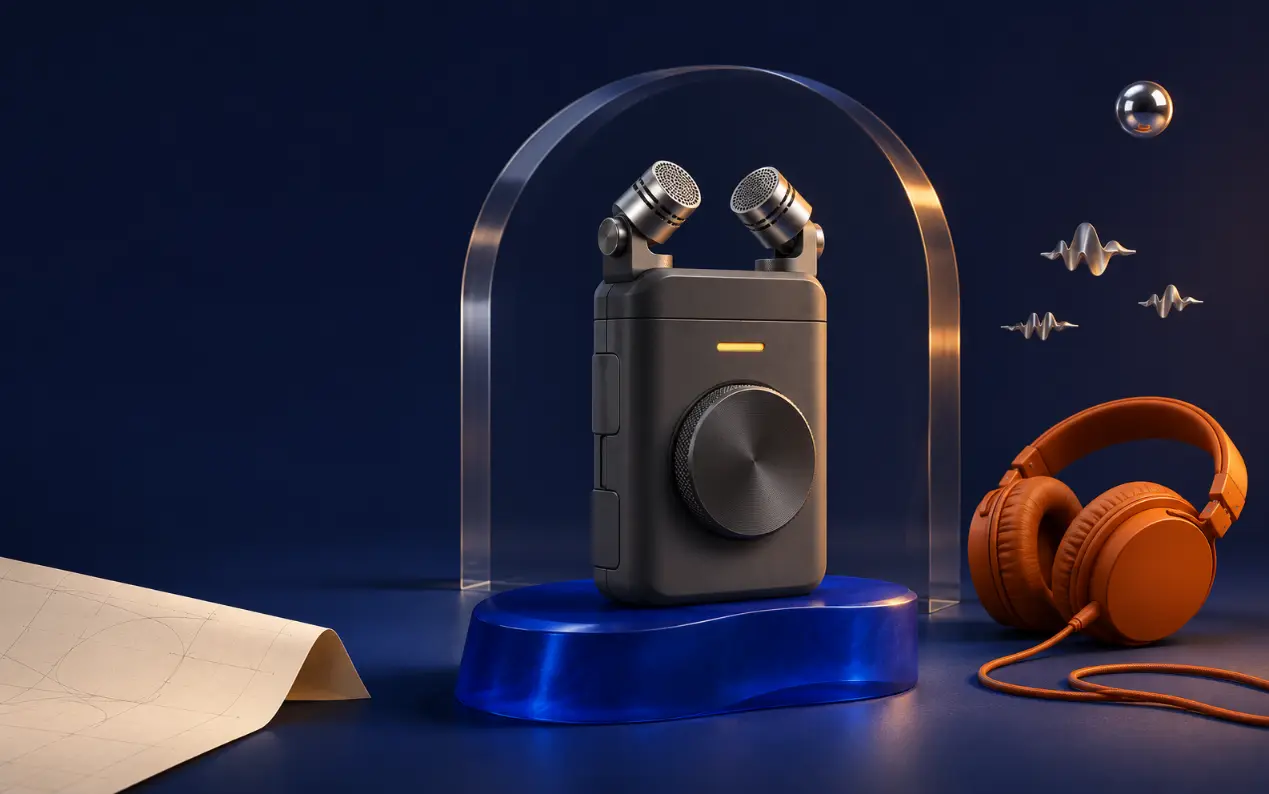
Upload a photo and describe the change in natural language. Replace a background, update a product scene, adjust clothing, add an object, or develop a new campaign direction from the source image.
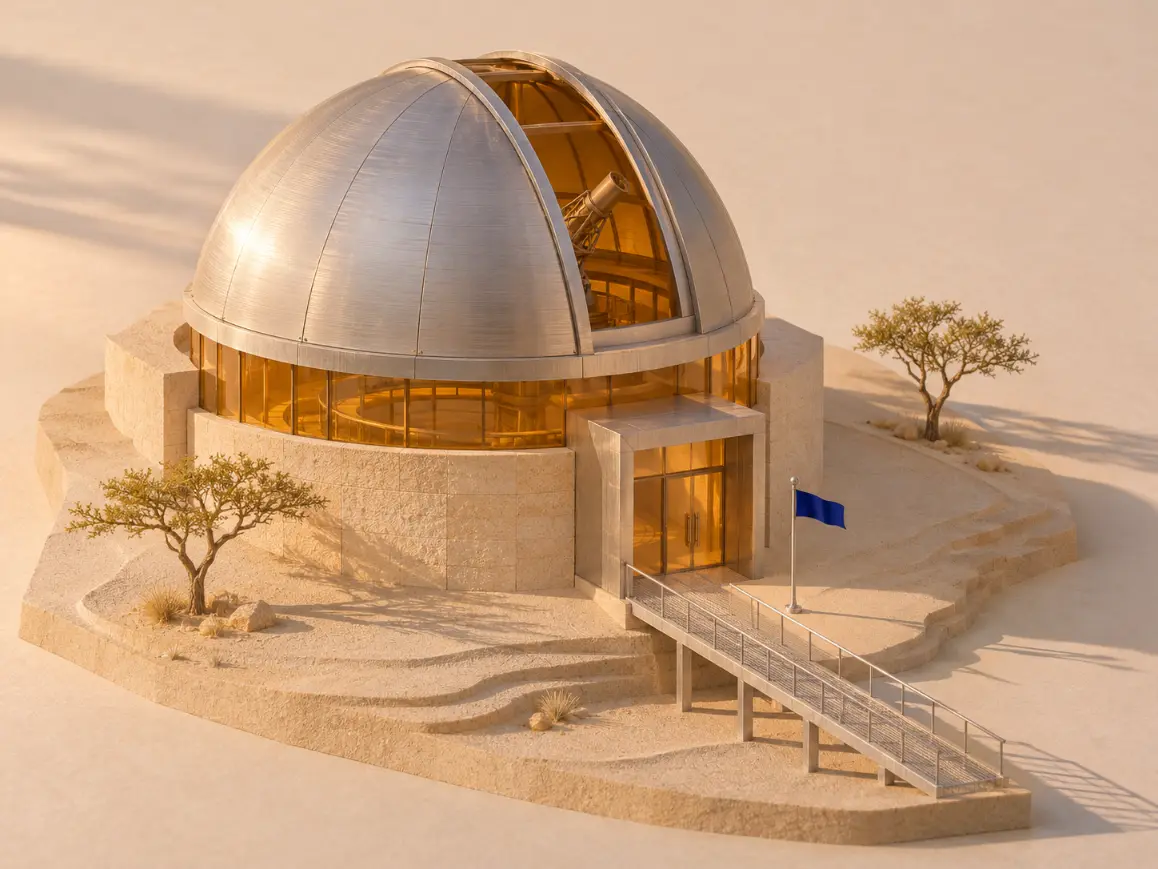
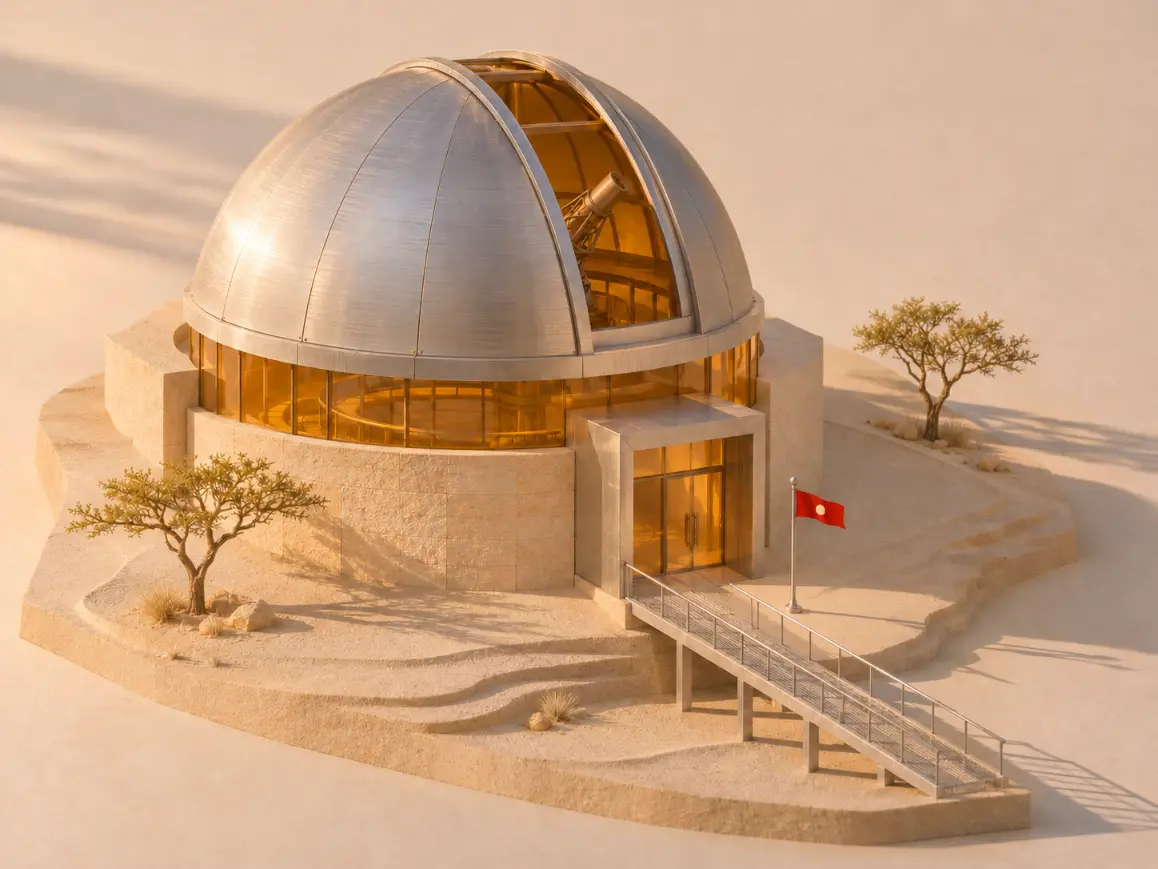
Continue editing a result instead of starting over. Ask for targeted changes while retaining the visual elements you want to carry forward, such as a product package, a person’s appearance, composition, or lighting direction.
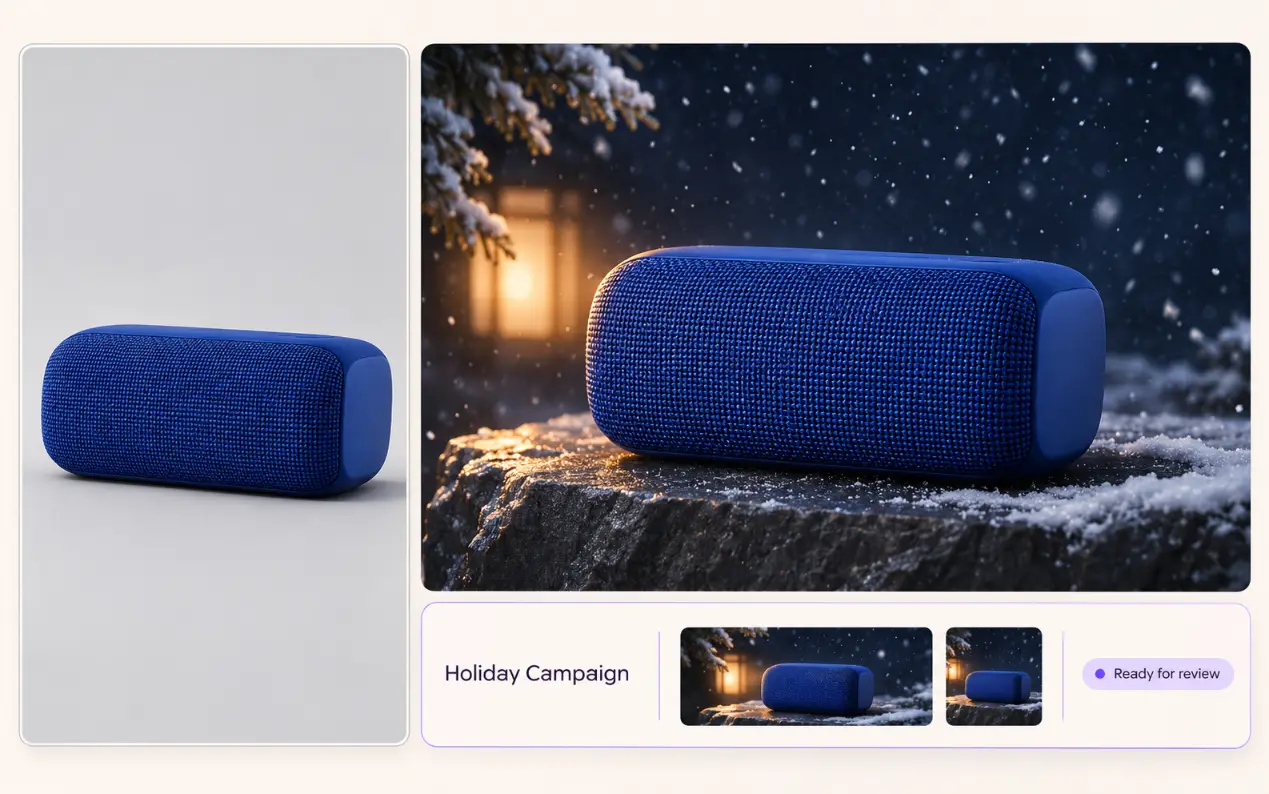
Create new product scenes from a reference image. Keep the product recognizable while exploring seasonal settings, studio directions, props, and campaign compositions.
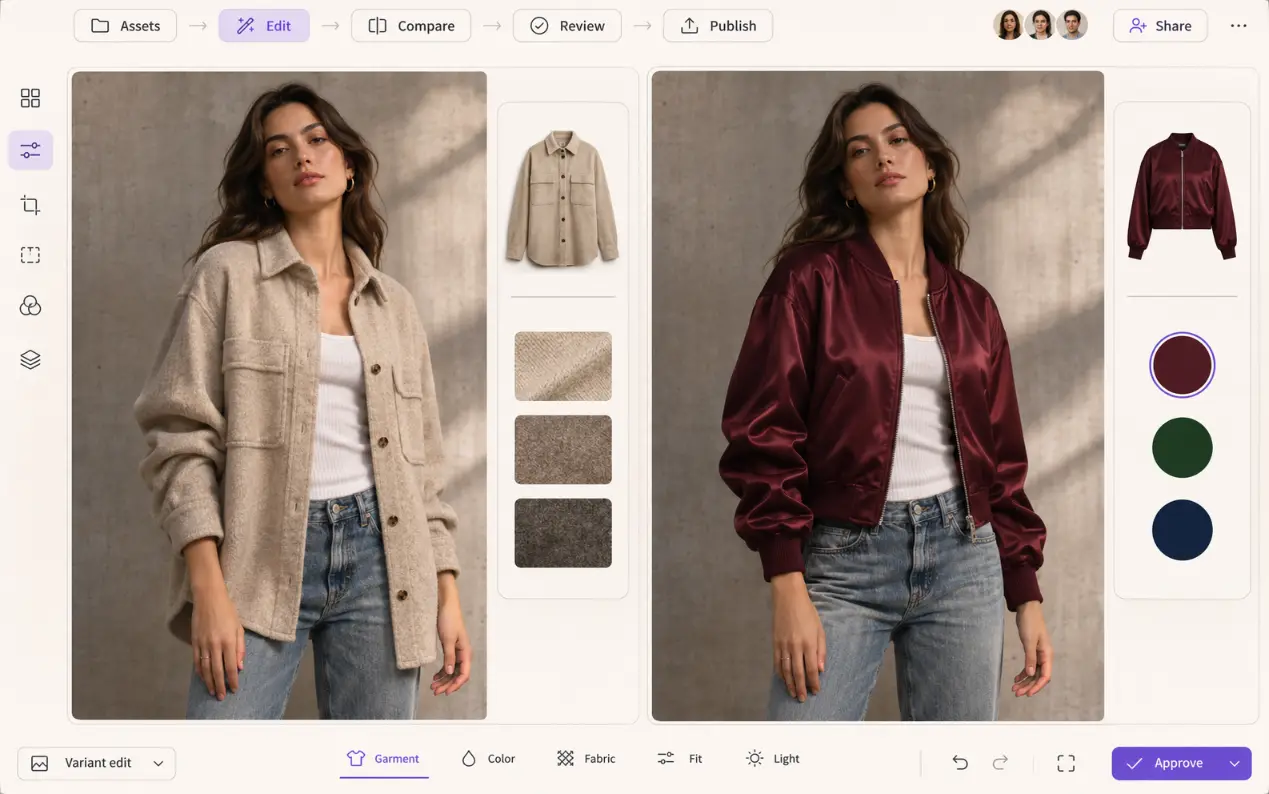
Try a new garment, color, or fabric direction in a photo. Describe the replacement clearly and state which parts of the person, pose, and scene should remain unchanged.
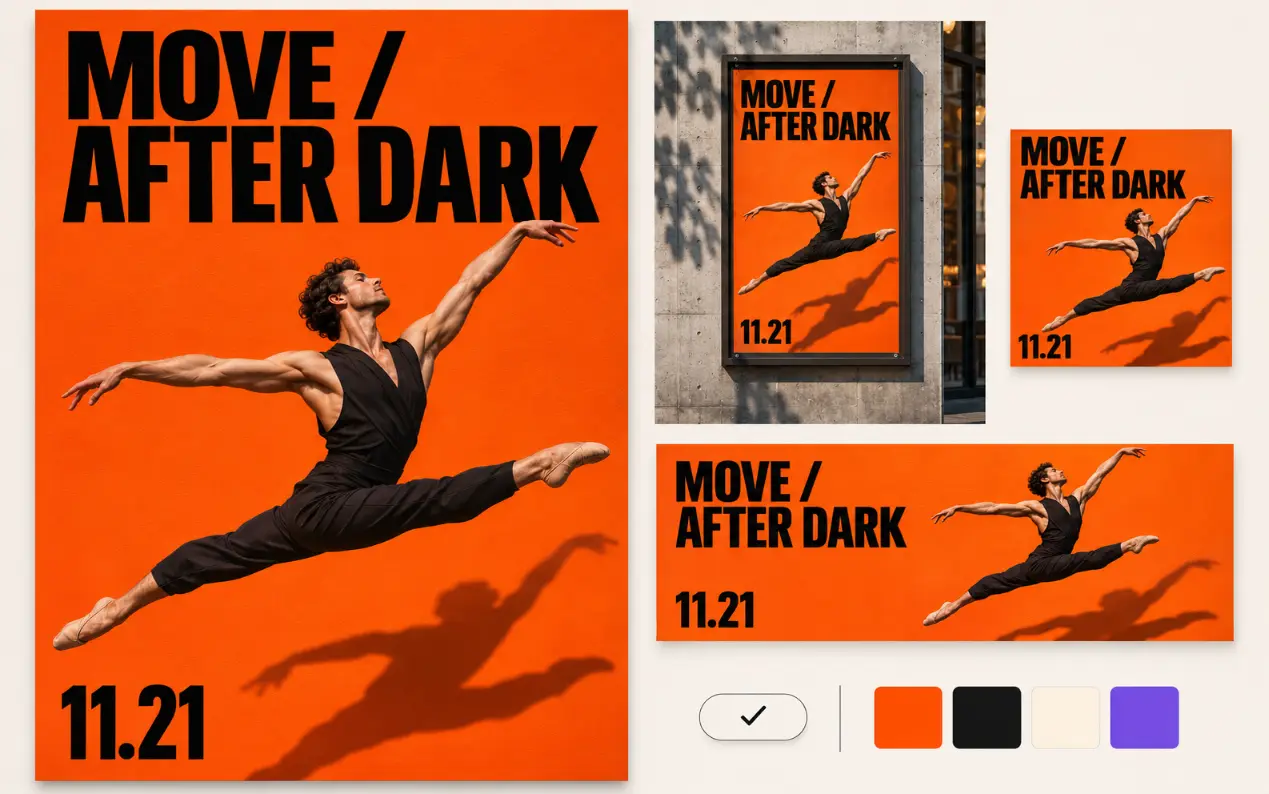
Develop poster concepts, social graphics, and campaign visuals from a brief. Include the subject, layout, mood, and any short copy that should appear in the image.
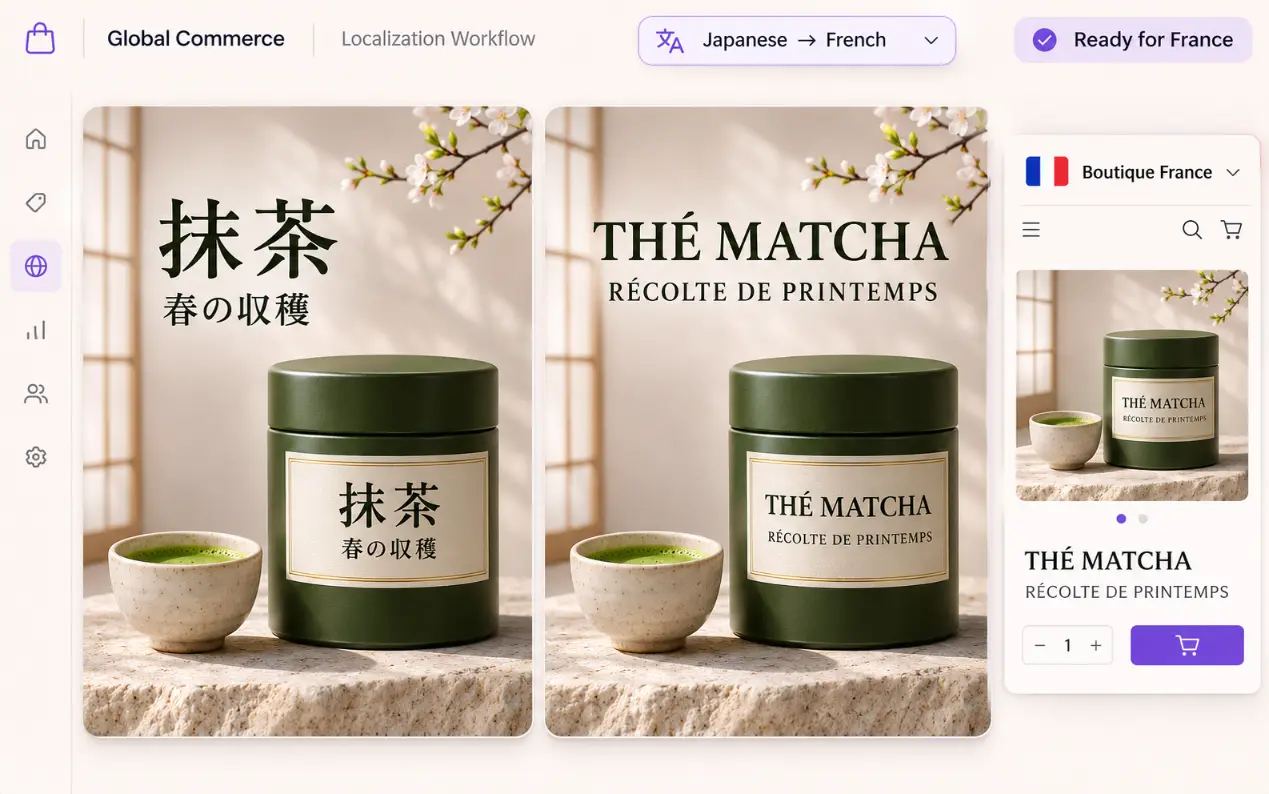
Adapt visual content for another language by asking to replace selected text while preserving the image layout, product, and overall design.
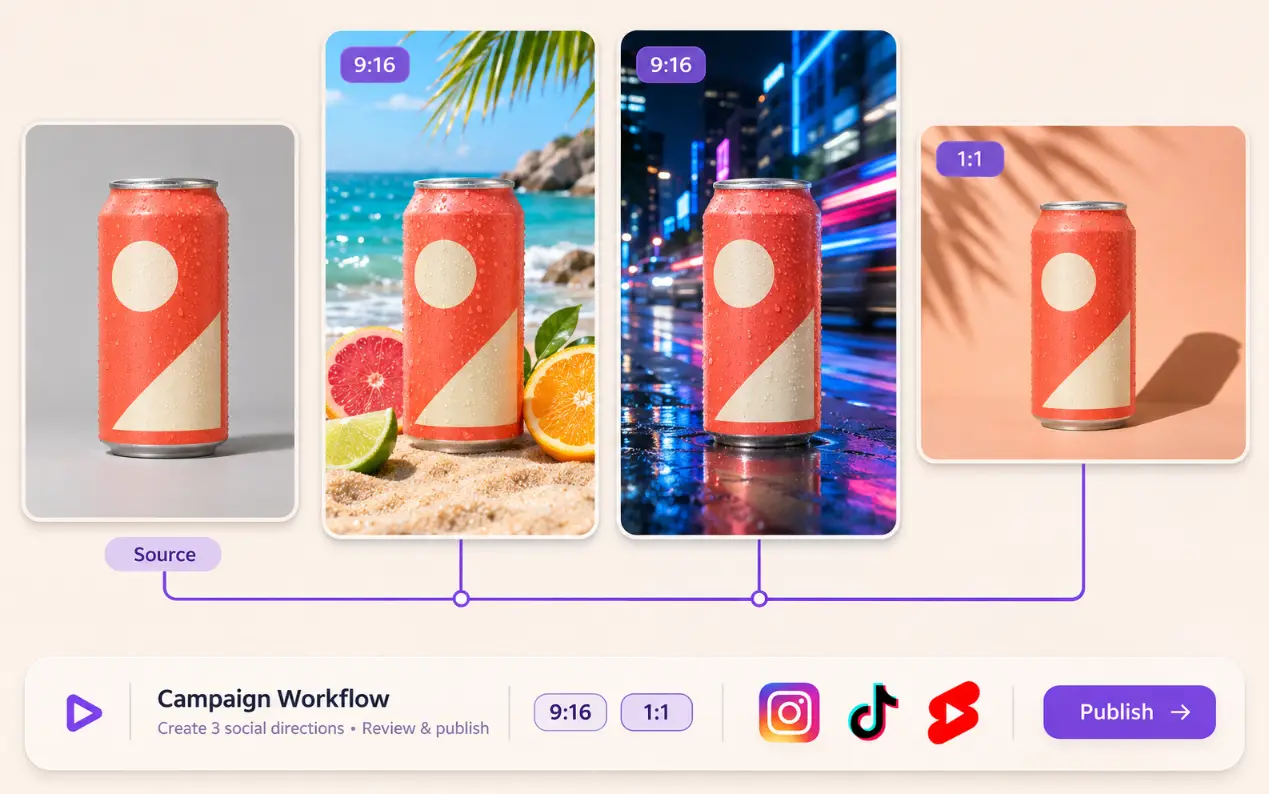
Turn one concept into multiple social-ready directions. Explore alternate environments, color palettes, crops, or visual moods before choosing a final direction.
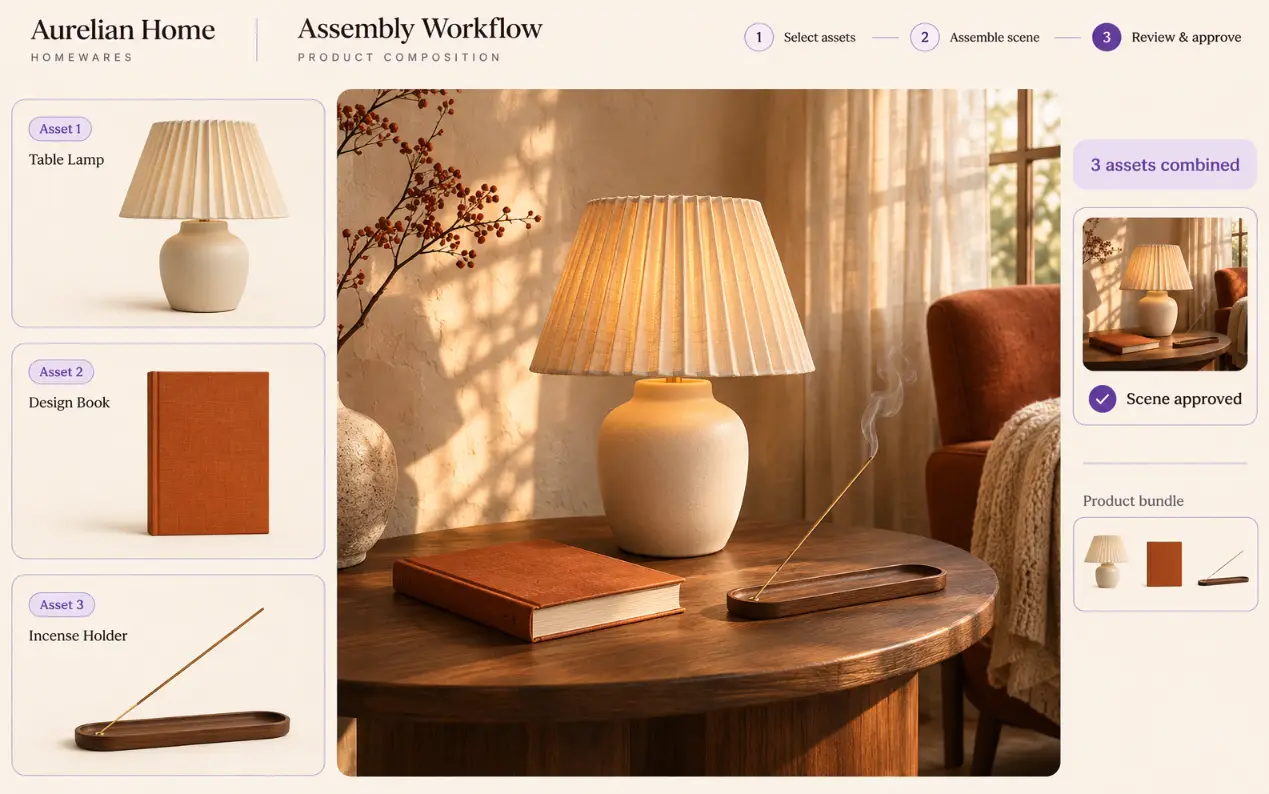
Combine supplied product assets and visual references into a coherent new scene. Explain which item should remain exact and how the final composition should look.
Choose Fast when you want to explore ideas quickly. It is suited to early concepts, background changes, small adjustments, and everyday image editing.
Choose Detailed when the image has more constraints to preserve. It is suited to product details, complex compositions, text-heavy layouts, and multi-step refinements where visual consistency matters more.
Generate a new visual, upload a photo to edit, or refine an idea across multiple steps.
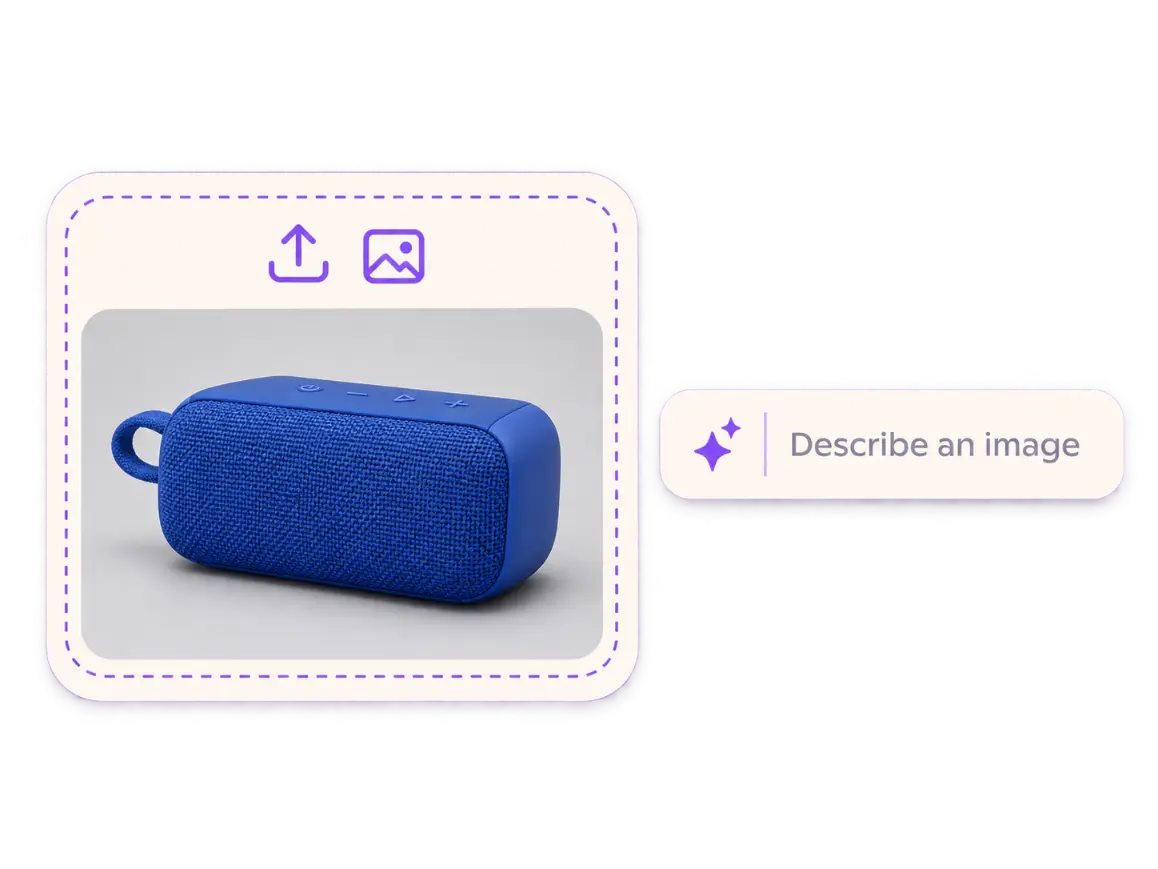
Upload a source image to edit an existing photo, or start with a text description to create a new visual.
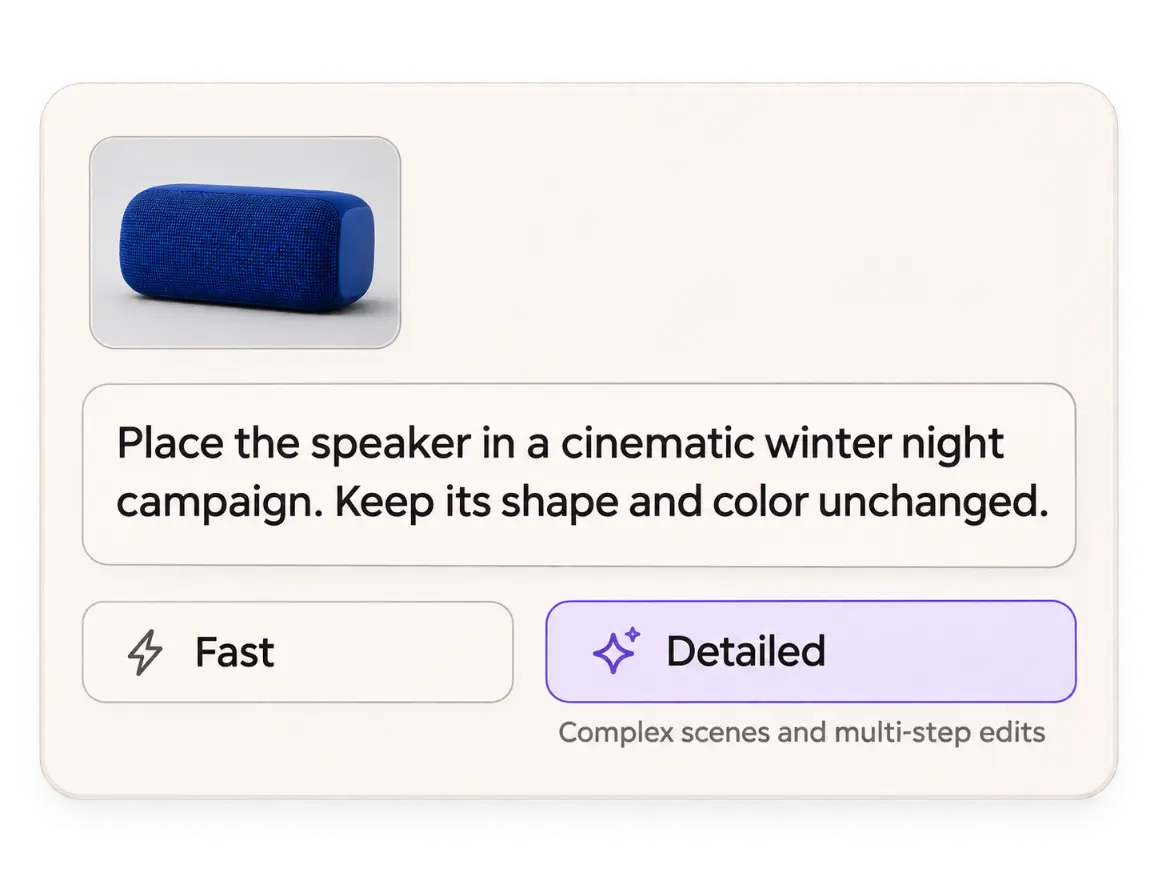
Describe the change and details to preserve. Choose Fast for quick ideas or Detailed for complex, multi-step edits.
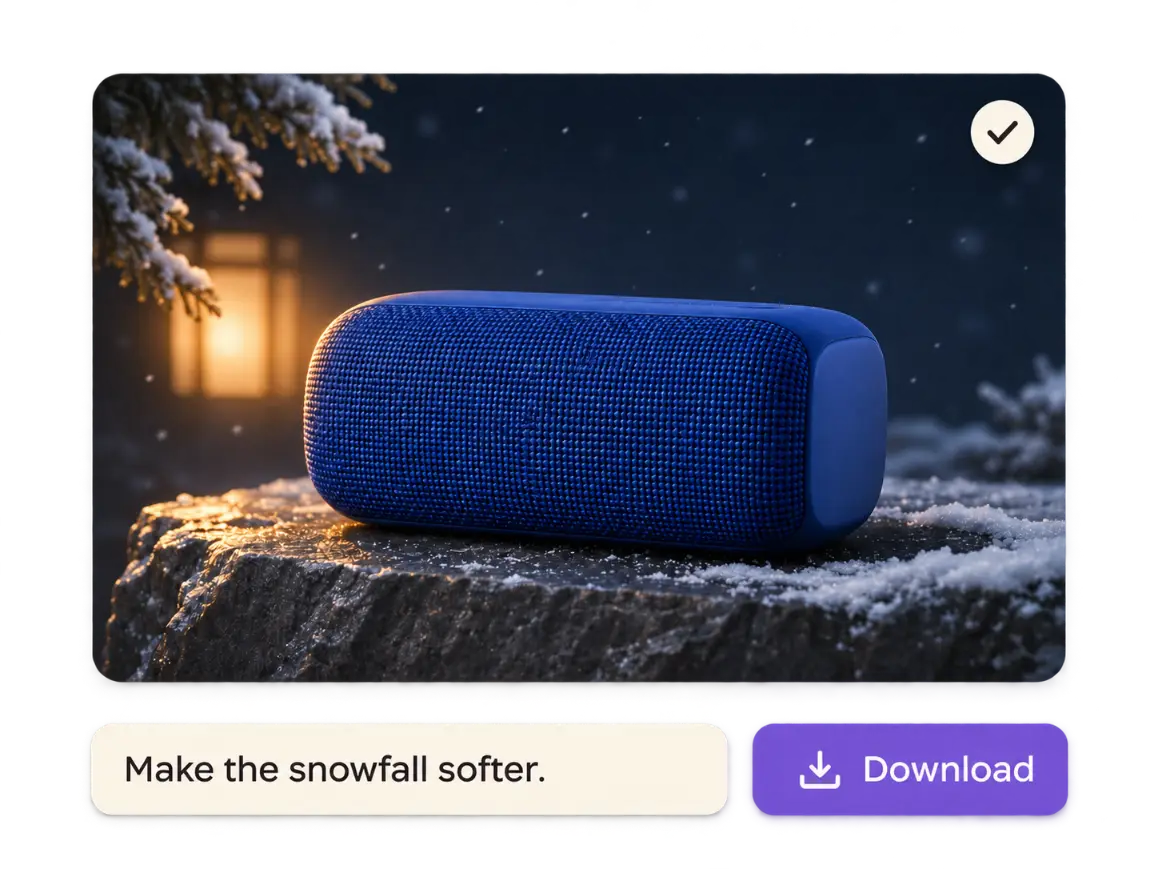
Review the output and make a focused follow-up edit if needed. Download the final image when it matches your intended direction.
GPT Image 2.6 is designed for faster iteration and more controlled editing rounds. It is useful when you need to generate a visual, make several targeted refinements, and retain the key details from the previous version. For Mixinflow workflows, the practical difference is a clearer choice between a fast editing path and a more detailed path for complex work.
Generate a new visual, upload a photo to edit, or refine an idea across multiple steps.