Product composition
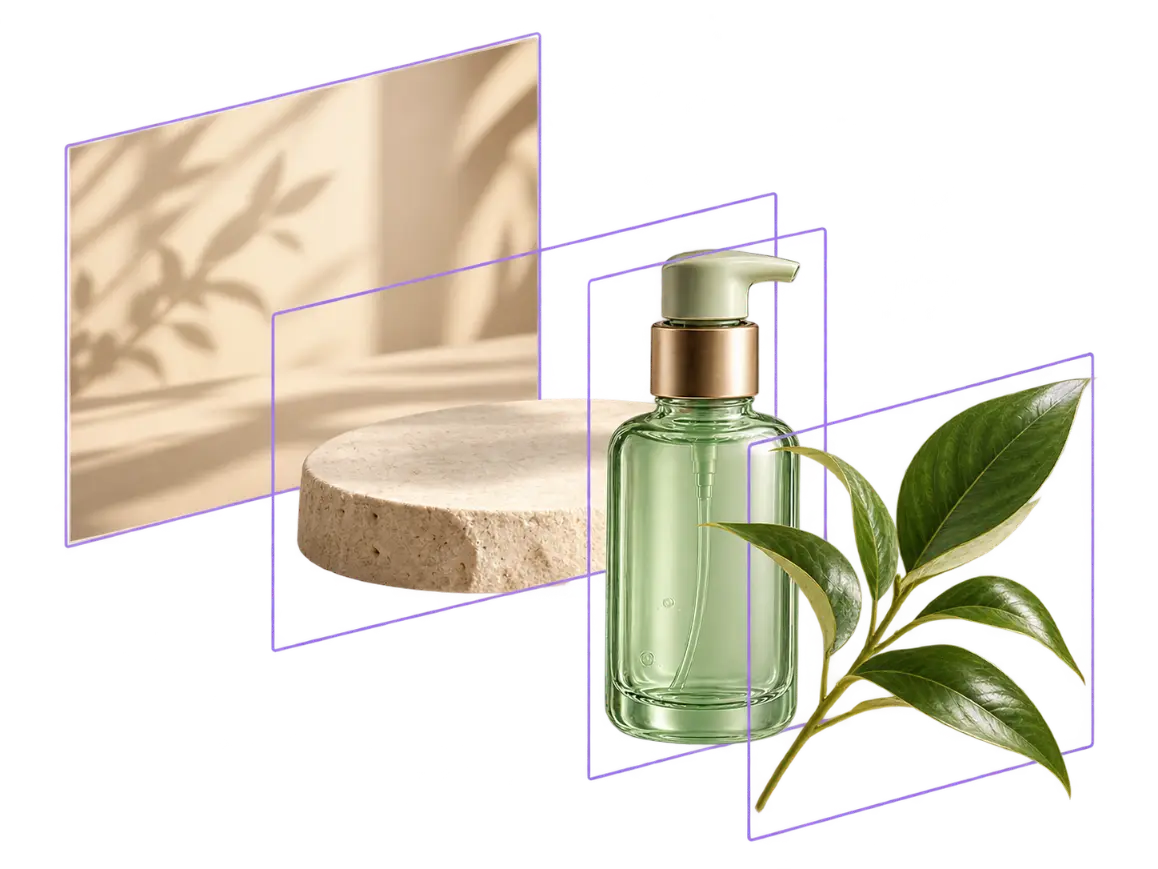
This image to layers example separates a product bottle, supporting props, leaves, and the background for independent merchandising edits.
Use image to layers to turn a flat photo, product visual, or AI image into independent transparent elements. Mixinflow keeps each object aligned to its original position so you can inspect, hide, download, and reuse it without rebuilding the composition from scratch.
JPG, PNG or WebP · up to 25 MB · standard web image dimensions You can also paste an image from your clipboard.
Resolution
An image to layers result is more than a subject cutout. It can contain an AI-completed background plus transparent elements with their own order and placement. These product, interior, and illustration visuals show how image to layers organizes a flat composition into reusable raster elements.
This image to layers example separates a product bottle, supporting props, leaves, and the background for independent merchandising edits.
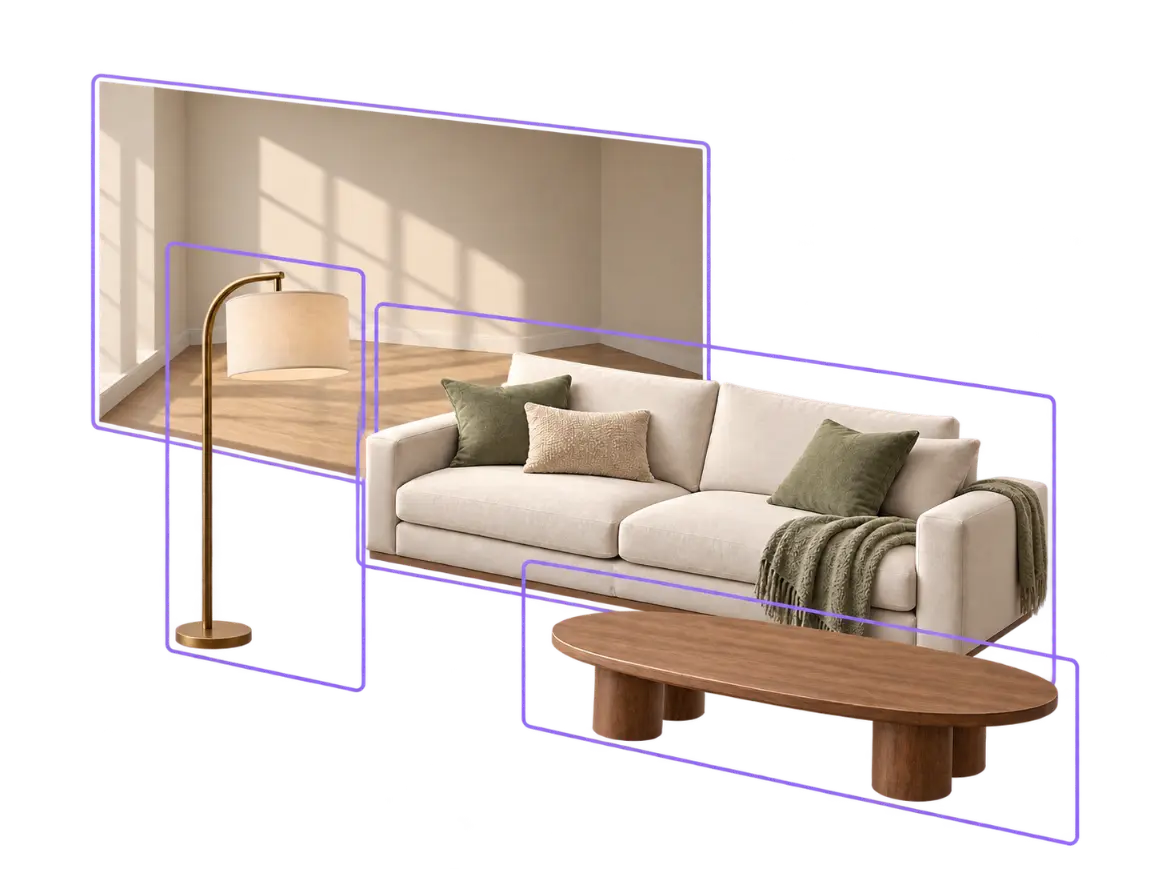
This image to layers example presents the sofa, coffee table, floor lamp, and room background as distinct visual planes.

This image to layers example shows a character, foreground details, and background prepared as reusable raster assets.
Mixinflow image to layers keeps the output practical for design work. Instead of returning one flattened edit, the AI layer separator provides a structured stack that can be inspected and exported.
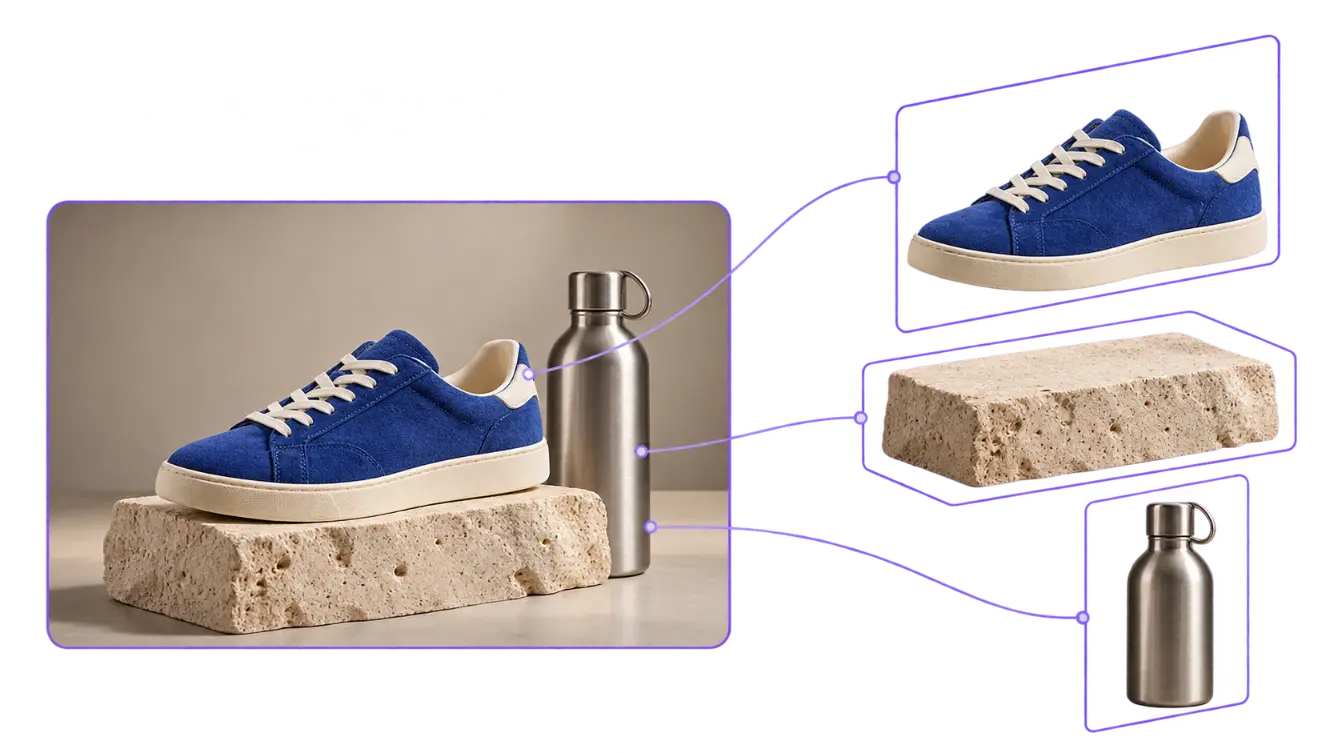
Image to layers identifies prominent objects automatically, while Layer control can direct attention to named elements. Each detected item remains a raster layer, not a semantic vector object.
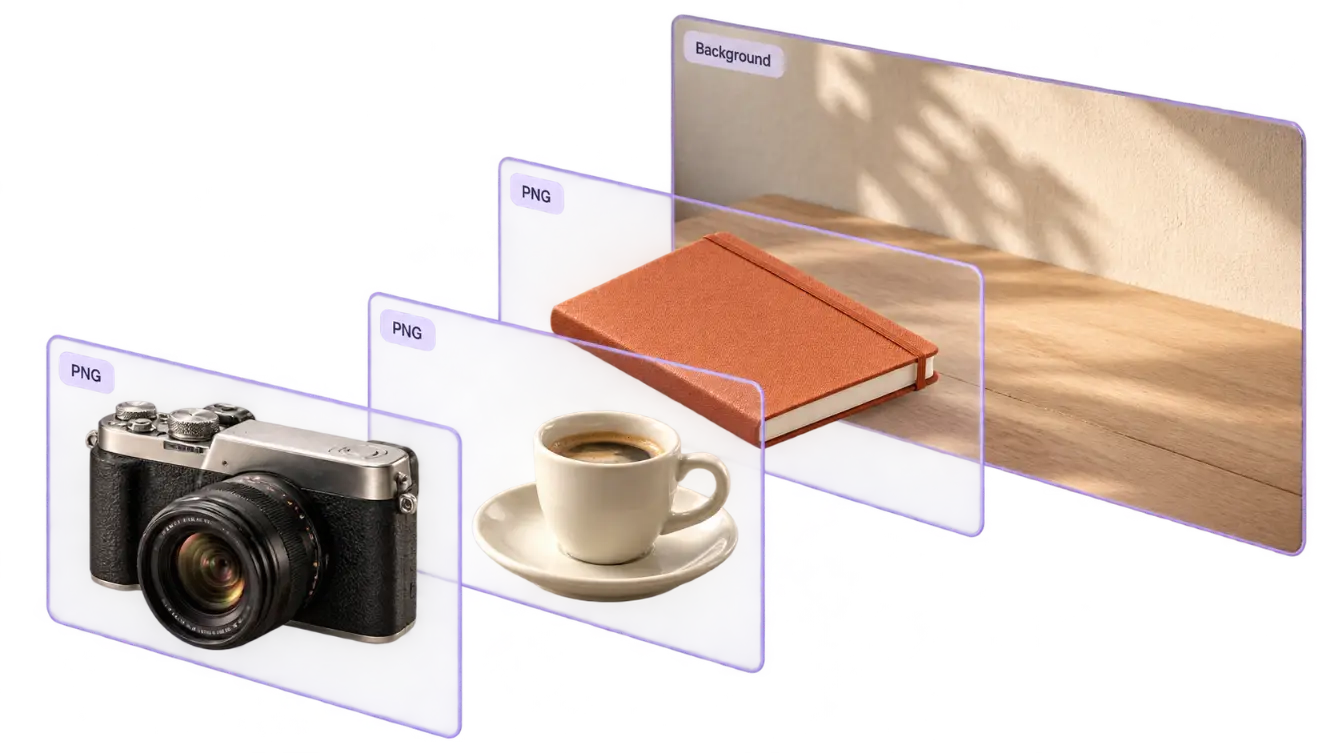
Every non-background image to layers output is a transparent PNG, ready for layouts, product scenes, mood boards, and other tools that accept alpha transparency.
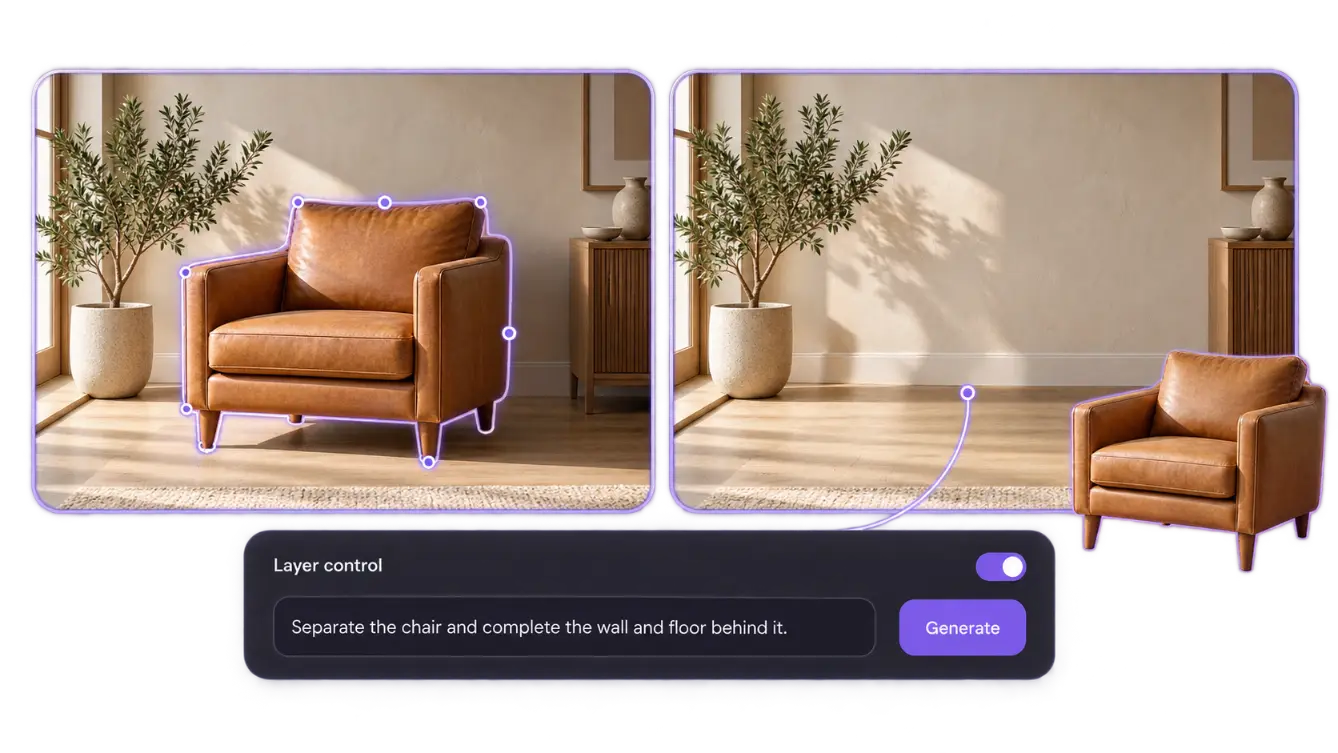
When Layer control is enabled, covered areas can be completed with generated context. Automatic separation focuses on object masks and transparent cutouts rather than recovering hidden pixels.
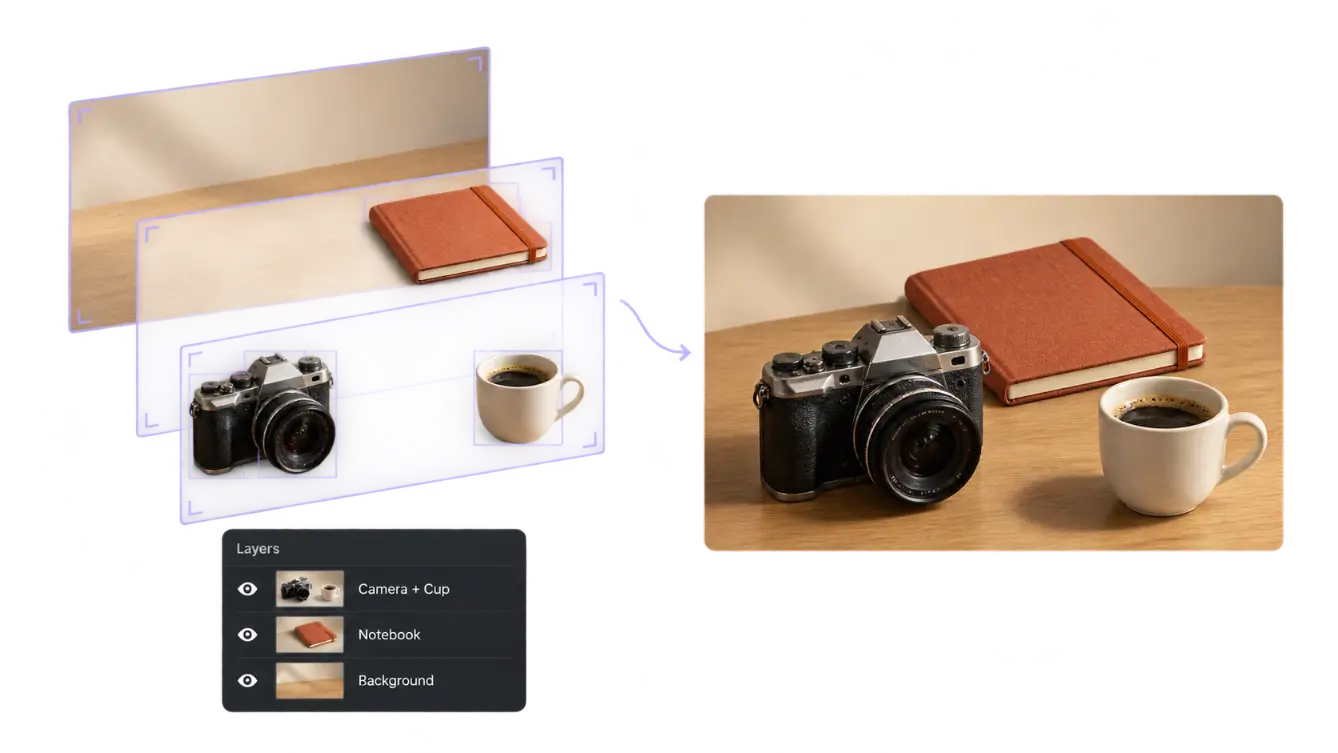
Bounding boxes, normalized coordinates, stacking order, and visibility are respected, so image to layers can rebuild the composition without centering every cropped asset.
Image to layers is useful whenever a finished visual contains pieces you still need to change. These workflows explain the concrete problem, what gets separated, and what the exported assets enable.
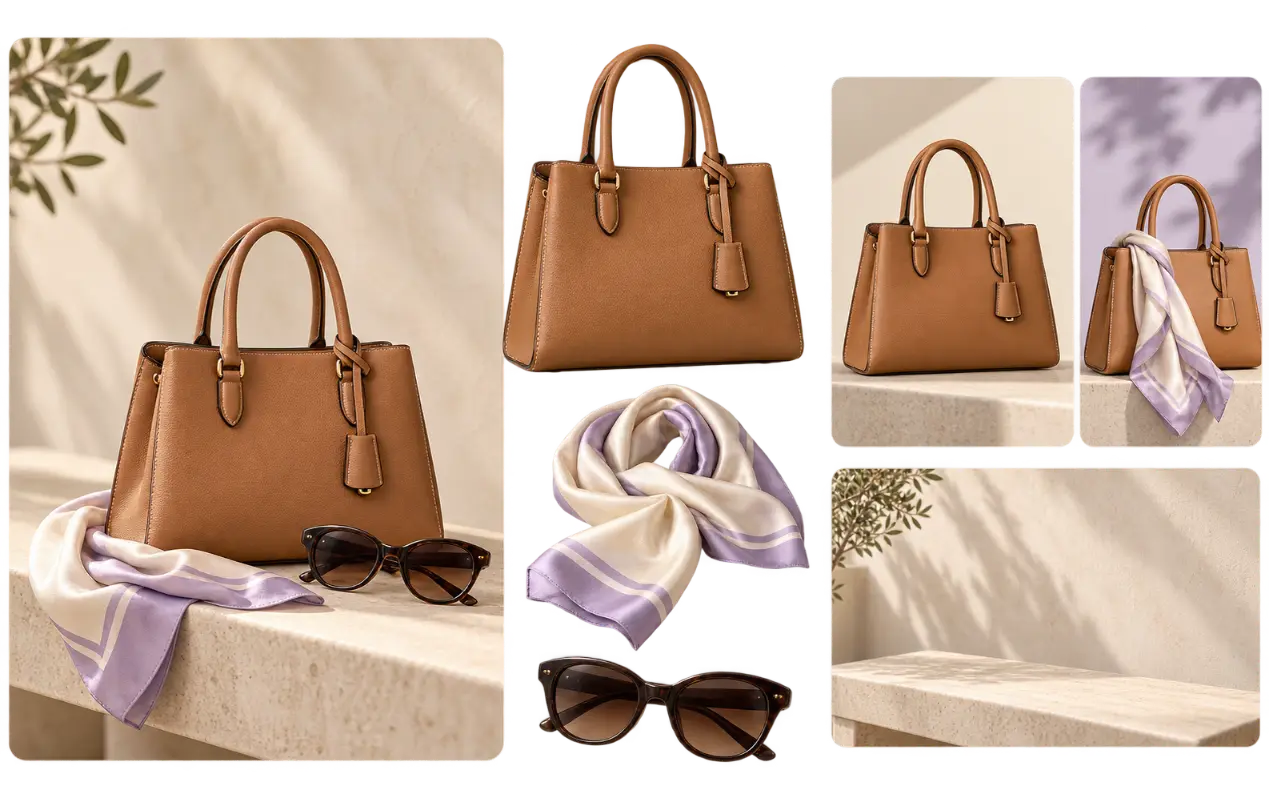
E-commerce teams may have one approved lifestyle image but need a clean product, accessory, or new arrangement. Image to layers can isolate products and props as transparent PNG layers while keeping a completed background. Reuse them for listing variants and campaign crops without treating generated hidden areas as original photography.
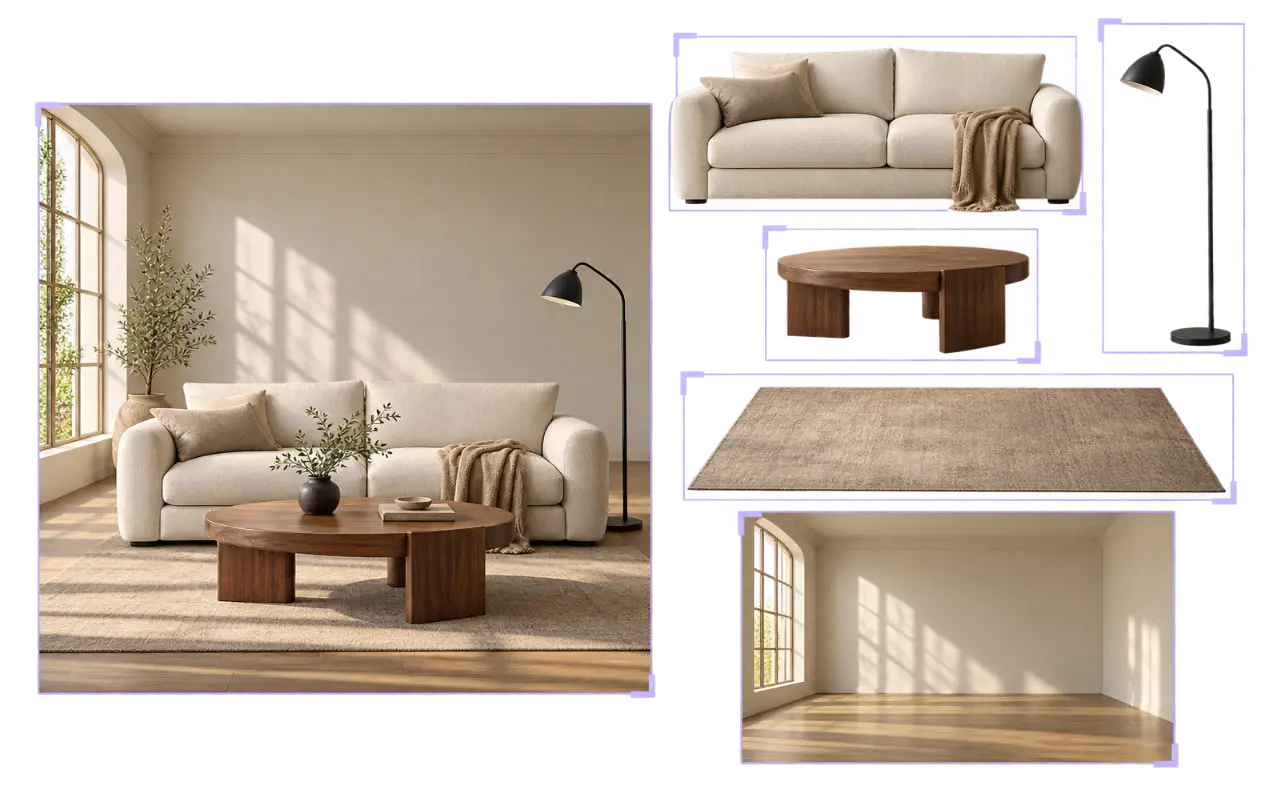
A flat interior render may combine a sofa, table, lamp, rug, and room. With image to layers, designers can inspect furniture separately, test positions, or reuse an object in a mood board. Returned coordinates support accurate recomposition, although overlaps and reflective edges may need cleanup.
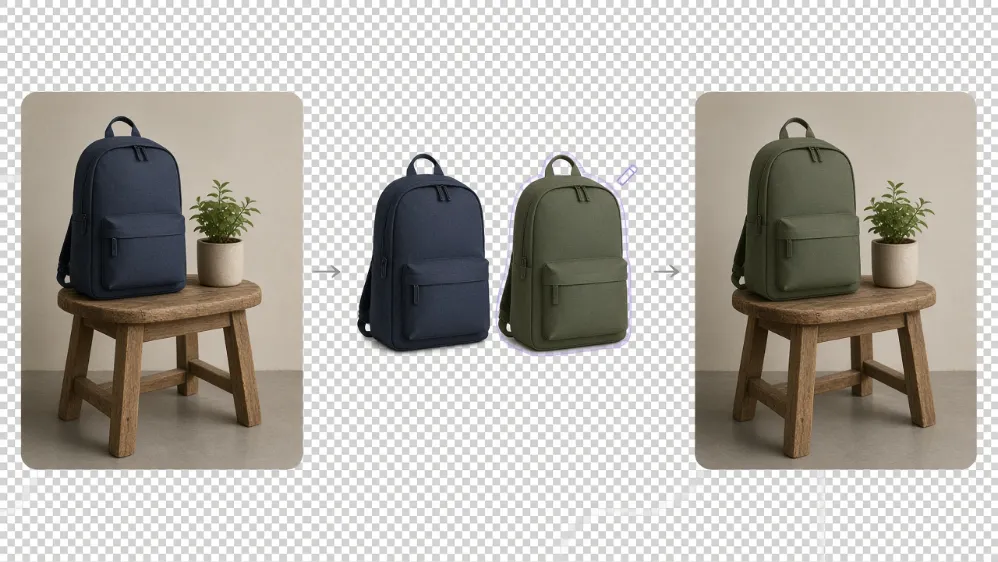
Prompt editors may change the whole frame when only one object needs revision. Image to layers creates a cleaner handoff: download one transparent raster layer, edit it, then restore it to the composition. This AI image layering workflow does not turn pixels into editable text or vectors.
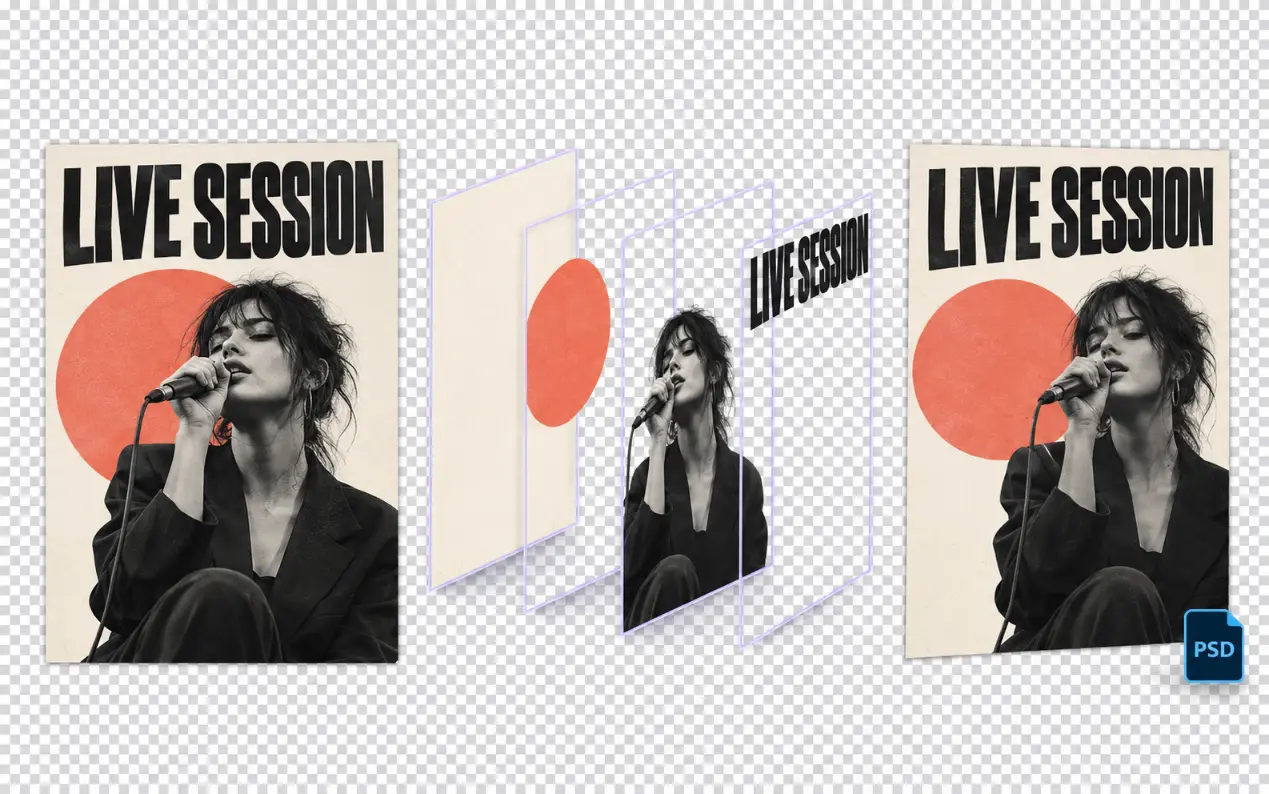
Teams sometimes inherit a flattened poster after the working file is lost. Image to layers can separate visible subjects, decorations, and rasterized text shapes for rebuilding. It cannot recover fonts or vector paths; the image to PSD export contains positioned raster layers for continued editing.
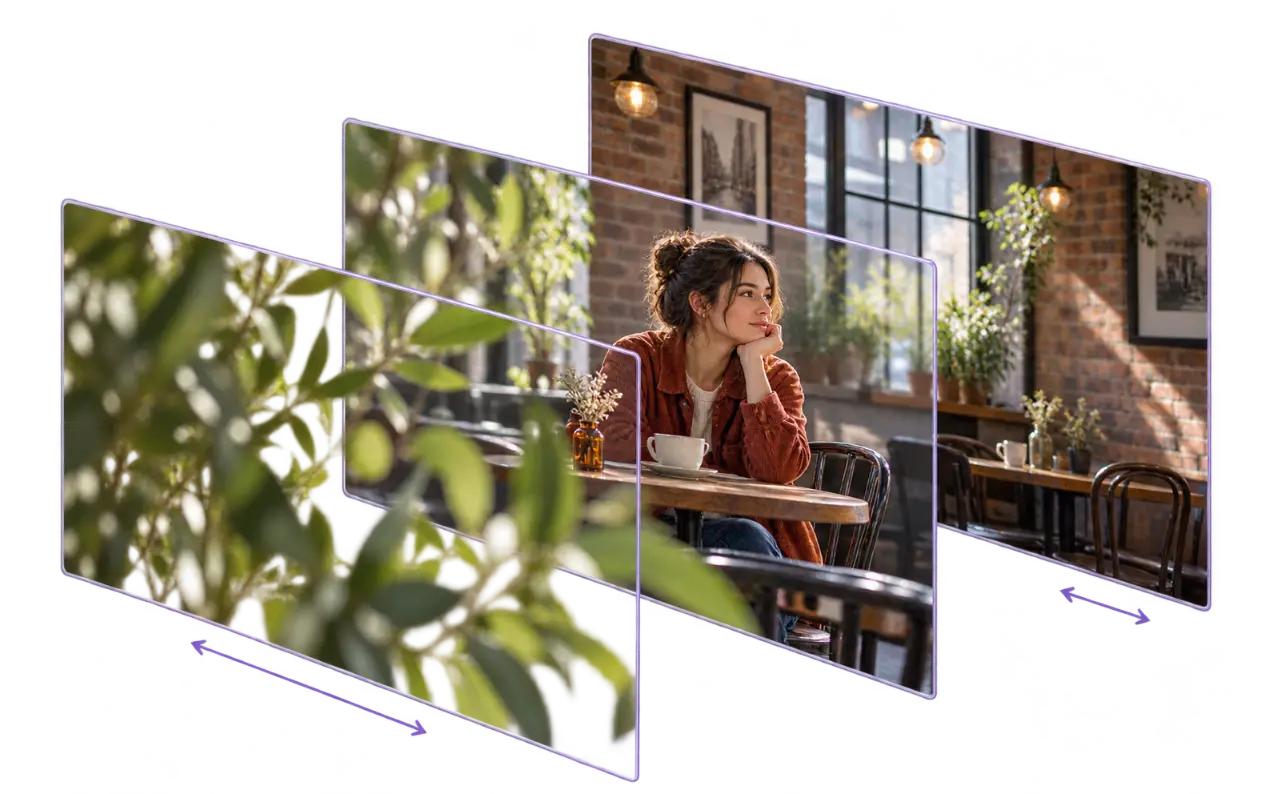
Parallax needs foreground, subject, and background planes before motion work. Image to layers can prepare those planes and complete areas behind removed objects. Move the exports into an animation app, but image to layers does not create rigs, keyframes, depth maps, or finished animation.
The image to layers workflow stays focused on the decisions that affect separation. Technical model controls remain behind the interface, and download choices appear only after a valid result is available.
Add one JPG, PNG, or WebP. Mixinflow validates file size and pixel count, then safely converts the source for the image to layers API while preserving your original preview.
Keep Automatic for general image to layers detection, or enable Layer control and name the objects you want separated. The user request remains distinct from Mixinflow’s server instruction.
Review the image to layers composite, switch to the original, select transparent layers on a checkerboard, hide items, and export a PNG, ZIP, or real layered PSD.
Choose image to layers when a composition’s internal parts matter. Choose background removal for one foreground cutout. The table reflects Mixinflow’s actual outputs.
| Task | Output | Multiple objects | Background | Best next step |
|---|---|---|---|---|
| Image to layers | A base image plus separate transparent PNG layers; ZIP and layered PSD exports | Separates several prominent objects, up to the model’s returned limit | Returns an AI-completed base/background layer | Recompose, reuse, or edit individual raster elements |
| Background removal | One foreground image with transparency | Usually keeps detected foreground subjects together | Removes the background rather than rebuilding a multi-layer scene | Place a clean cutout on a new color or background |
For one subject cutout, use background removal. For a split image into layers workflow with reusable parts, image to layers provides broader structure.
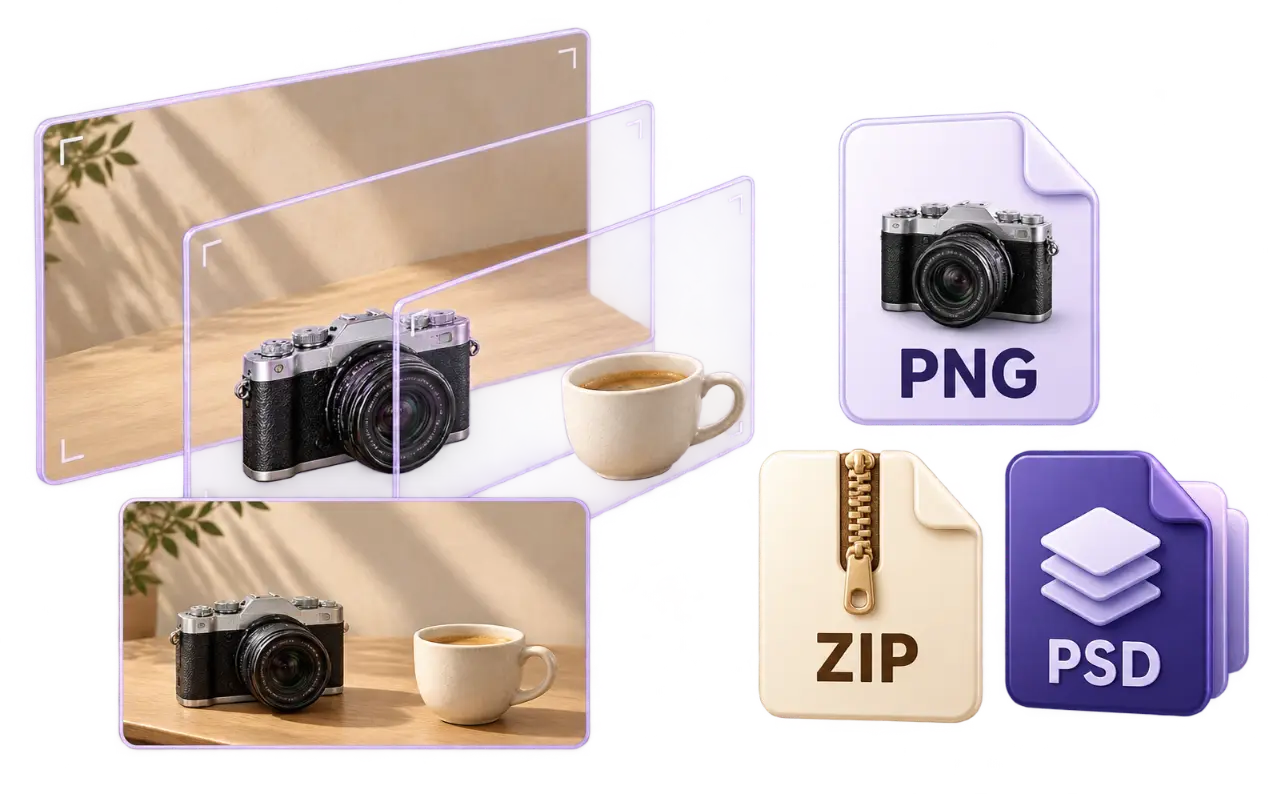
A successful image to layers run returns one completed base image and multiple transparent object layers. Mixinflow uses placement and stacking data to rebuild the preview. Download layer PNGs, a ZIP, or a real raster-layered PSD. Image to layers output dimensions may differ from the source image. Text may remain raster pixels rather than editable typography. Completed occlusions are generated content, while overlap, glass, hair, shadows, and tiny edges can reduce separation accuracy.
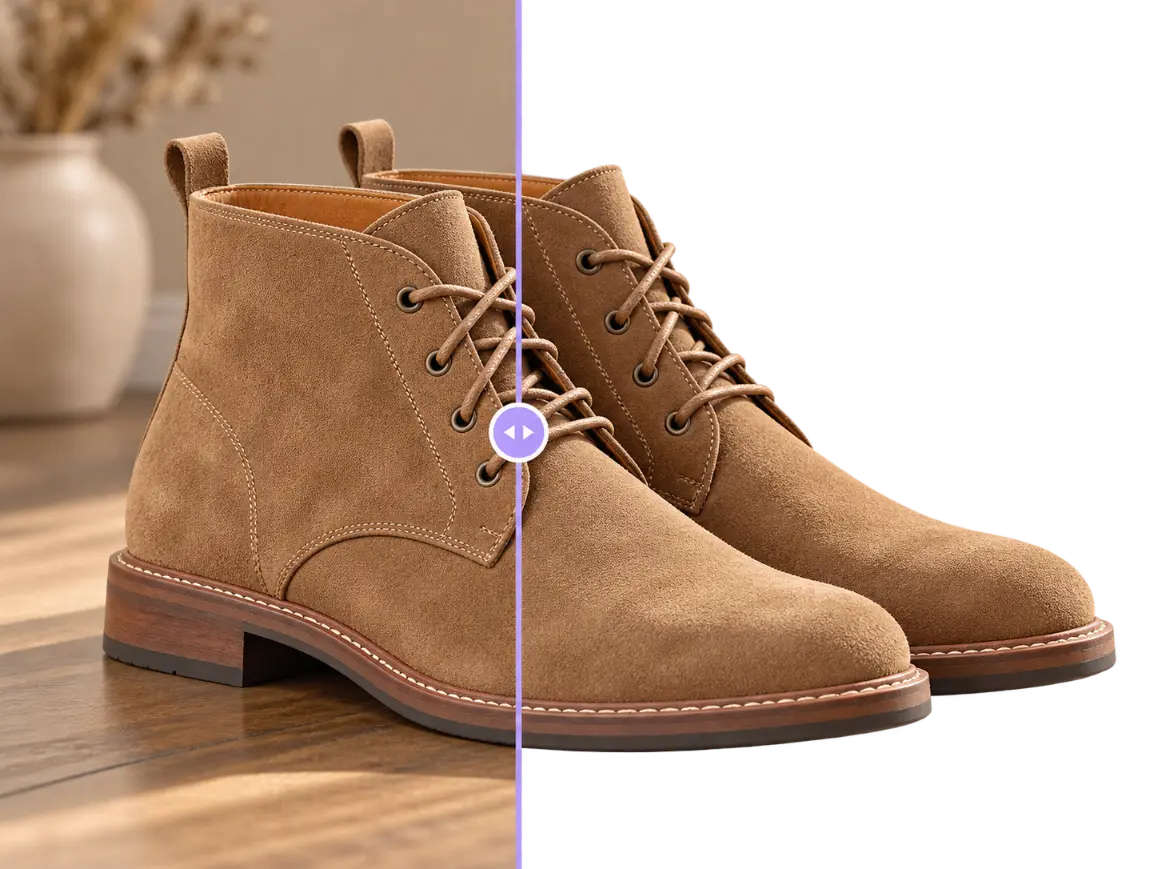
Remove a photo background while keeping the subject clean and clear.
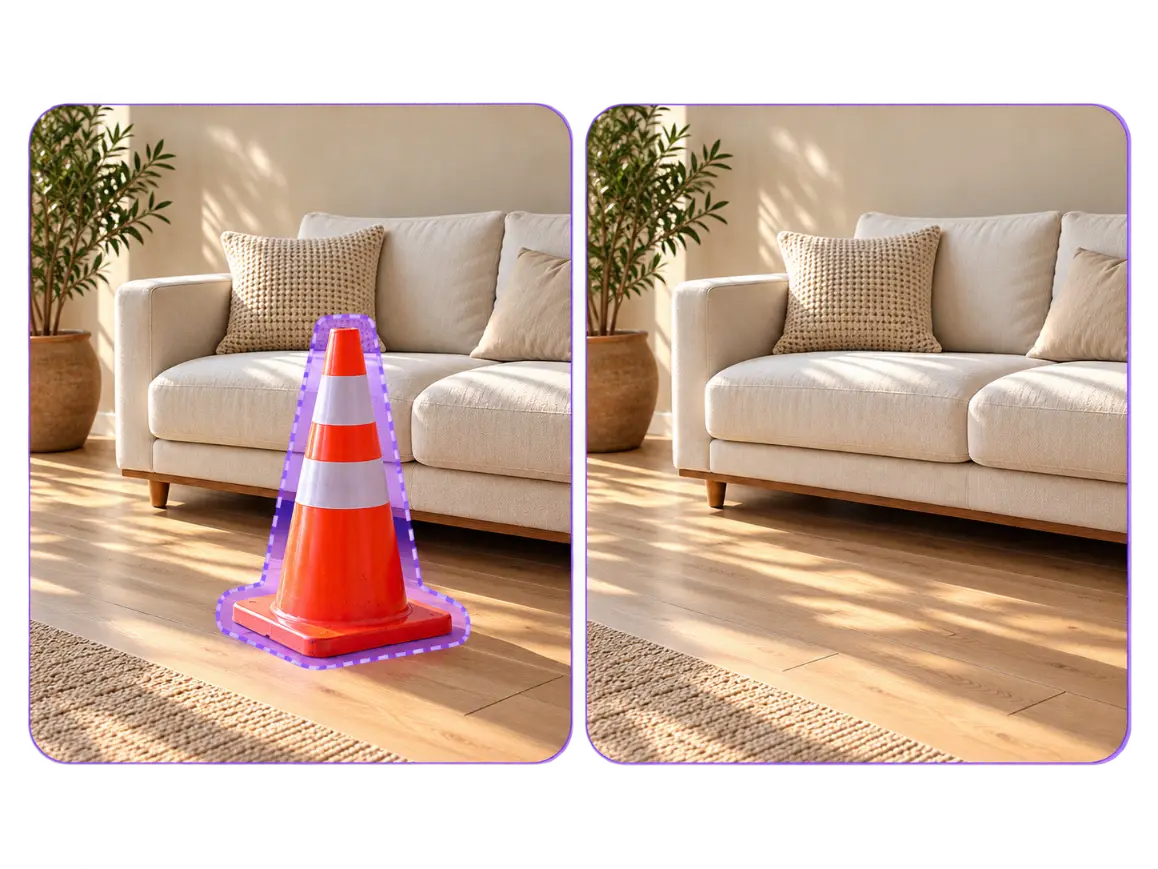
Erase unwanted objects and naturally rebuild the background.
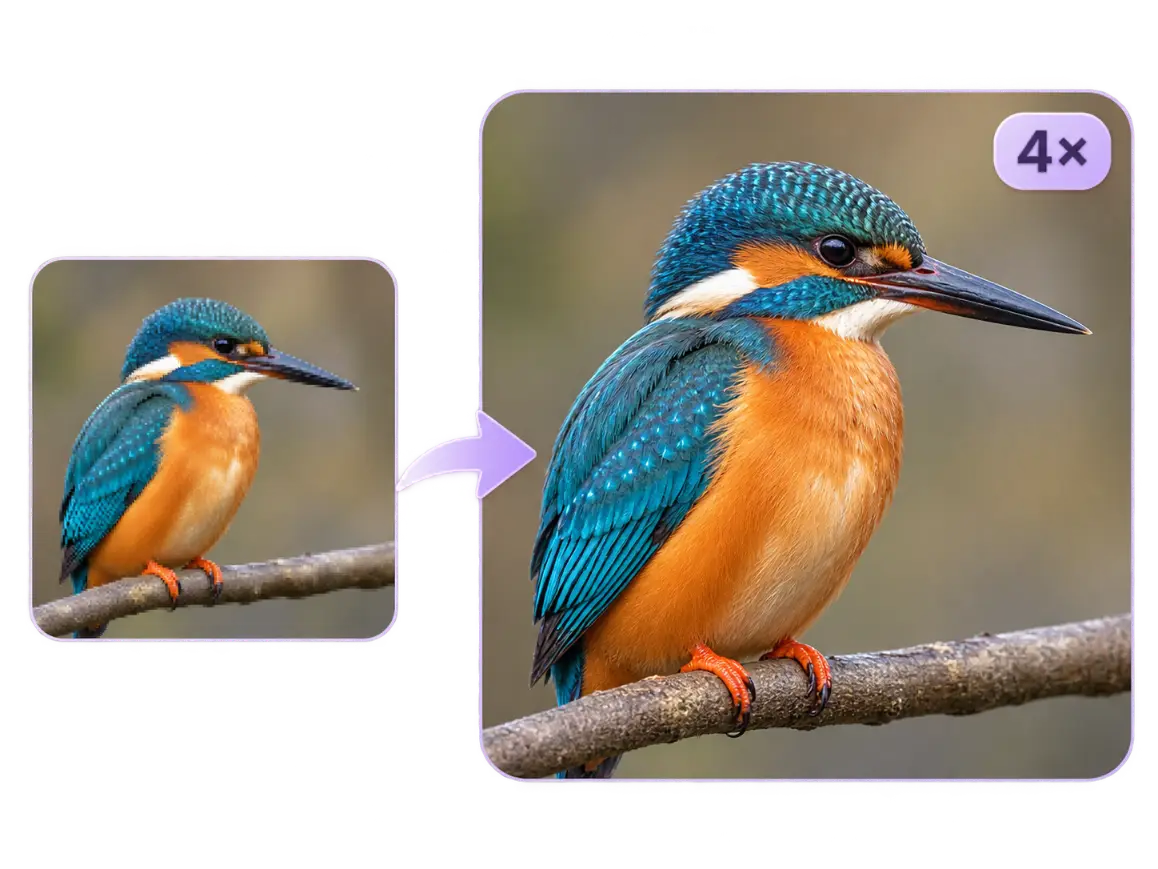
Increase image resolution for larger, cleaner results.
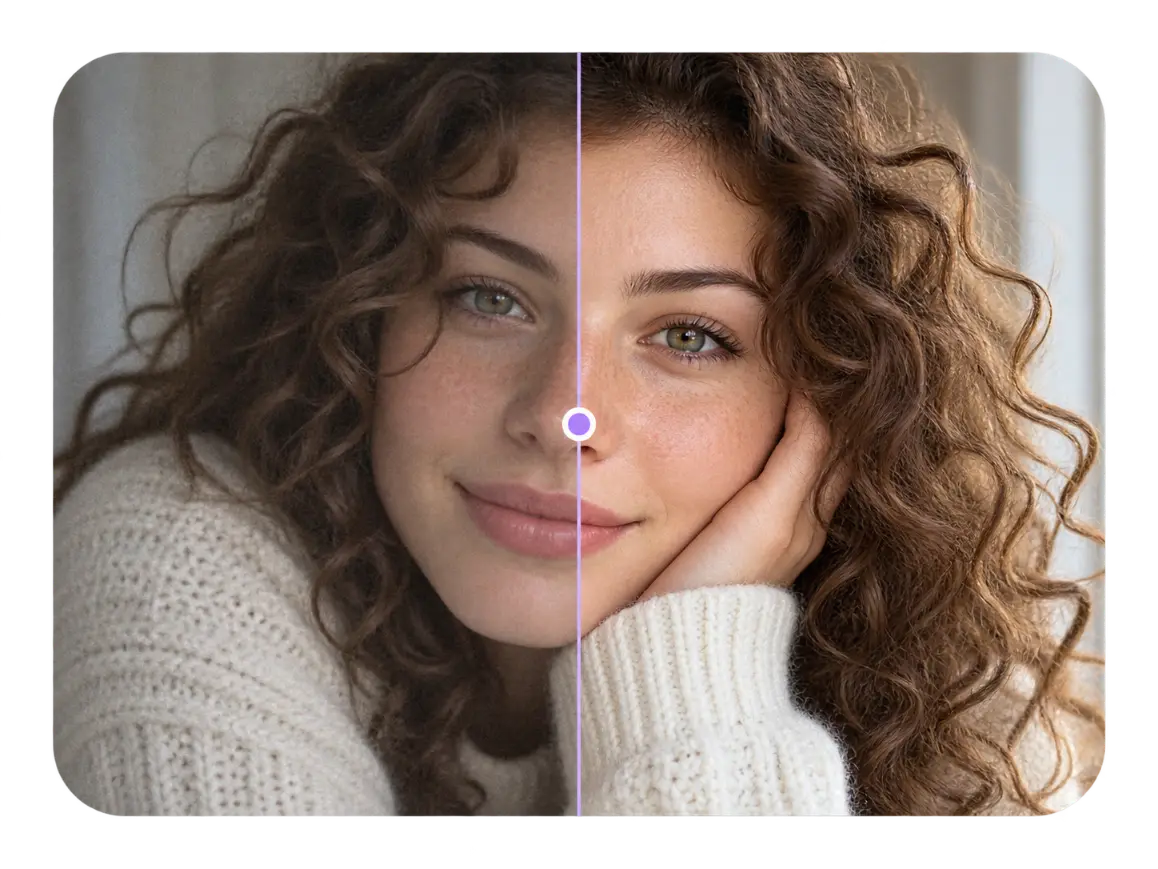
Automatically improve clarity, detail and overall image quality.
Return to the image to layers tool, keep your current upload in place, and choose automatic separation or add a precise object request when you are ready.
Go to Upload and Settings