Unblur Image Online and Remove Photo Blur with AI

Remove motion blur, camera shake, and soft focus from your photos automatically. Upload a blurry image, preview the clearer result, and download it online—no manual sharpening settings required.

Upload a Blurry Image

JPG, PNG, WebP, or AVIF · Max 25 MB

Try a sample:
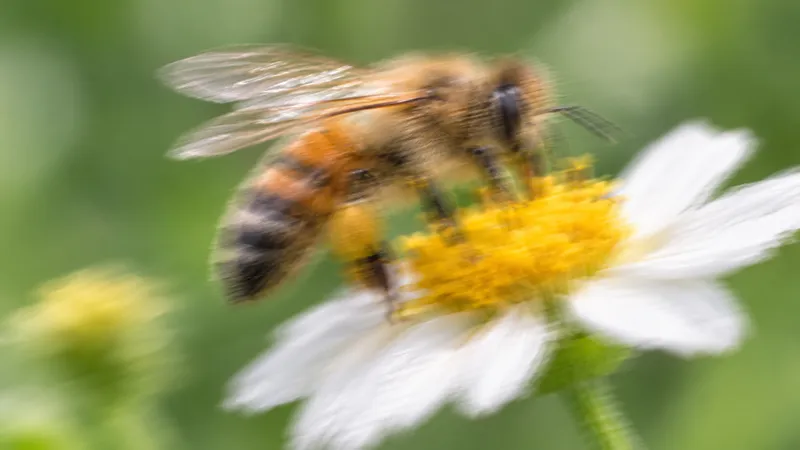
Blurry image before AI unblur
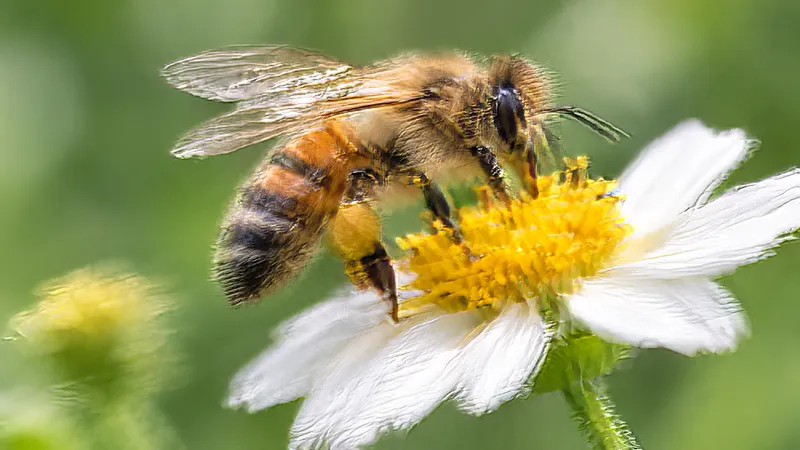
Clear photo after AI unblur
BeforeAfter
Automatic AI deblurringSecure image processingNatural-looking resultsFree to try

Remove Common Types of Photo Blur

Not every blurry image has the same cause. Mixinflow first examines the main subject, edge direction, focus pattern, and remaining detail, then chooses an image unblur route suited to the visible problem.

Remove Motion Blur from an Image before enhancement
Remove Motion Blur from an Image after enhancement
BeforeAfter

Remove Motion Blur from an Image

Moving children, pets, athletes, and vehicles can leave directional streaks or doubled edges. To unblur a photo with recognizable motion, Mixinflow uses a motion-aware restoration route that reduces smearing while keeping the result natural. It cannot recover a subject that has disappeared completely, but mild and moderate motion blur can often be improved.

Fix Camera Shake in a Photo before enhancement
Fix Camera Shake in a Photo after enhancement
BeforeAfter

Fix Camera Shake in a Photo

Handheld movement, dim rooms, and slower shutter speeds can soften most of the frame. This kind of image unblur benefits from detecting the direction of the shake instead of applying a generic filter everywhere. Upload the original camera file when possible, because screenshots and compressed copies retain less information for removing photo blur.

Fix an Out-of-Focus Photo before enhancement
Fix an Out-of-Focus Photo after enhancement
BeforeAfter

Fix an Out-of-Focus Photo

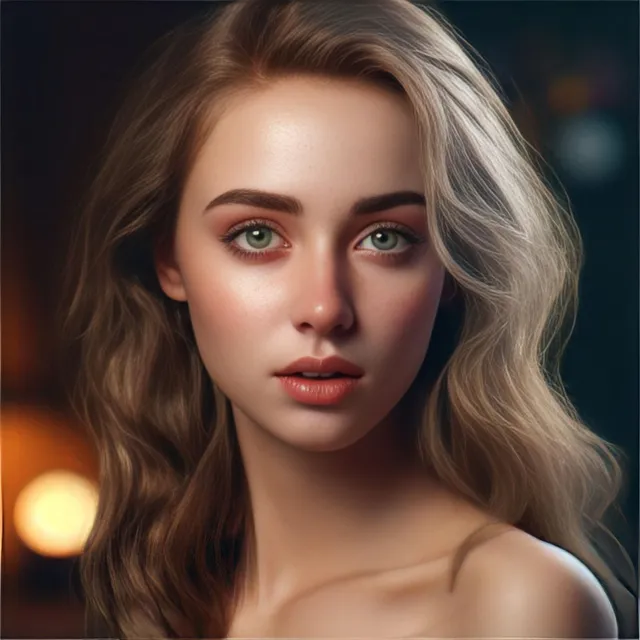
If the camera focused just in front of or behind the intended subject, faces and objects may have soft edges without a consistent motion direction. AI photo unblur can recover some edge definition and texture from mild lens blur. For severe defocus, Mixinflow can reconstruct clearer visible detail automatically.

See How AI Turns Blurry Images Clear

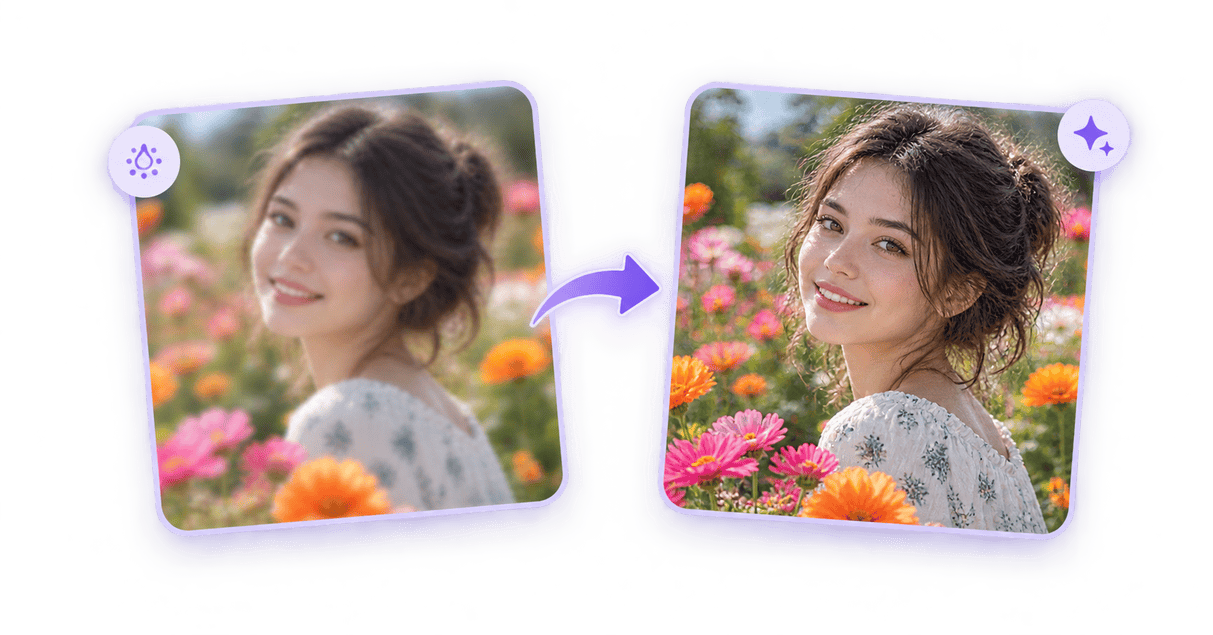
Every image unblur example highlights a specific problem instead of promising impossible recovery. Drag the comparison handle to inspect how Mixinflow can remove photo blur while preserving the visible subject, colors, framing, and original image size.

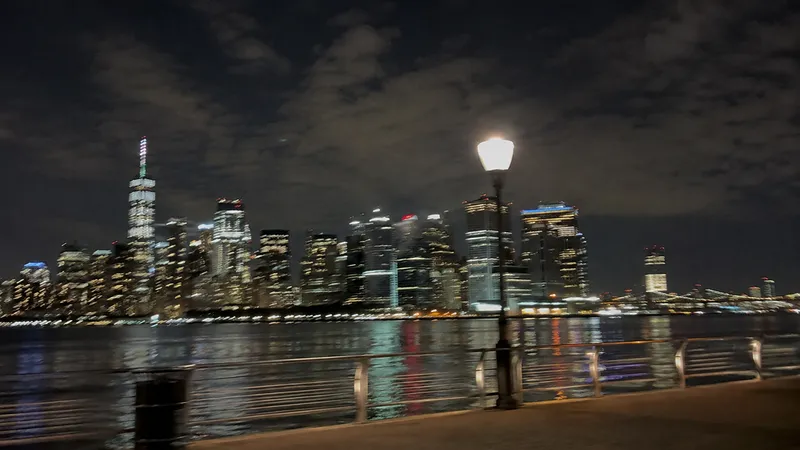
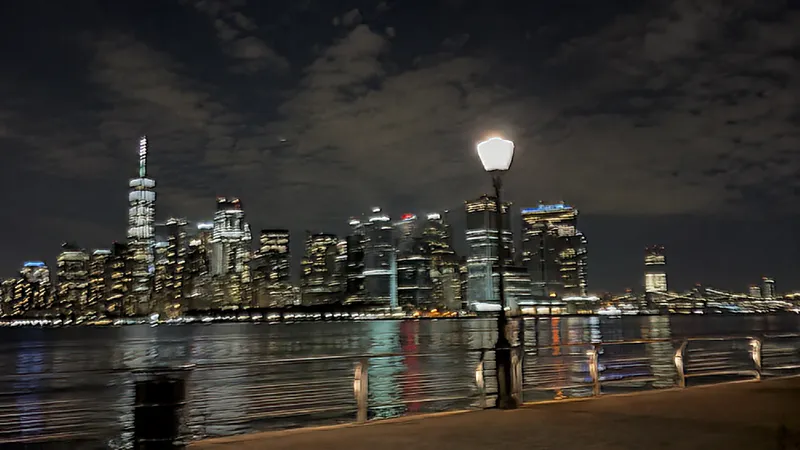
A handheld phone photo can look soft across the whole frame, especially in low light. AI image unblur reduces mild camera-shake smearing and restores cleaner edges without enlarging the picture.

Camera Shake Removed before upscaling
Camera Shake Removed after upscaling

Can This Blurry Photo Be Fixed?

The best results come from photos that still contain recognizable subjects, visible edges, and some original texture. Check your image condition below to understand what an AI unblur tool can realistically improve and how to prepare the file for a clearer result.

Your imageWhat you can expectHow to get a better result
Mild camera shake or overall softnessEdges, facial features, and everyday objects can usually become noticeably clearer while the photo keeps a natural appearance.Upload the original camera or phone file. It normally contains more usable detail than a screenshot or a copy saved from social media.
Light motion blurSmearing around a moving person, pet, or vehicle can often be reduced when the subject is still easy to recognize.Choose the sharpest frame available and avoid cropping it too tightly before you remove blur from the image.
Slightly out-of-focus photoSoft outlines and textures may become better defined, especially around the main subject and other high-contrast areas.Start with the highest-quality version and compare the result at normal viewing size instead of judging only at extreme zoom.
Soft but recognizable portraitEyes, hair, clothing, and facial contours may look clearer without making the portrait appear unnaturally sharp.Use a full-size portrait in which the face is still visible. Very small faces contain less original detail to recover.
Severely blurred but recognizable subjectThe photo may look clearer, but fine facial features, lettering, and small textures cannot always be recovered accurately.Keep the original image for reference and inspect important details carefully before sharing, printing, or relying on the result.
Very heavy blur with little visible detailA reliable restoration may not be possible because the source no longer contains enough information about important edges or features.Look for another photo, a nearby frame, the original camera file, or a higher-quality scan before trying to fix the blurry image again.
Clear image with small pixel dimensionsRemoving blur will not make a naturally sharp image larger or add the extra pixels needed for a bigger output.Use Upscale Image instead when your photo is already clear and you only need a larger size for design, display, or printing.

When to Remove Blur from a Photo

Use AI to fix blurry photos when the important subject remains visible and a clearer edge or texture would make the image more useful. These everyday situations are strong candidates for an online photo unblur workflow.

Portraits and Group Photos

Portraits and Group Photos

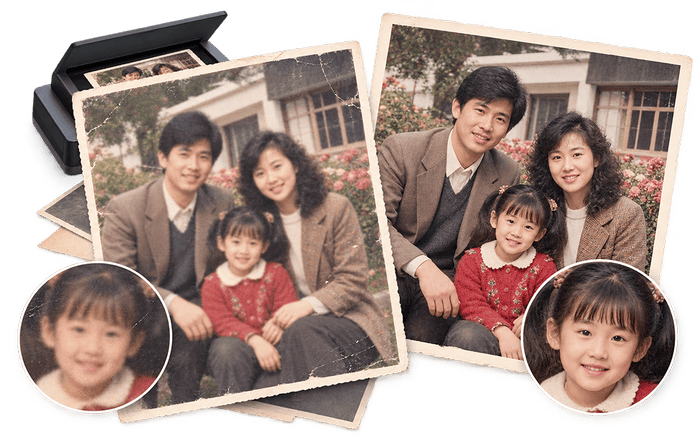
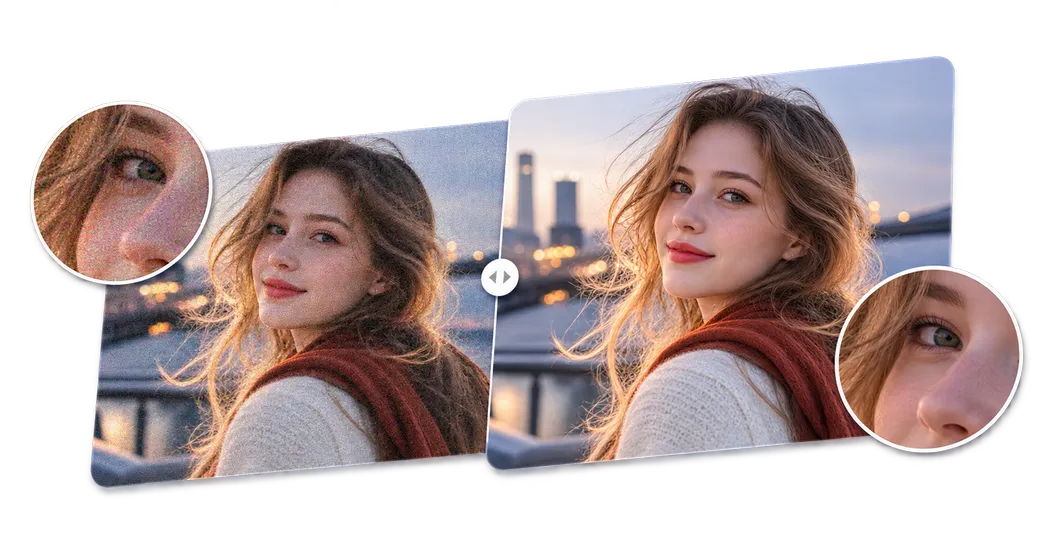
Unblur face images in selfies, family portraits, school pictures, and event photos when facial features remain recognizable. Mixinflow attempts to clarify visible detail without intentionally changing a person, expression, pose, clothing, or the people included in the frame.
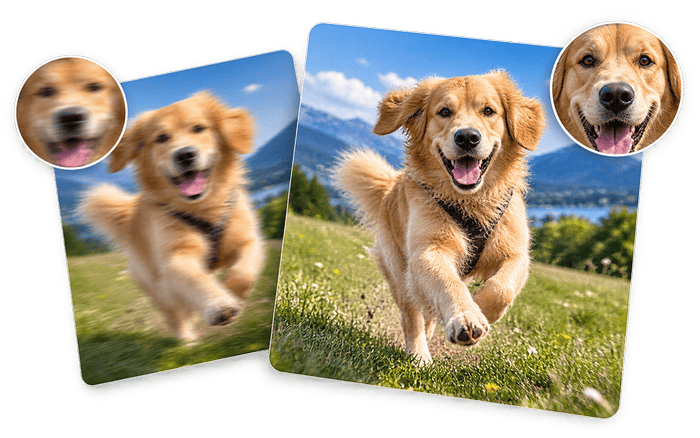
Action and Pet Photos

Action and Pet Photos

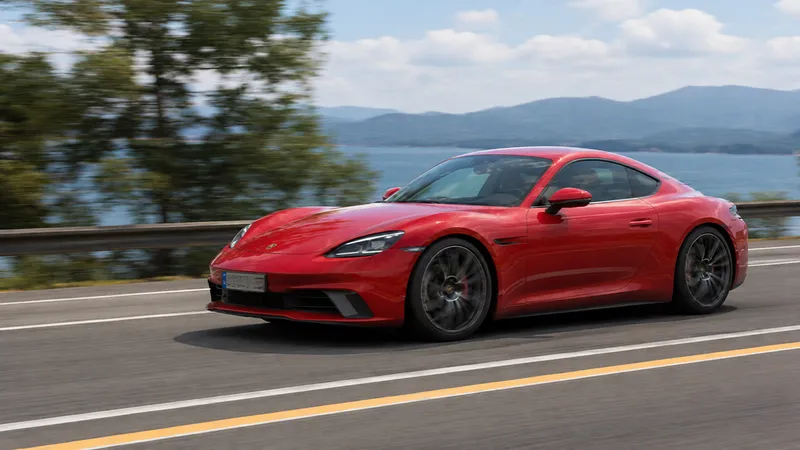
Remove motion blur from photos of children, pets, athletes, bicycles, or vehicles when movement produced directional softness. A source file directly from the phone or camera gives the AI blur remover more real information than a social-media screenshot.

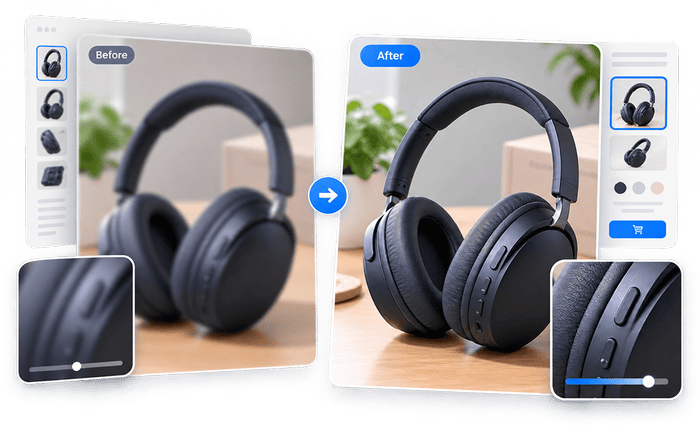
Product and Listing Images

Product and Listing Images

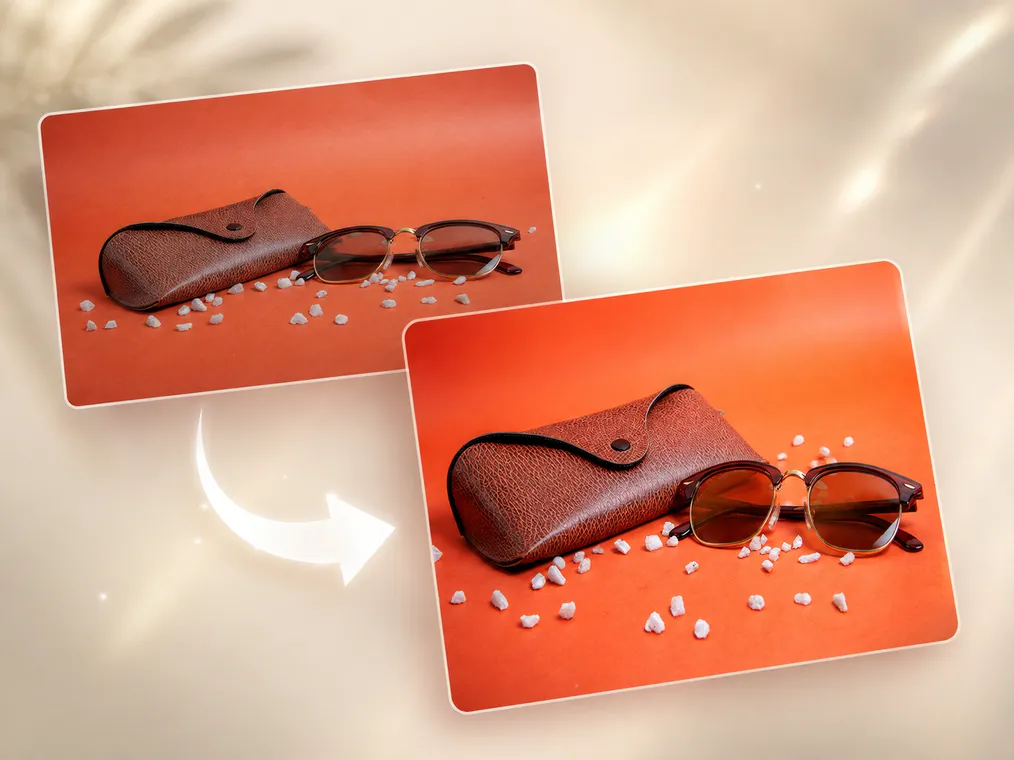
Fix a blurry image before publishing an online listing so product outlines, materials, controls, and existing label detail are easier to inspect. Always verify small text against the physical product, because no photo unblur tool can recreate characters that were never captured.

Old and Scanned Photos

Old and Scanned Photos

Use image unblur on a mildly soft scan before repairing scratches, fading, or missing areas. If the photograph has age damage in addition to blur, continue with Mixinflow's Restore Photo tool after deblurring for a more complete restoration workflow.

How to Unblur an Image Online

You do not need sliders, model names, or technical sharpening knowledge. This automatic AI image unblur workflow uses three clear steps.

1

Upload a Blurry Image

Choose the original JPG, PNG, WebP, or AVIF file whenever possible. An original image normally contains more useful edge and texture information than a screenshot, messaging-app copy, or repeatedly compressed download.

2

Let AI Remove Photo Blur

Mixinflow examines the type and severity of blur, then improves the image automatically. Motion, soft focus, portraits, and general camera softness are handled without asking you to choose technical settings.

3

Compare and Download

Drag the before-and-after divider to inspect the unblurred image beside the original. Download the result if edges and details look natural. If they do not, try the untouched source file rather than sharpening the processed result again.

Why Unblur Images with Mixinflow?

Turn an everyday blurry photo into a clearer, more useful image with an automatic online workflow built for portraits, action shots, products, and personal memories.

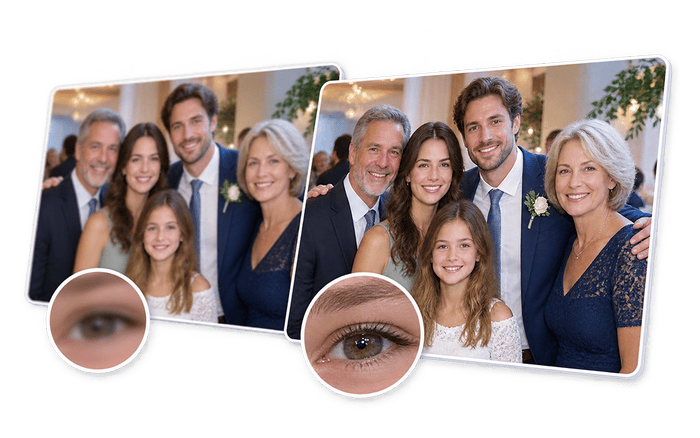
Clear Photos Without Manual Editing example for AI image unblur before
Clear Photos Without Manual Editing example for AI image unblur after

Unblur Image FAQs

Make a Blurry Picture Clearer

Upload the best original file you have and let Mixinflow select the right AI photo unblur route automatically.

Unblur Your Image Now
Unblur Image Online: Remove Photo Blur with AI | Mixinflow