

Ideogram 4.5 for Precise AI Image Editing

Update a headline, change a product color, or revise a label in an existing image. Upload your image, describe the edit, and select an area if you want to guide the change.

10

Edit the Same Image, Step by Step

Follow three edits to one product launch poster. Each round starts with the result of the previous edit, so you can see how the design changes from one version to the next.

Product launch poster with SUMMER DROP, JUNE 12, and a coral accent.Product launch poster with STUDIO DROP, JUNE 12, and a coral accent.
Before This EditAfter This Edit

Replace “SUMMER DROP” with “STUDIO DROP”. Match the original lettering style, size, alignment, and position. Keep the product photo, background, date, and accent color as they are.
Edit Image Text and Details with Ideogram 4.5

Ideogram 4.5 is an AI image model you can use on Mixinflow to revise existing designs and photos. It is especially useful when you already like the composition and want to update the wording or change a specific detail.

Change Text Inside an Image before enhancementChange Text Inside an Image after enhancement
BeforeAfter

Change Text Inside an Image

Update a headline, date, price, or label on a flattened design. Quote the old and new wording in your prompt and describe how the replacement should fit. Short phrases that take up a similar amount of space give you an easier result to review.

Refine a Specific Part of the Image before enhancementRefine a Specific Part of the Image after enhancement
BeforeAfter

Refine a Specific Part of the Image

When an edit needs a boundary, select the area around the text or object you want to change. Include enough space for the new wording or shape. Name the details you want to keep, such as the product silhouette, the position of a label, or the lighting around it.

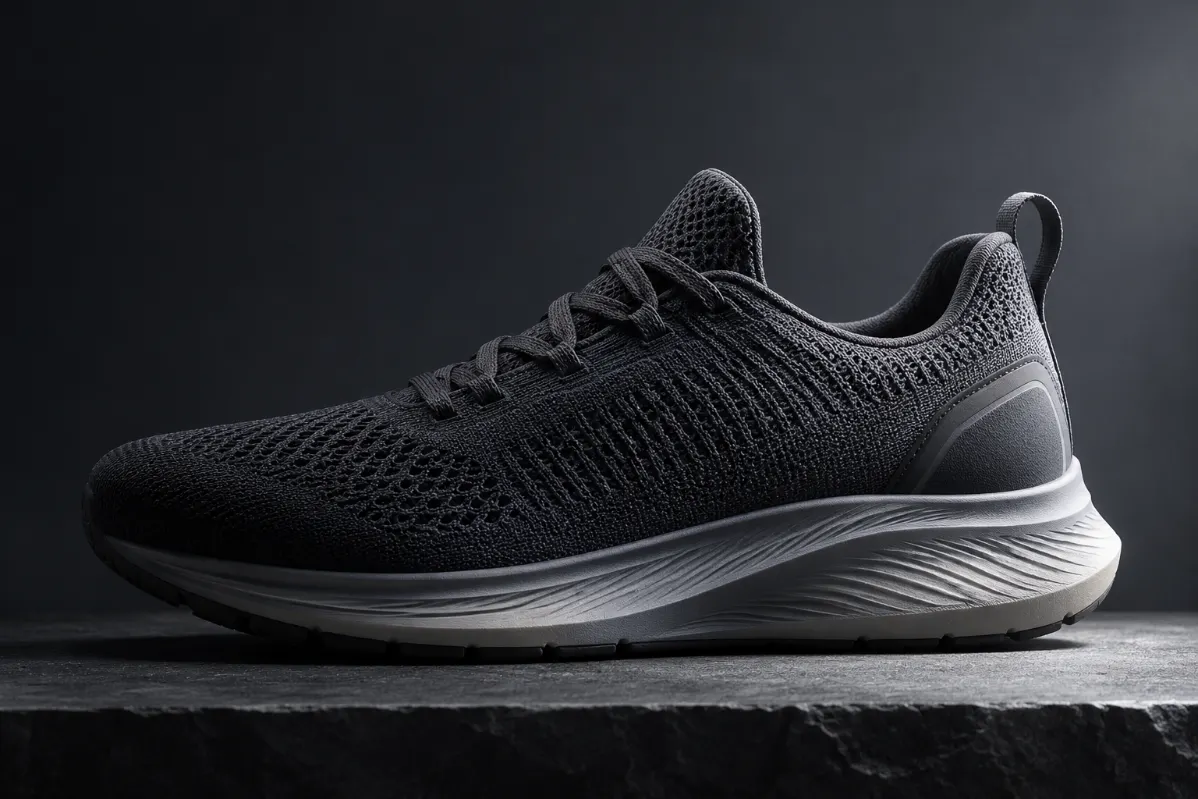
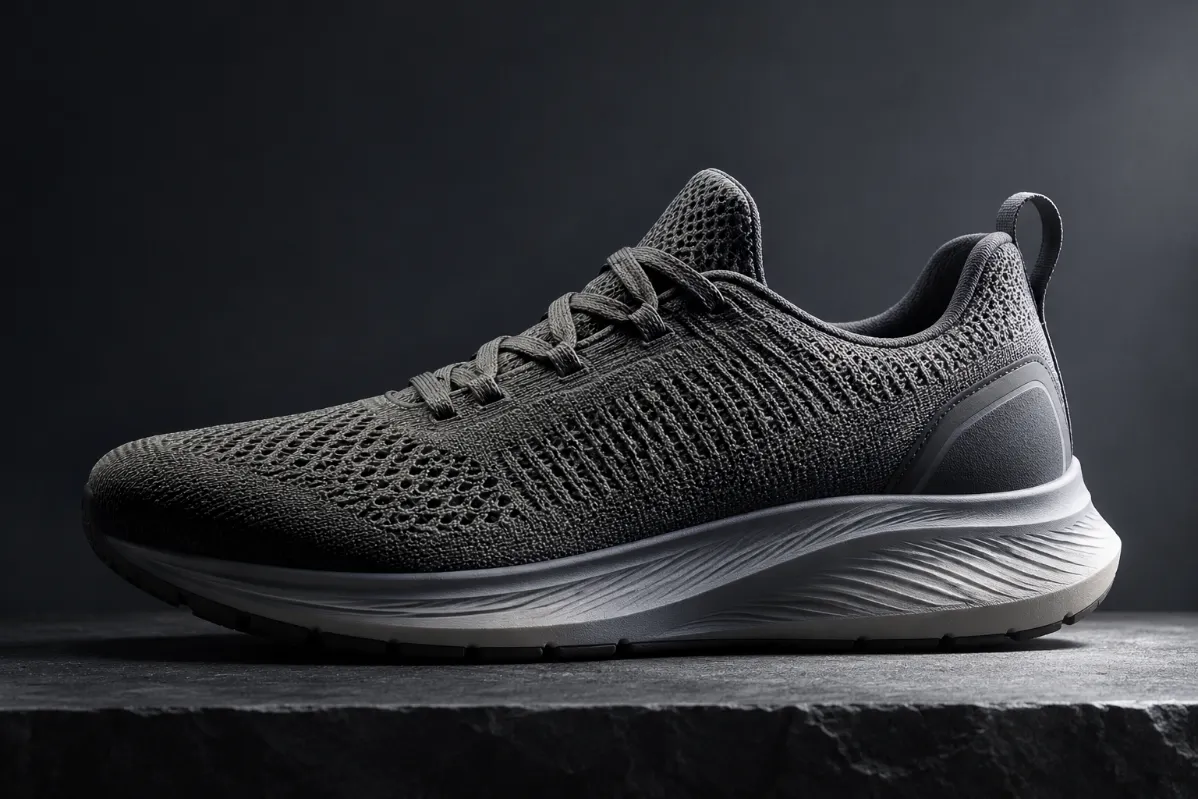
Black knit running shoe with consistent silhouette and texture before enhancementBlack knit running shoe with consistent silhouette and texture after enhancement
BeforeAfter

Keep Product Details Consistent

Use a focused edit when a product needs to stay recognizable from one version to the next. Compare the silhouette, texture, construction, lighting, and camera position around the changed detail before you publish.

Ideogram 4.5 Examples & Prompts

Compare the original with the edit, then copy a prompt and adapt it to your own image.

Product launch poster with the headline STUDIO DROP.

Change a Poster Headline

Reuse a layout when a campaign name changes. Compare the new headline against the original lettering, date, and product placement.

Edit Prompt

Replace “SUMMER DROP” with “STUDIO DROP”. Match the original lettering style, size, alignment, and position. Keep the product photo, background, date, and accent color as they are.
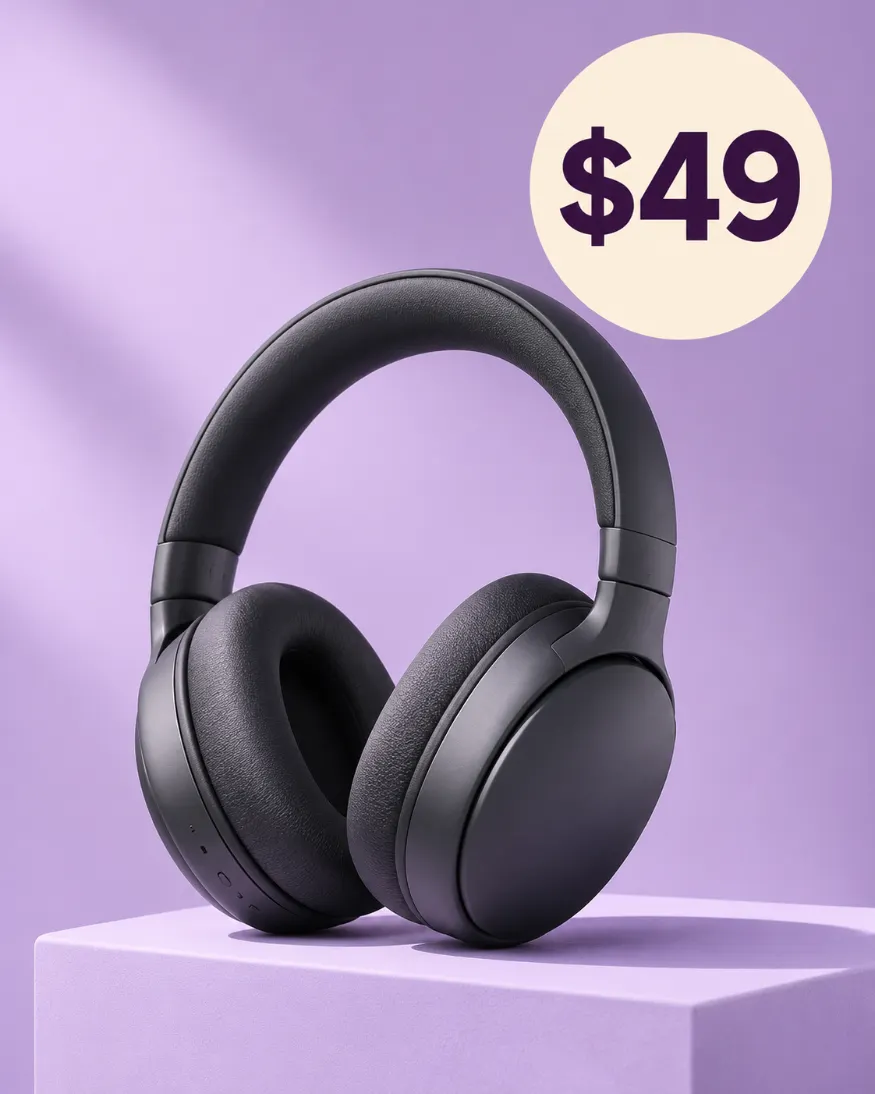
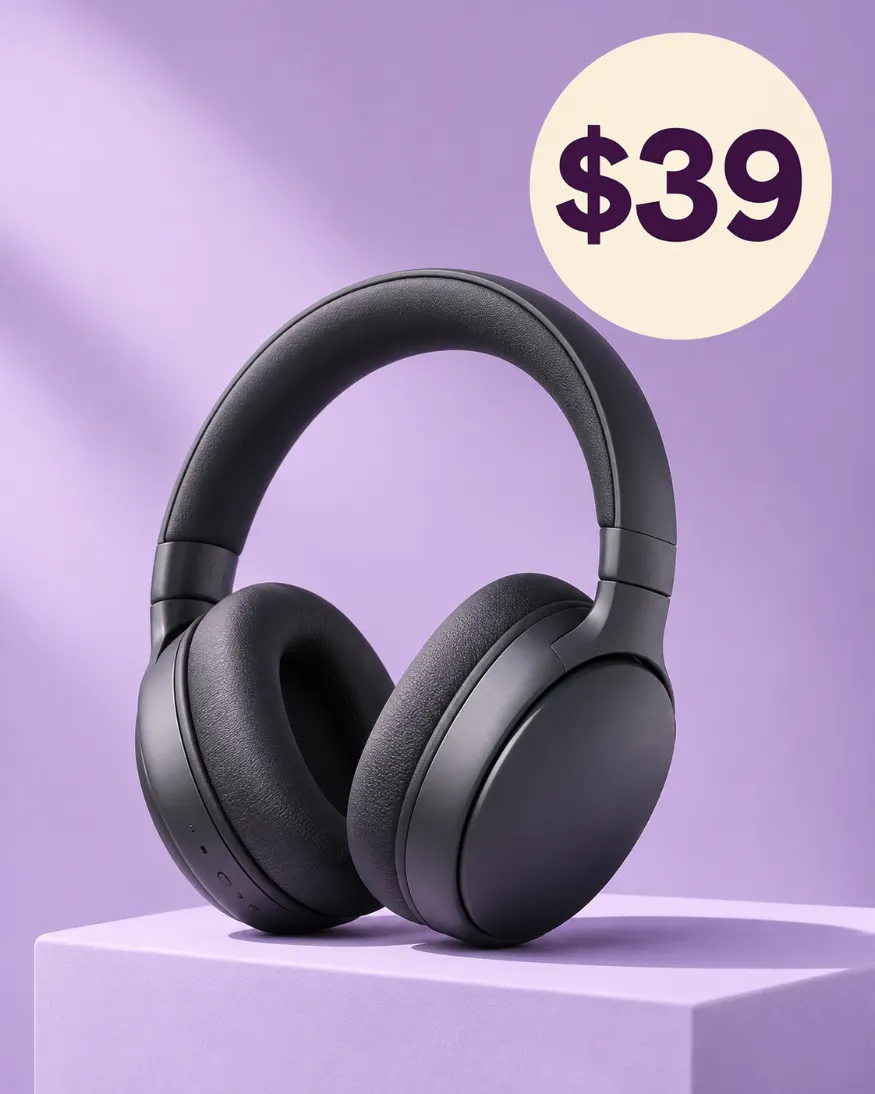
Product ad with a $39 price badge.

Update a Sale Price

Change an offer on an existing ad. Check the currency symbol and each digit before publishing.

Edit Prompt

Replace “$49” with “$39” in the price badge. Keep the badge shape, text style, alignment, and product photo as they are.

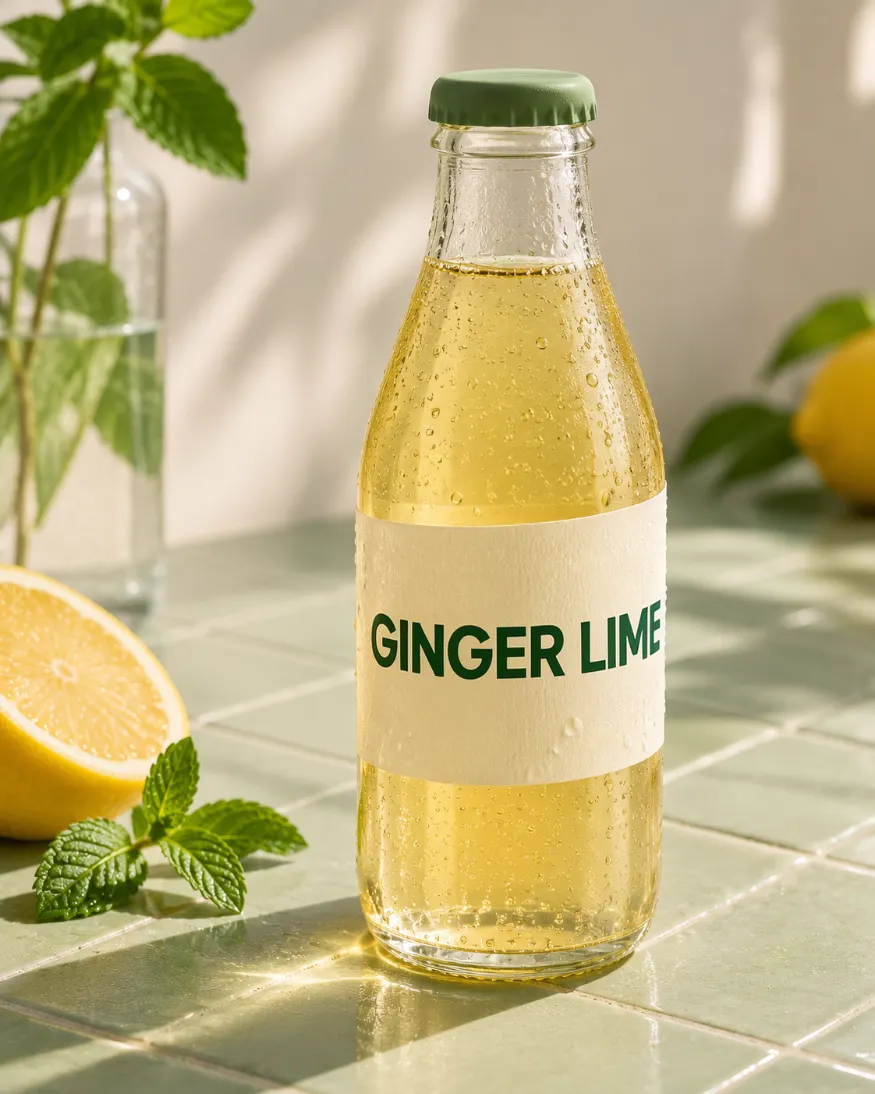
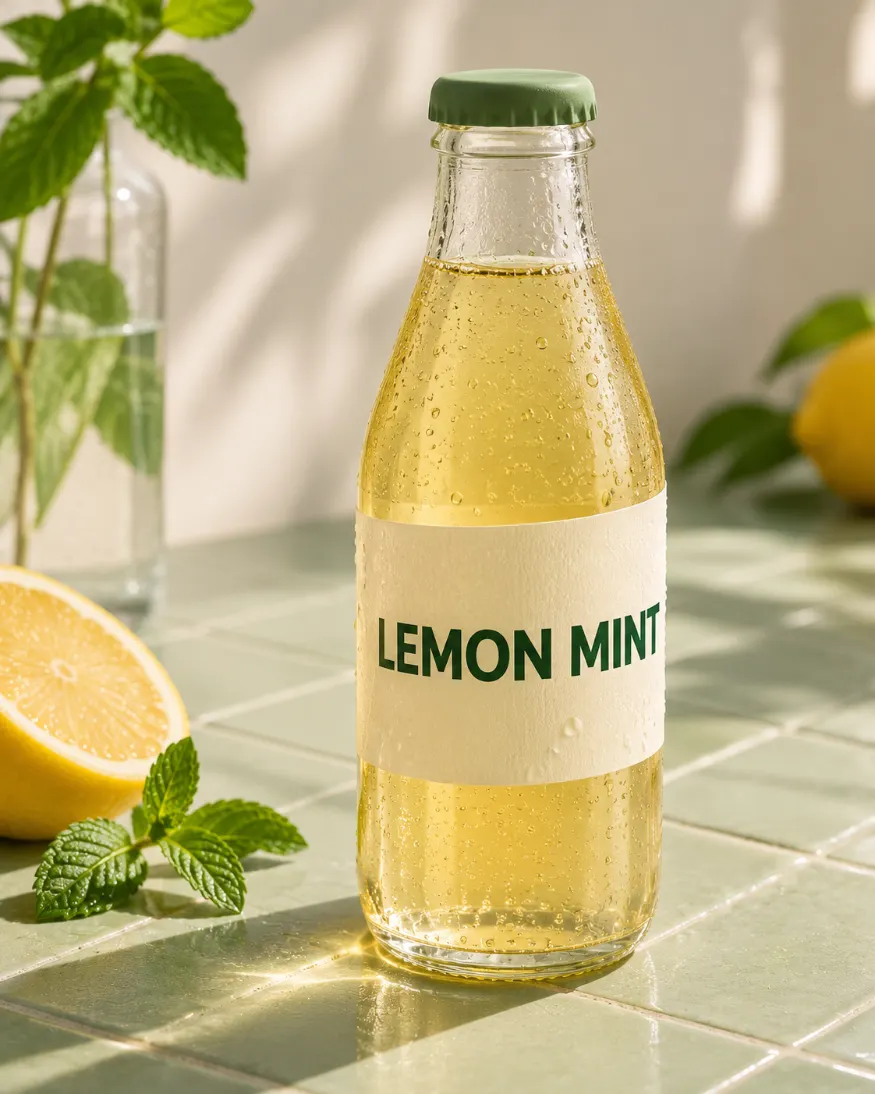
Bottle with a GINGER LIME label.

Replace a Packaging Label

Preview new wording on a product mockup. Compare how the text follows the angle and curve of the package.

Edit Prompt

Replace “LEMON MINT” with “GINGER LIME” on the bottle label. Match the text position, letter spacing, and curve of the label. Keep the bottle, label colors, and lighting as they are.

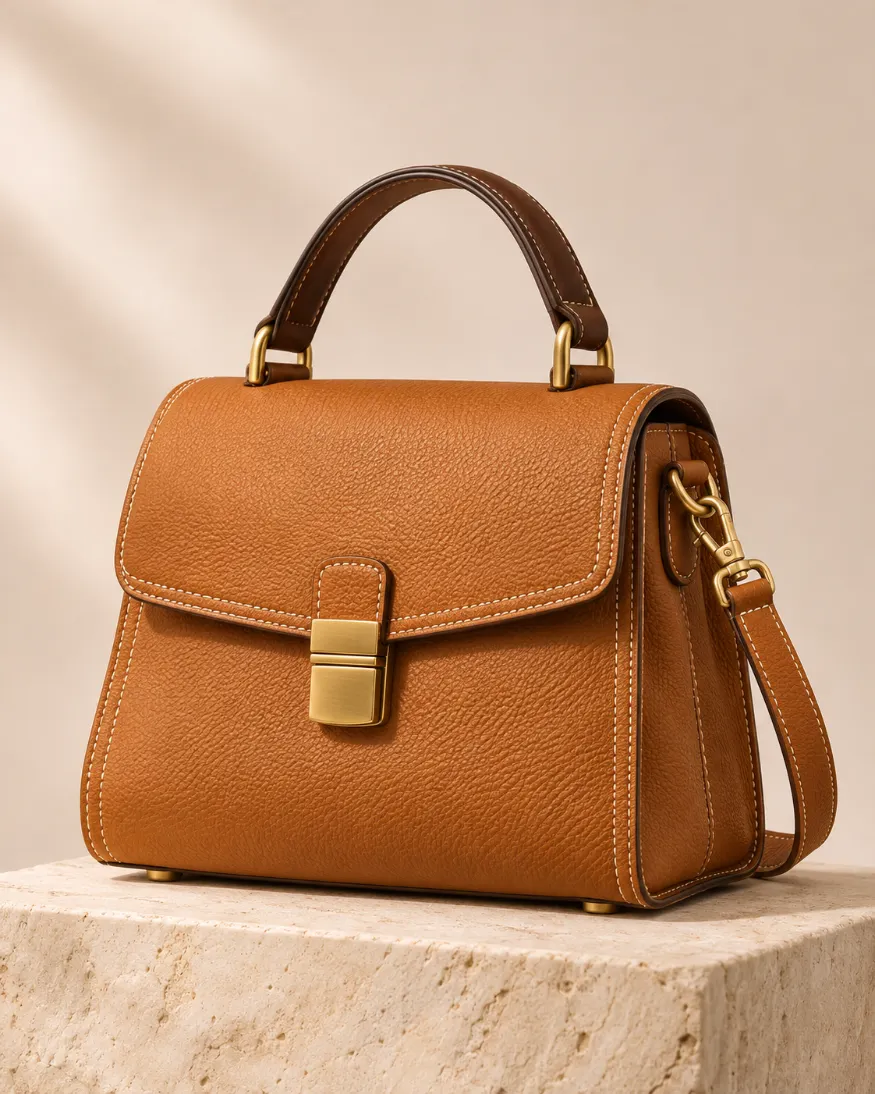
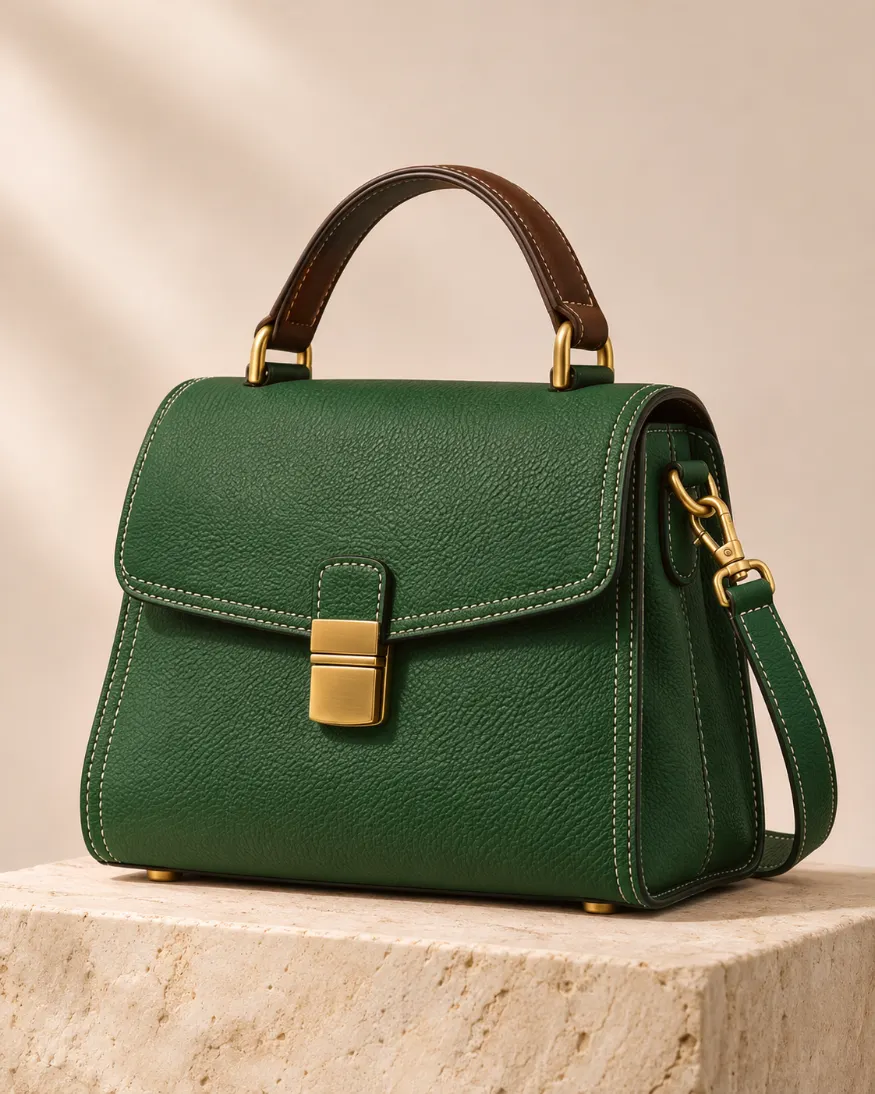
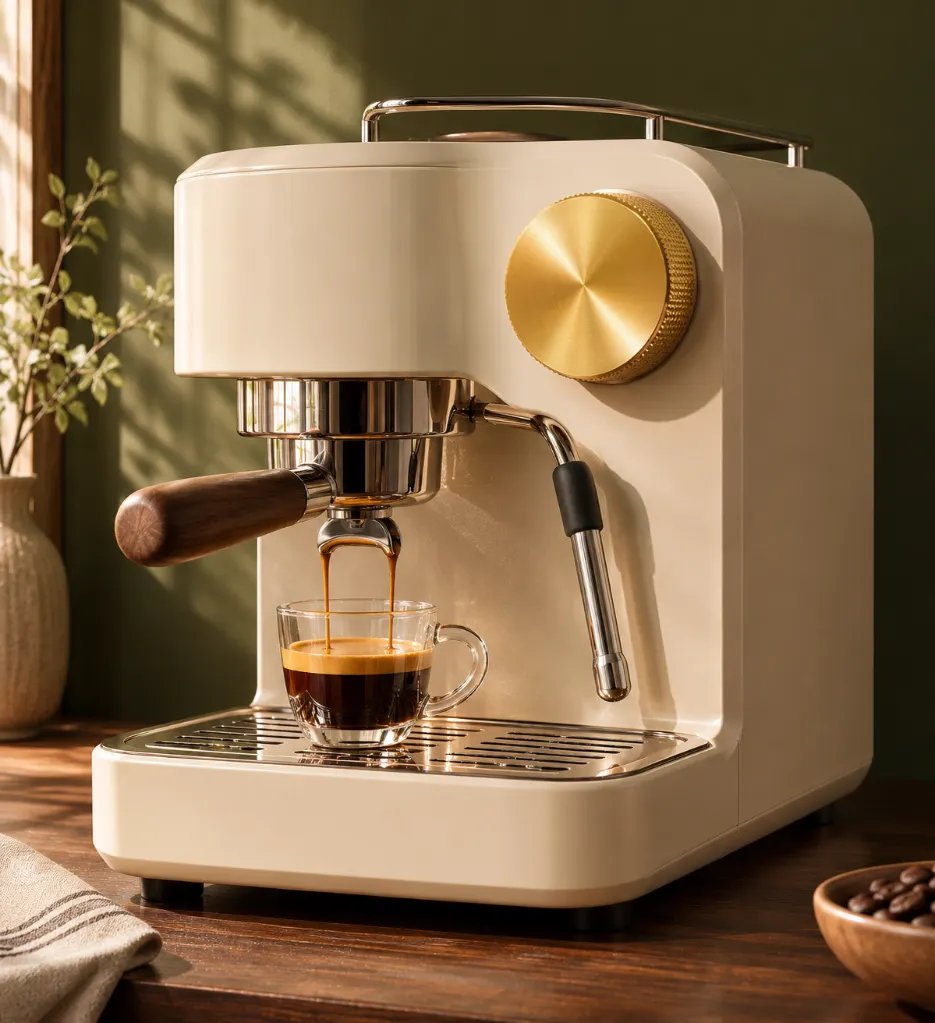
Forest green leather bag in the same product photo.

Create a Product Color Variant

Test a different color on the same product photo. Compare material texture, highlights, and edges after recoloring.

Edit Prompt

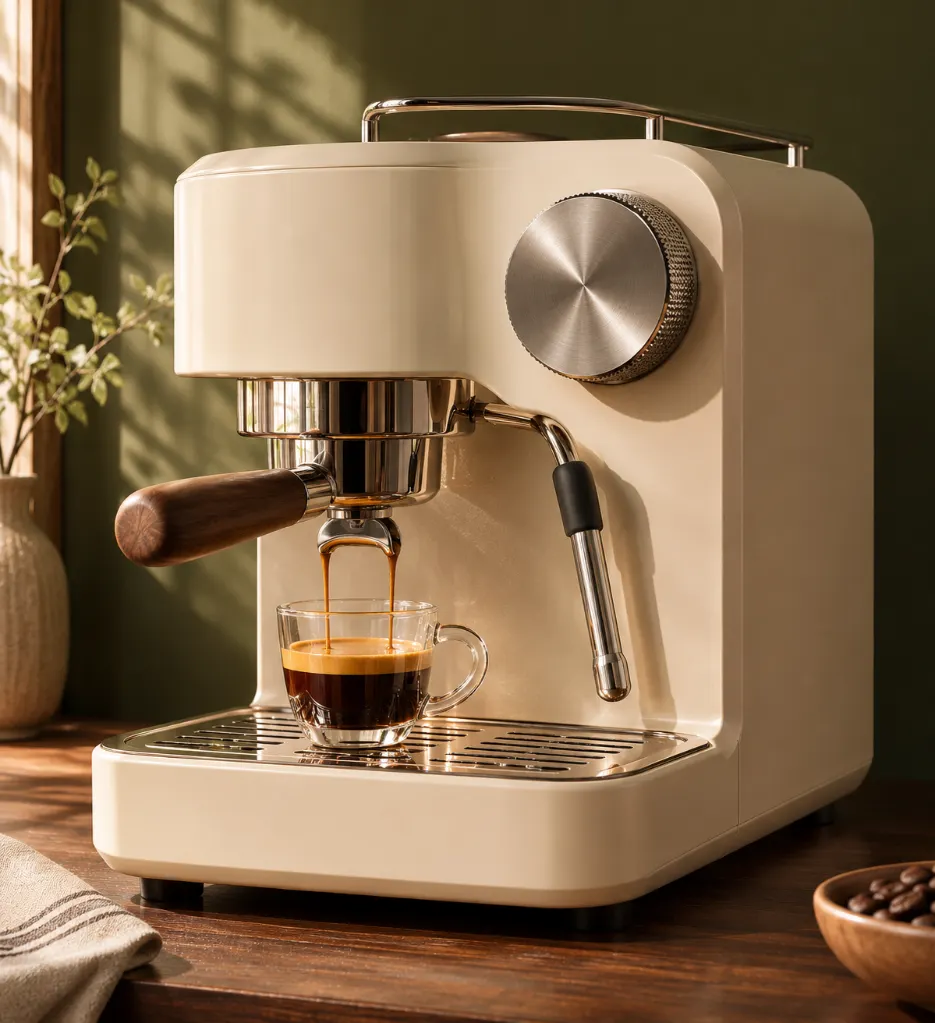
Change the bag body from tan to forest green. Keep its leather texture, stitching, hardware, highlights, and background as they are.

How to Use Ideogram 4.5 on Mixinflow

Step 1

Upload Your Image

Choose a photo, poster, or product mockup with the detail you want to edit clearly visible. A sharp source image makes it easier to check the result.

Step 2

Describe the Edit and Optionally Select an Area

Say what you want to change and what you want to keep. For a small or crowded detail, select the area to guide the edit. You can also continue with just the image and your prompt.

Step 3

Run the Edit and Download

Compare the result with your original. Check spelling, edges, and nearby details. If you want to revise it, adjust the prompt or selection and run the edit again. Download the version you want to use.

Ideogram 4.5 FAQ

Check the credit cost shown in the Mixinflow editor before running your edit.

Edit Your Image with Ideogram 4.5

Start with an image you already have and describe the first change you want to make.